Toolbox
-
Download and unzip https://disk.yandex.com/d/7WKZix6ocBNLCw (the latest version is always here) onto FAT32 formatte SD card
-
Insert SD card into any SD slot of MIB .
-
Long press
MENUbutton or press with two fingers in the right top corner of the touch screen. The unit will reboot into Engineering (aka RED or SWUP) mode. -
Update
-
Connect USB port of D-Link DUB-E100 to the vehicle USB port.
-
GOOD TO KNOW: A compatible adapter has the following hardware ID:
VID_2011 & PID_1A02(Windows Device Manager → Device Properties → Details Tab → Hardware Ids) -
An adapter based on chip
Asix AX88772, such asUGREEN USB 2.0 100Mbps, may possibly be converted to work. The following youtube video describes a process for doing this:
-
-
On the laptop in ethernet adapter settings set Set IP address
172.16.250.123netmask255.255.255.0. -
ping 172.16.250.248 -t -
If ping is ok, connect with putty in telnet mode to
172.16.250.248:22111and you will see: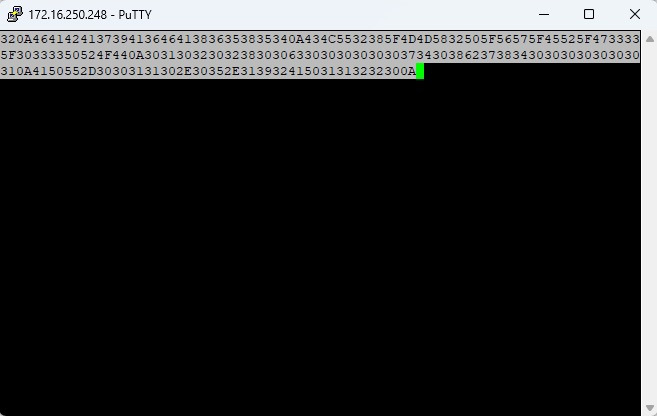
-
Select hexadecimal string and putty will copy it into clipboard. Do NOT CLOSE putty window.
-
Open
mmx_challenge.txtin notepad++ and pressCtrl+Vto paste copied string. Save. -
Run
response.exeand it will generatemmx_response.txt -
Copy string from
mmx_response.txtinto putty window and pressENTER. Putty window should close automatically. -
Open putty and connect in telnet mode to
172.16.250.248:23 -
Run Toolbox with one of the following commands depending on where your SD inserted:
ksh /fs/sdb0/toolbox.sh\nksh /fs/sda0/toolbox.sh\nksh /fs/usb0_0/toolbox.sh
Reference: https://www.drive2.com/b/644918546345774500/