Telnet access
Telnet activation
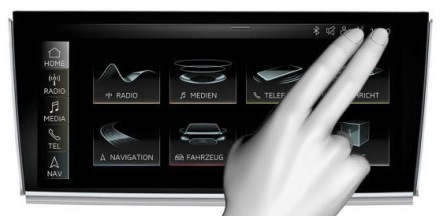
- Insert SD card with Toolbox and hold two fingers in top right corner to enter Engineering (RED) menu
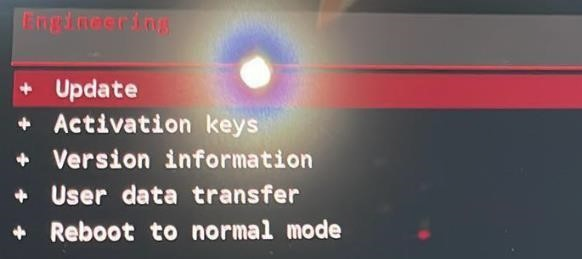
- Press Update
- Start update.
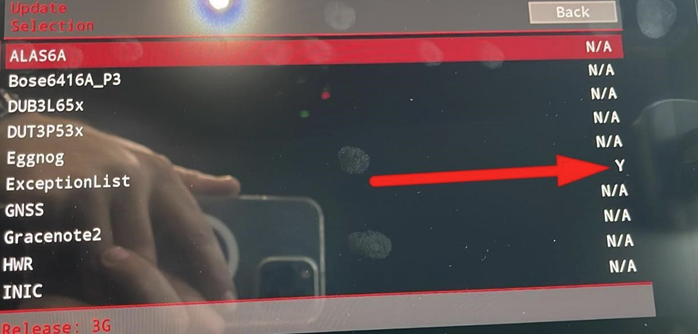
- Press Resume

- Connect usb of D-Link DUB-E100 compatible cable into usb of MH2p.
- Connect ethernet port of the D-Link DUB-E100 into ethernet port of the laptop.
- In the network properties of the laptop's ethernet adapter set IP address 172.16.250.123 netmask 255.255.255.0
- Connect with putty in telnet mode to IP 172.16.250.248:22111 and select hexadecimal text string you see (it will be copied into copy&paste buffer automatically). Do NOT close the putty window
- Paste copied challenge string into mmx_challenge.txt, save the file and run response.exe to generate mmx_response.txt
- Copy and paste content of mmx_response.txt into putty window and press ENTER. The window should close automatically.
- Now you can connect with putty in telnet mode to 172.16.250.248:23
- Enter root and you should be in shell #
GOOD TO KNOW! Depending on firmware/brand, you may need to do this in regular mode or in Engineering (RED) menu.
Good luck!