Toolbox
- Download and unzip https://disk.yandex.com/d/7WKZix6ocBNLCw (the latest version is always here) onto FAT32 formatte SD card
- Insert SD card into any SD slot of MIB .
- Long press
MENUbutton or press with two fingers in the right top corner of the touch screen. The unit will reboot into Engineering (aka RED or SWUP) mode. - Update
-
Connect USB port of D-Link DUB-E100 to the vehicle USB port.
- GOOD TO KNOW: A compatible adapter has the following hardware ID:
VID_2011 & PID_1A02(Windows Device Manager → Device Properties → Details Tab → Hardware Ids) - An adapter based on chip
Asix AX88772, such asUGREEN USB 2.0 100Mbps, may possibly be converted to work. The following youtube video describes a process for doing this:
- GOOD TO KNOW: A compatible adapter has the following hardware ID:
-
On the laptop in ethernet adapter settings set Set IP address
172.16.250.123netmask255.255.255.0. ping 172.16.250.248 -t-
If ping is ok, connect with putty in telnet mode to
172.16.250.248:22111and you will see: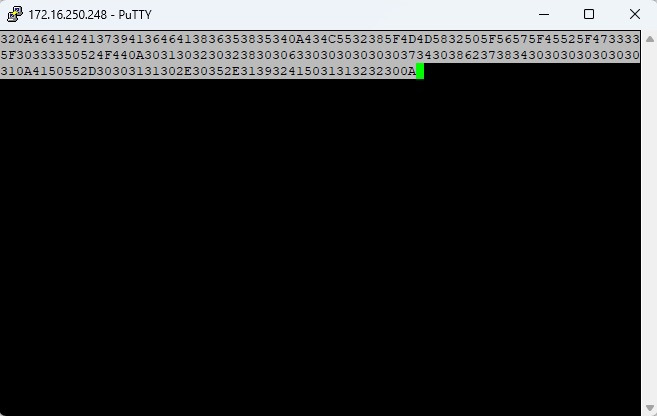 9. Select hexadecimal string and putty will copy it into clipboard. Do NOT CLOSE putty window.
10. Open
9. Select hexadecimal string and putty will copy it into clipboard. Do NOT CLOSE putty window.
10. Open mmx_challenge.txtin notepad++ and pressCtrl+Vto paste copied string. Save. 11. Runresponse.exeand it will generatemmx_response.txt12. Copy string frommmx_response.txtinto putty window and pressENTER. Putty window should close automatically. 13. Open putty and connect in telnet mode to172.16.250.248:2314. Run Toolbox with one of the following commands depending on where your SD inserted:ksh /fs/sdb0/toolbox.sh\nksh /fs/sda0/toolbox.sh\nksh /fs/usb0_0/toolbox.sh
Reference: https://www.drive2.com/b/644918546345774500/