Manual IOC Update via telnet or TTL cable
:::warning Proceed only if you clearly understand what you're doing
It is assumed you know how to connect to RCC or MMX via telnet or serial port
You must have reliable FAT32 formatted SD card ready
:::
:::info V850app controls EEPROM access. V850bolo powers on the unit. Damaged bolo leads to non working buttons/touch screen
:::
First of all clarify, which variant does your unit have (for example FM2-P-TNL-JP-AU-MLE).
You can find out in m.i.b. installation log or just login to RCC/MMX and check with:
cat /net/rcc/mnt/efs-persist/SWDL/CachedTrain.txt
MHIG and MHI2_XX_AUG22
- Take a look into firmware installation SD in metainfo2.txt and find references of your variant to files in \IOC\Main\40\default
- Copy V850app and V850bolo corresponding to your variant to the root of SD card formatted in FAT32 and rename:
V850app_MLBEVO.bin > ioc_appl_bin_todo
V850bolo_MLBEVO.bin > ioc_bolo_bin_todo
:::info If you want to see what happens, connect with TTL adapter to RCC on the quadlock, log in to Emergency IFS and run:
:::
on -f rcc /net/rcc/sbin/mib_ioc_update -h
MHI2
- Take a look into firmware installation SD in metainfo2.txt and find references of your variant to files in \IOC\Main\21\default
:::info e.g. Audi A6 has FM2-H-***-**-AU-MLB
::: 2. Create IOC folder on SD card 3. Take a look into metainfo2.txt and copy V850app and V850bolo corresponding to your variant to the IOC folder of SD card formatted in FAT32
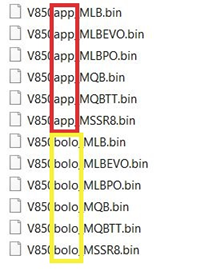
In our case V850appMLB.bin and V850boloMLB.bin 4. Rename the files you copied to IOC folder: (REMOVE .bin EXTENTION)
V850app_MLB.bin > ioc_appl_bin
V850bolo_MLB.bin > ioc_bolo_bin
:::warning ALWAYS flash APP before BOLO.
If you do it the other way around you will loose connection to EEPROM, key input on screen and SWDL will stop working.
:::
Reboot unit in update mode to update IOC App
on -f rcc /usr/apps/mib2_ioc_flash updateApp
Unit will restart automatically and you will see update reboot screen on MMI
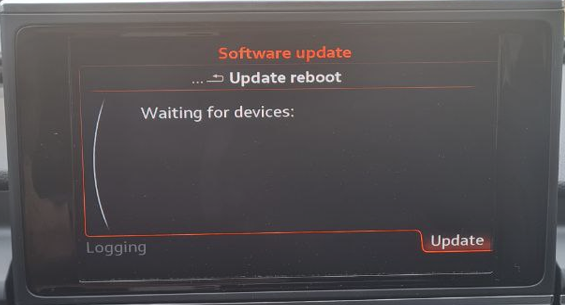
Update IOC App
on -f rcc /usr/apps/mib2_ioc_flash updateAppNow
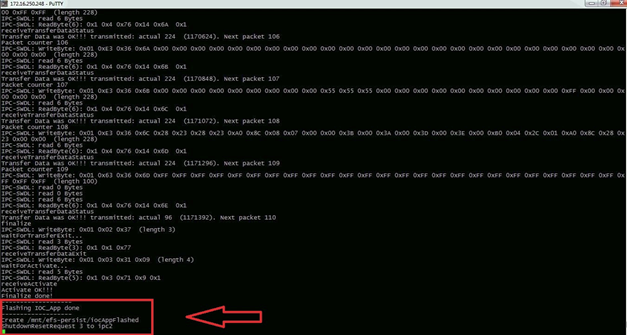
Restart unit (if no automatic reboot was triggered)
on -f rcc /usr/apps/mib2_ioc_flash reboot
Run unit in update mode to update IOC Bolo
on -f rcc /usr/apps/mib2_ioc_flash updateBolo
Automatic restart will be triggered again and unit goes into boot mode
Update IOC Bolo
on -f rcc /usr/apps/mib2_ioc_flash updateBoloNow
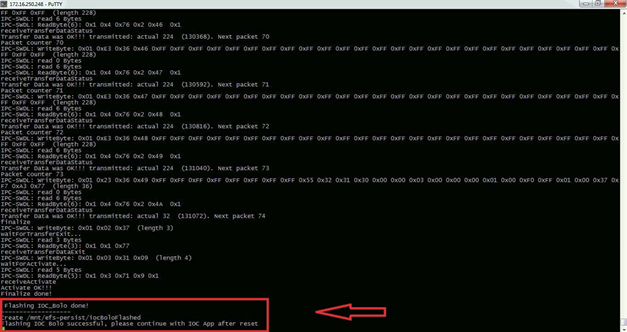
Known issues
If you updated Bolo before App, RCC and MMX will loose EEPROM access and Train version and MU software will look like:
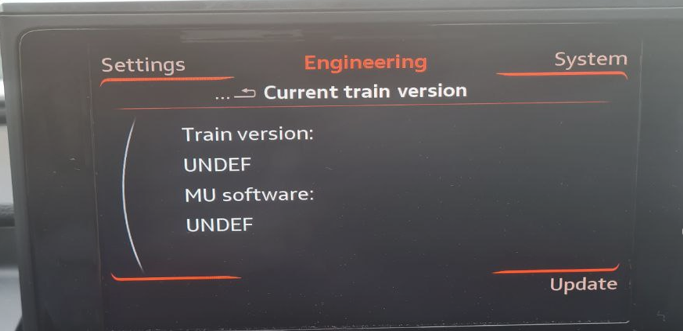
To fix this, repeat the steps starting from updateApp