02xx to 04xx firmware update
:::tip
TL;DR: Patch SWDL, prepare custom metainfo2.txt, full update.
:::
:::info
After 02xx to 04xx firmware update WLAN option will no longer work as the old wireless chip Alps UGZZF-1 01A is not supported by the new firmware. If you want you can replace the wireless chip in your unit with the newer one A1A to regain WLAN capabilities. You still have option to access the filesystem via D-Link USB-to-Ethernet adapter.
:::
:::info Firmware update will most likely overwrite any custom changes. This includes CP patch, SWaP patch, CID-lock patch, installed toolbox, custom skins and sounds, etc…
:::
:::warning
Some users report that firmware conversion procedure caused display damaged. At this point it's unclear which displays and which firmware versions are at risk. Unchecking DUV from the update components list might be a safe move.
:::
Needed
- Quality SD card,
4GBor more (how to check SD card), 04xxtarget firmware,- patch for
SWDL, - Custom
metainfo2.txt, - VCP/VCDS/OBDeleven/CarScanner to enable developer mode.
Recommended
- Highest currently supported firmware installed (if not in the unit yet). Check it here.
- Confirmation that touch screen is 100% working. It will be required to press
Xin the corner of the display when the installation is complete.
Prepare SD card
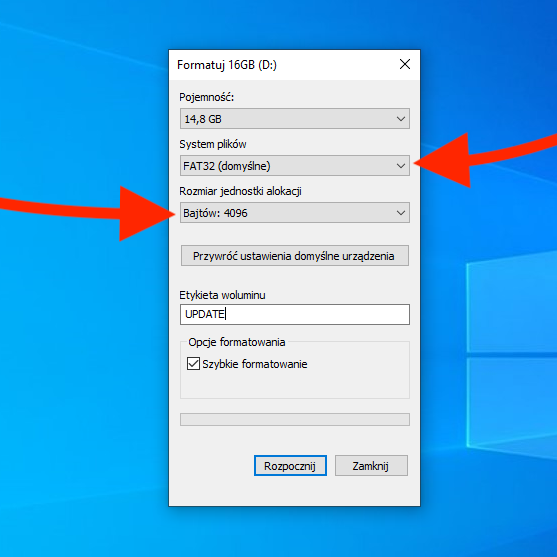
Format an SD card with FAT32 file system.
Make sure to set the Allocation unit size to the smallest option available (example 4096B).
Update to highest supported firmware
https://youtu.be/6FlHM9VZl%5Fs
:::tip
You can update to 04xx from lower versions but AFAIK it is recommended to have the latest firmware in the unit first. I believe it will make emergency update and unit recovery if needed.
:::
:::warning
Update from 01xx to 04xx can be done, but will not support all features because of hardware differences. Units with software 01xx (hardware H1x) are older and internal components are not enough to run all the new features (for example: not enough RAM for CarPlay).
:::
Enable developer mode
Developer mode access is required to perform 02xx to 04xx firmware update.
Check out 5F - Enabling Developer Mode and Hidden Menu for more information about enabling developer mode in MIB units with OBDeleven, VCDS, VCP, CarScanner.
Patch SWDL
SWDL app (tsd.mibstd2.system.swdownload) needs to be patched in order to accept custom metainfo2.txt file. Check out SWDL Patch - install unsupported firmware for information about different methods of patching SWDL app in Technisat units.
Set default system skin
:::info If coding is set to use skin that's not available in new firmware, you can end up in boot loop. Use diagnostic tool or hidden menu and set skin to the default one.
:::
Prepare 04xx firmware custom metainfo2.txt
- Press
MENUbutton for 3 seconds to engine hidden service menu. -
Go to
Software update/versions > Versions, select your current firmware version, go toCPUand and check CPU ID.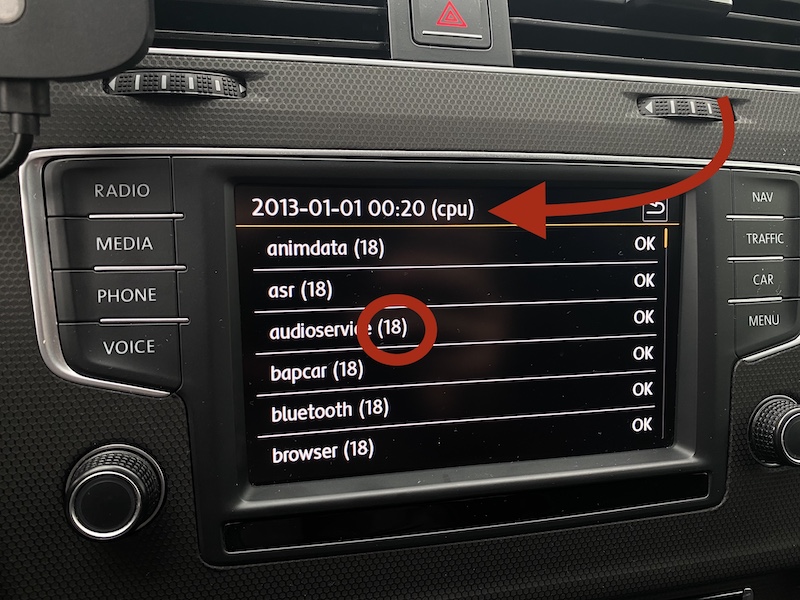 3. Go to https://github.com/lprot/MIB-Tools and download the repository. It includes a script will prepare
 metainfo2.txtfile for your unit by changing value inRequiredVersionOfDMand linking CPU ID from 04xx version to the one in your unit. 4. Placemetainfo_link_generator.pyfile inside the 04xx firmware directory and run it. Provide CPU ID from your unit when asked.
Install 04xx firmware
- Turn on the unit.
- Remove SD cards, Insert SD card with prepared firmware in SD1 port.
- Press and hold
MENUbutton for 10 seconds to enterTestmodemenu - Go to
SWDL > Software Download Manual Downloadand enable it. - Select
Start Download. - Press
Select allfirst, but don't start the update just yet. - Go to
cpu`` > emergencyand disableApplication. - Go to
main > emergencyand disableApplication.
:::tip Updating those two emergency apps would fail, because it would be performed at the end of the update procedure, when the patched SWDL app is already replaced with the stock one from the new firmware. It's easier and faster to skip it now to avoid error messages while flashing the unit, and go back to it later.
:::
:::warning Updating display firmware may cause display damage. It might me a safe move to uncheck 'DUV' update as well.
:::
- Press
Start, cross fingers, and wait. Unit will reboot 2 or 3 times.
Updating emergency apps
:::info
The SWDL application of the now new firmware is stock and must be patched again. New firmware with the still modified metainfo2.txt on the SD card and start the update again. This time the emergency application should also be updated.
:::
- Patch current SWDL app (
tsd.mibstd2.system.swdownload) the same way you did it with the old one. - Press and hold
MENUbutton for 3 seconds. - Go to
Software update/versions>Update, selectSD1source. - Confirm that SWDL wants to update two emergency applications.
- Start the update.
Patching
If unit was previously patched for SWaP, CP, CID, the 04xx update will overwrite it. Your new system is stock and you need to patch it again. You can upload patches manually, with SD card, or by MIB STD2 Toolbox.
TechniSat SWaP Patch with Toolbox
TechniSat CID Patch with Toolbox
Parametrization
:::warning Possible that this is required for correct sound profiles. In my experience (VW ZR EU 02xx to 04xx) it was not needed.
:::
:::info Even with valid 00070400 FEC, feature in-car communication will not work without proper parameter uploaded with VCP or CarScanner. More about parameterizations.
:::
Coding review
Newer firmware might not support older cars. Check variant coding and adjust if required.
More information here: 5F - Vehicle Variants.
Check skin coding to make sure your unit is not set to non-existing skin setting.
B201A fault
Check how to clear the B201A fault over here: 5F - Fix B201A fault code
HOW DO Technisat_FW-Train_from_2_to_4
What's new?
:::info
Visible differences spotted when comparing MST2_EU_VW_ZR_P0254T to MST2_EU_VW_ZR_P0478T. There' s a lot of differences "under the hood" which contains bug fixes, improvements, and support for new optional equipment.
:::
- Support for facelift glass displays with
APPbuttons, - GEM version
4.11with touch screen navigation support, - Support for VC/AID (Virtual Cockpit / Active Info Display),
- Support for new USB HUB,
- Updated graphics with facelift car models (CAR, AUDIO, CLIMATE menus),
- New skin layouts (grid) and new system-wide color theme,
- Refreshed VW startup animations and new trim options (
beatsaudio,FAMILY,Elegance), - Skin and startup animation for MAN vehicles,
- 6 presets in
Radiosection if 8-inch display skin selected, - 6 favourite contact in
Phonesection if 8-inch display skin selected, - Media covers higher resolution support (needs to be confirmed),
- CAR menu selection is remembered after switching ignition off,
- Oil temperature gauge (SportHMI and Offroad) without red zone and rescaled for 100°C in middle position,
- Start/Stop option to disable system status popups,
- Air Condition option in main menu,
- VW Media Control option in menu,
- Configuration Wizard in Settings,
- Traffic menu with map preview,
- WLAN media source option,
- 4 clock faces selection in standby,
- Sound type displayed on the OSD when adjusting volume level,
- Updated SFX when touching the screen,
- FEC/SWaP hidden menu available without active developer mode,
- Testmode menue available from hidden menu (3 seconds press instead of 10 seconds press),
- FEC/SWaP code
00070400for in-car communication is supported, - Testmode menue touch screen diagnostics no longer works,
- Left and right speaker channels are inverted (here's how to fix this by repining QuadLock),
- New adaptation channels (
Key_code_monitoring,Vehicle function list BAP 2nd generation, expansion,Deactivation/activation of the pop-up for active tracking services,nhtsa_properties), - New
cpumodules (fpkimagetransfer,i2cbridge,nuanceres.arw_EU).