Between Brands
Cross-flashing MHI Between Brands
BrandSwap: Eg. converting Skoda unit to VW unit :-)
First thing is to get a matching FW pack for the brand you want to switch to.
The firmware names are made up of:
So for MHI2_ER_SKG11_K3343_MU1433:
- TYPE: MHI2
- COUNTRY: ER (Europe)
- BRAND: SKG (Skoda)
- MODEL: 11 (11 → MIB2, 13 → MIB2.5)
- INST_TYPE: K (K → user upgrade, P → production install, S → service patch)
- INST_VERS: 3343
- MU_VERS: 1433
TBH I'm not sure what the different / interaction is between the INST_VERS and MU_VERS except that higher of either/both is newer
Make sure you use a firmware of INST_TYPE K or P, the S (service) ones are typically not a complete install.
To switch to a different brand, you need to match the TYPE, COUNTRY and MODEL and preferably find same/newer firmware version(s)
So to switch this Skoda unit to VW, I could use MHI2_ER_VWG11_K3342_MU1427, or for SEAT MHI2_ER_SEG11_P4709_MU1447
Once you've picked your firmware pack, unzip it onto a SD card, making sure the metainfo2.txt and folders next to it are all in the main folder of the SD card, not inside a separate folder.
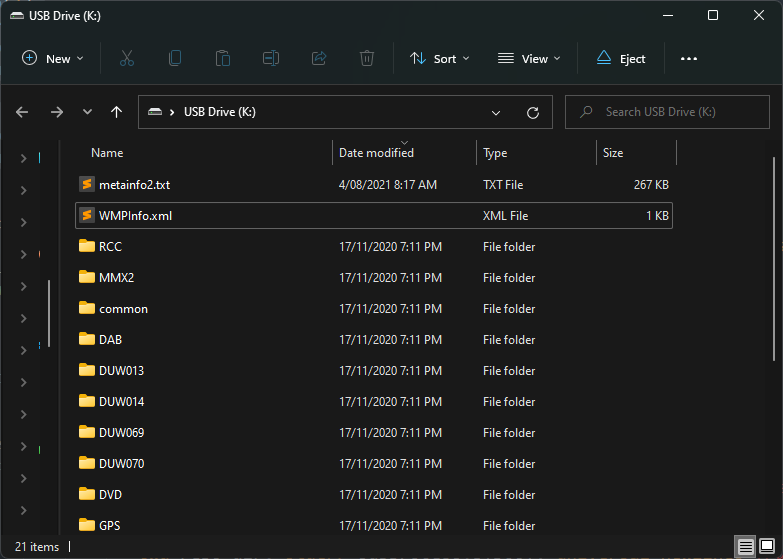 We will change a couple of settings in the installer to make the unit accept it.
Open the metainfo2.txt file in a text editor like Sublime Text or Notepad++
At the top there will be a common section like so:
[common]
release = "MHI2_ER_SEG11_P4709"
MUVersion = "1447"
vendor = "HARMAN (HAD)"
variant = "FM2-H-N-EU-SE-MQB"
variant2 = "FM2-H-ND-EU-SE-MQB"
region = "Europe"
region2 = "RoW"
delMmeBackup = "true"
ExclusiveUpdate = "DAB,DUW013,DUW014,DUW069,DUW070,DVD,GPS,MIBLite2_APN,RadioStationDB,Tuner"
FinalScript = "./common/tools/0/default/finalScript.sh"
FinalScriptChecksum = "bfc612742f961dcbc2635b5ddb5c490f18e436ce"
FinalScriptMaxTime = "20"
FinalScriptName = "Final Script"
MaxParallelDevices = "2"

MetafileChecksum = "1e48215eb13a83742bdea3dc5e785fc216ed19d8"
Edit one of the variant lines to a catch-all like:
vendor = "HARMAN (HAD)"
variant = "FM2-*-*-*-*"
variant2 = "FM2-H-ND-EU-SE-MQB"
and just under the variant lines add:
checkIfNotEqual = "true"
Check that your desired region is listed as supported too, if not it's best to find a different firmware pack that supports your region.
If you've got a K type pack rather than a P pack, there will likely be a line like:
SupportedTrains = "MHI2_ER_SKG11_P2104*,MHI2_ER_SKG11_S2104*,MHI2_ER_SKG11_K2129*,MHI2_ER_SKG11_S2129*,MHI2_ER_SKG11_P3260*,MHI2_ER_SKG11_P3304*,MHI2_ER_SKG11_P3325*,MHI2_ER_SKG11_K3330*,MHI2_ER_SKG11_K3333*,MHI2_ER_SKG11_K3343*"
Delete this entire line.
So the common block should now look like:
[common]
name = "MIB2 Firmware"
release = "MHI2_ER_SEG11_P4709"
MUVersion = "1447"
vendor = "HARMAN (HAD)"
variant = "FM2-*-*-*-*"
variant2 = "FM2-H-ND-EU-SE-MQB"
checkIfNotEqual = "true"
region = "Europe"
region2 = "RoW"
delMmeBackup = "true"
ExclusiveUpdate = "DAB,DUW013,DUW014,DUW069,DUW070,DVD,GPS,MIBLite2_APN,RadioStationDB,Tuner"
FinalScript = "./common/tools/0/default/finalScript.sh"
FinalScriptChecksum = "bfc612742f961dcbc2635b5ddb5c490f18e436ce"
FinalScriptMaxTime = "20"
FinalScriptName = "Final Script"
MaxParallelDevices = "2"

MetafileChecksum = "1e48215eb13a83742bdea3dc5e785fc216ed19d8"
Now save and close the file.
Download this tool: update-hashes-v2.5.exe
Or on linux, can be run from python source: update_hashes.py
Copy update-hashes.exe onto the SD card then run it from there.
It will patch the metainfo2.txt file to force the MIB to ignore the modifications.
Now eject the sd card from computer and insert it into the MIB Unit.
Next, we need to change the MIB units EEPROM setting which controls the current brand. This is located at address 0xE1
The quickest way to do this is via: M.I.B. - More Incredible Bash
Download and install this tool onto a SD card, insert into SD1 and run a software update. It'll install M.I.B Launcher, then reboot back to normal mode.
Leave the SD card inserted and bring up Service Menu → Testmode → Green Engineering Menu → =>m.i.b.<=
Under "system_information" → "variantinfo" both the Region and Brand can be changed to suit the desired target of cross flash.
Click on the line and scroll to match the needed setting. If the "Diagnosis Variant" line changes to "ZR_INVALID" then you've got an incompatible combination of the two, keep trying.
Once you've picked the correct details, scroll to the bottom of the screen and go to save, then reboot.
Manual eeprom editing
Alternatively the same brand eeprom change can be easily performed from console.
From RCC console run: /usr/apps/modifyE2P r E1 1:
on -f rcc /usr/apps/modifyE2P r E1 1

Wait for DSI to connect ...
DSI Connected role1.DSIE2PAccess
0xe1    03
DSI Disconnected
We can see my current unit has 03 at this address
| Brand | E1 Code |
|---|---|
| VW | 01 |
| Audi | 02 |
| Skoda | 03 |
| SEAT | 04 |
| BYG | 05 |
| POG | 06 |
So, we need to switch this to the desired number. I want to go to SEAT, so I'll run:
on -f rcc /usr/apps/modifyE2P w E1 04
Once that's done, reboot
on -f rcc /usr/apps/mib2_ioc_flash reboot
Once it starts up again we're ready to install. Head to the service menu (for most units just hold down Menu button until it shows) → Testmode → Green Engineering Menu.
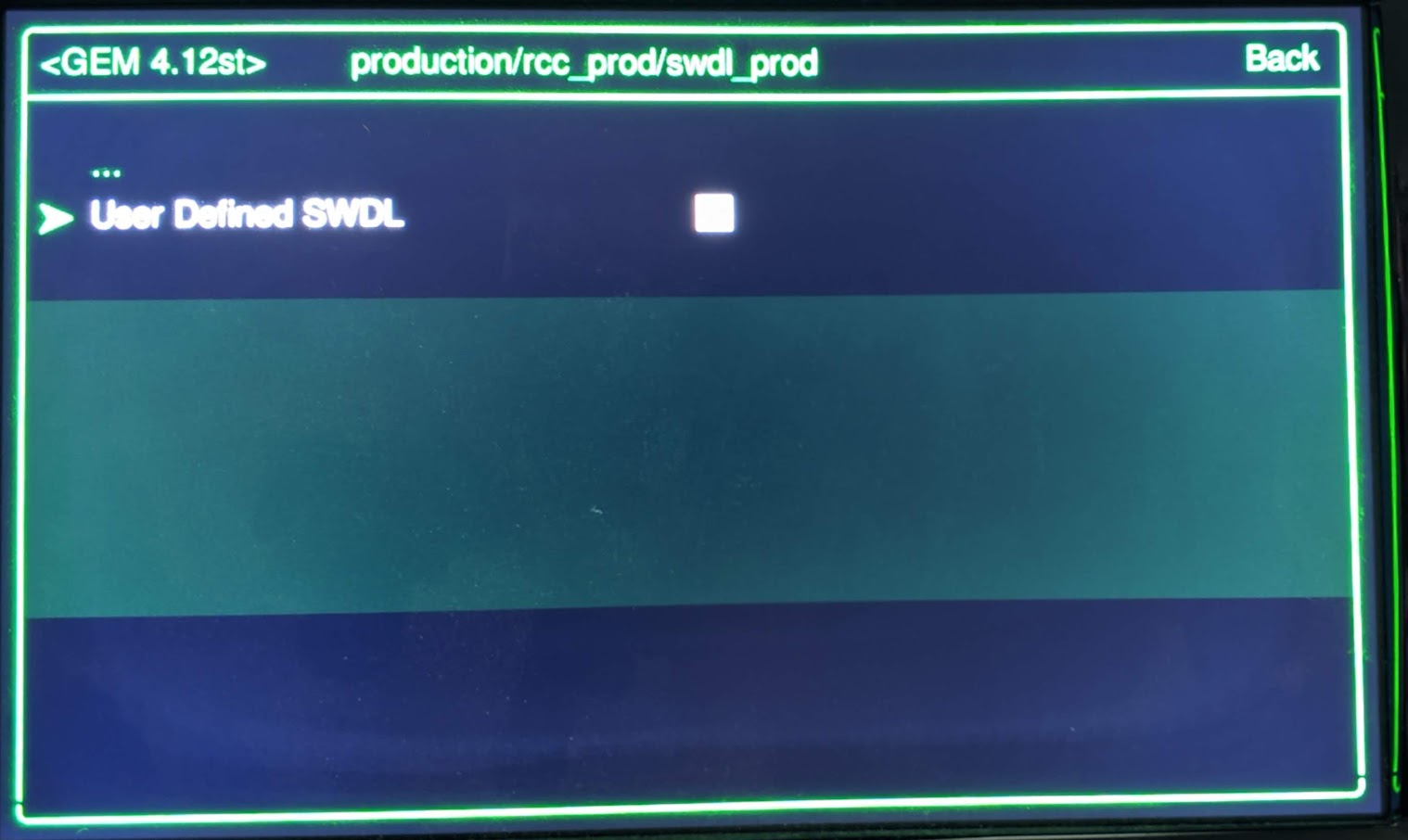
Go to "production" → "rcc_prod" → "swdl_prod" and enable "User Define SWDL"
 Start "Service Menu" again and go to "Testmode" → "SWDL"
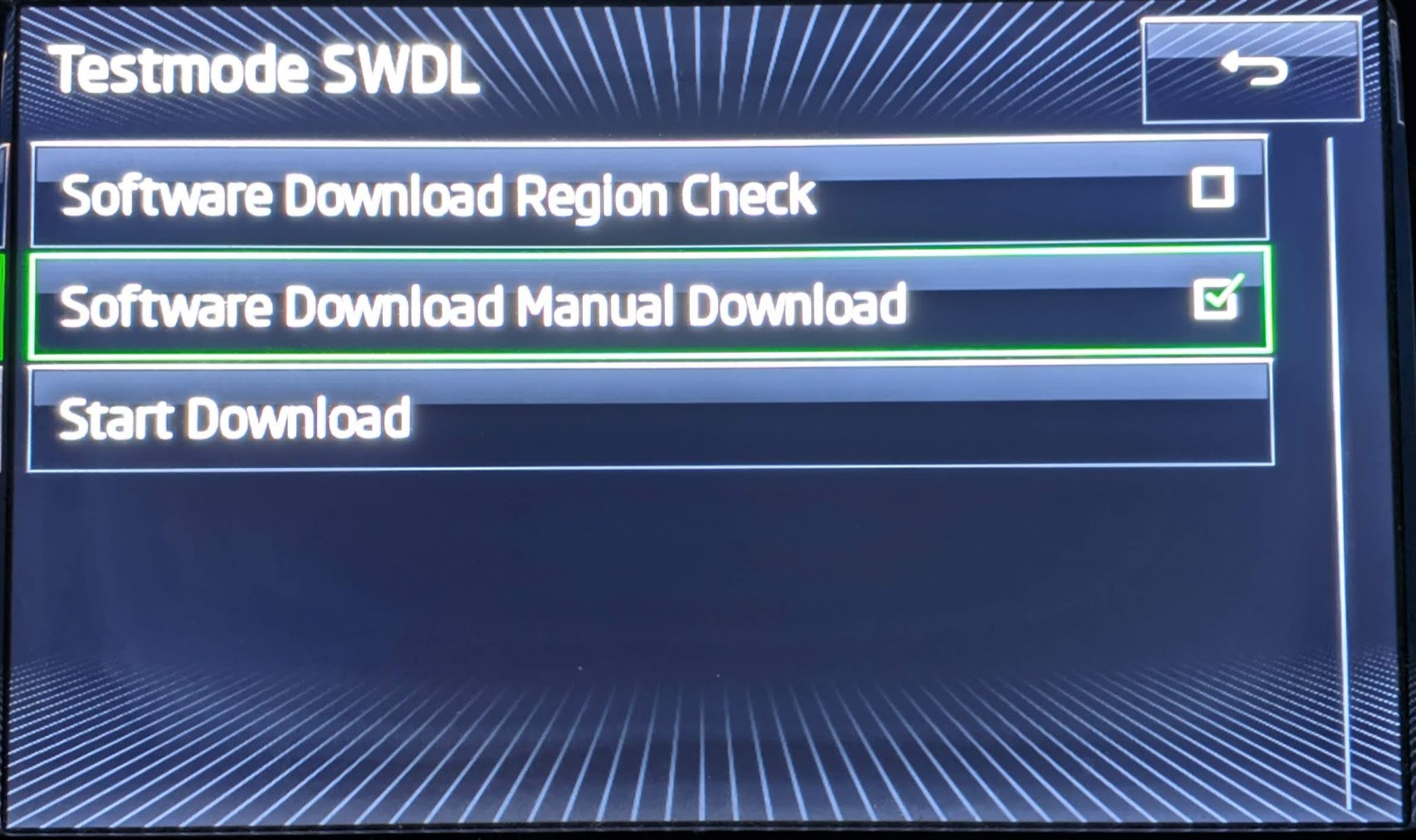 Click on "Software Download Manual Download". It may or may not show a checkbox, just click on it once either way. Then click on "Start Download".
You should be at the Sofware update/versions screen now, click "Update" and go through the wizard.
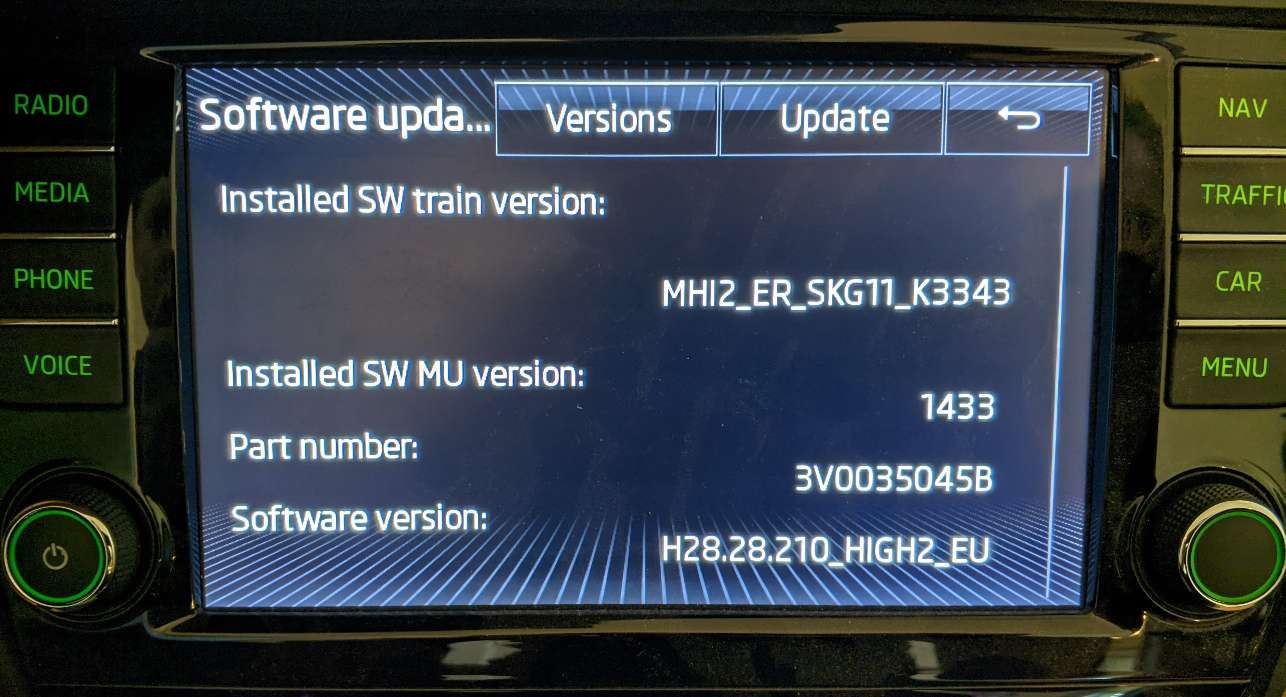
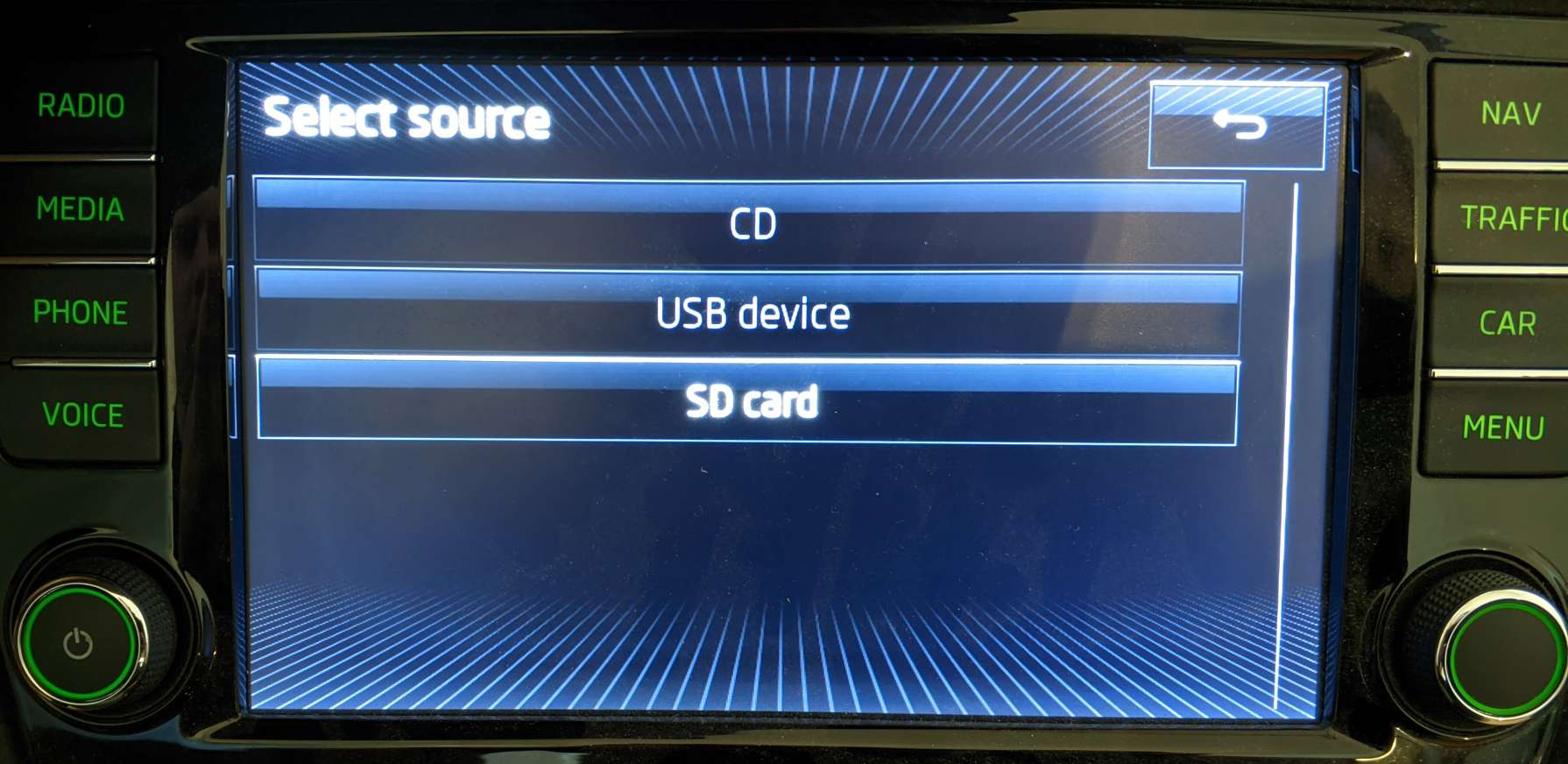 Select the SD card, it'll scan the update on the card.
When you get to the module list screen though there should be a "Select All" button at the top. Some of the modules will possibly be N by default…
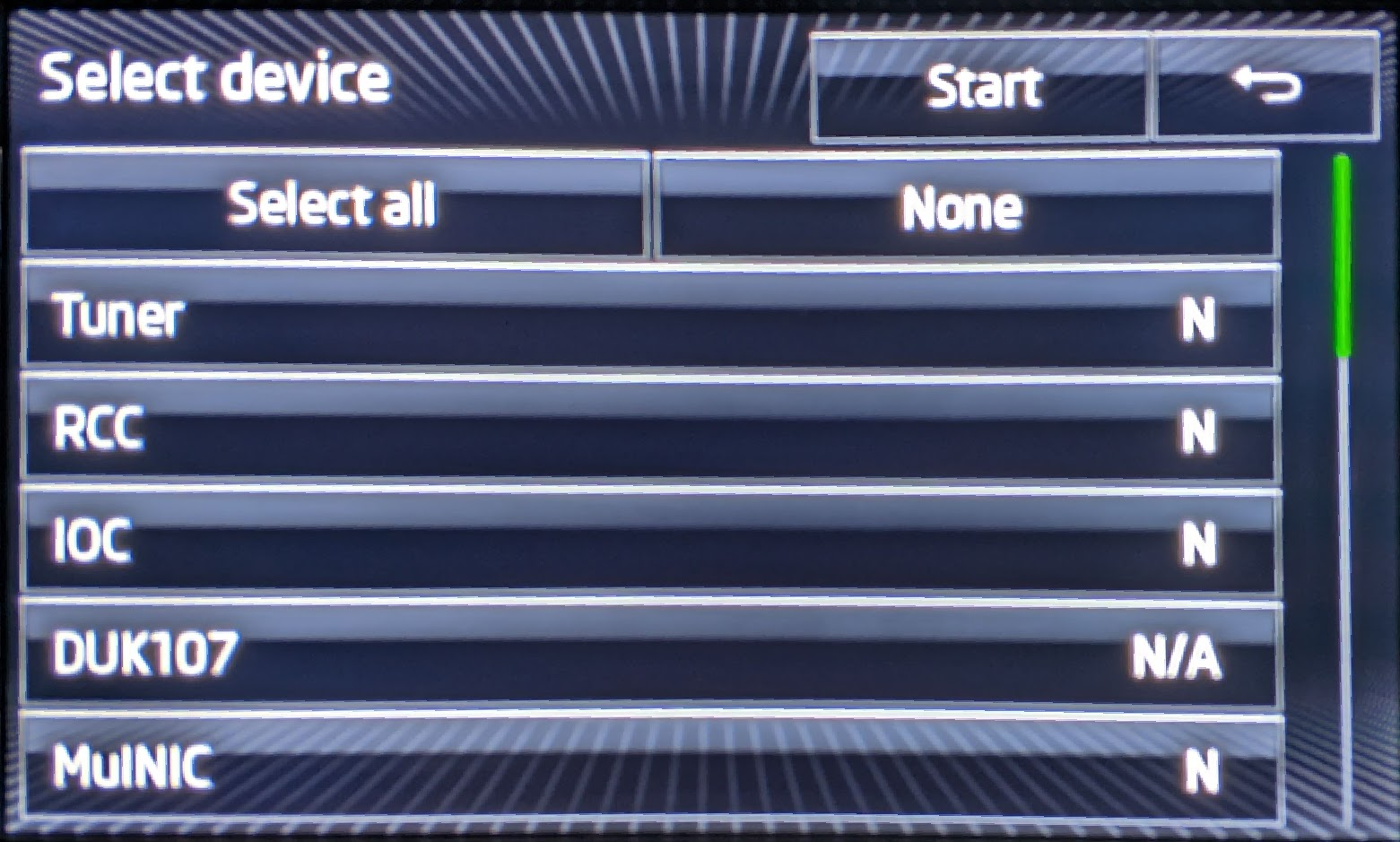 Press Select All to ensure everything gets enabled for install, irrespective of what's currently installed.
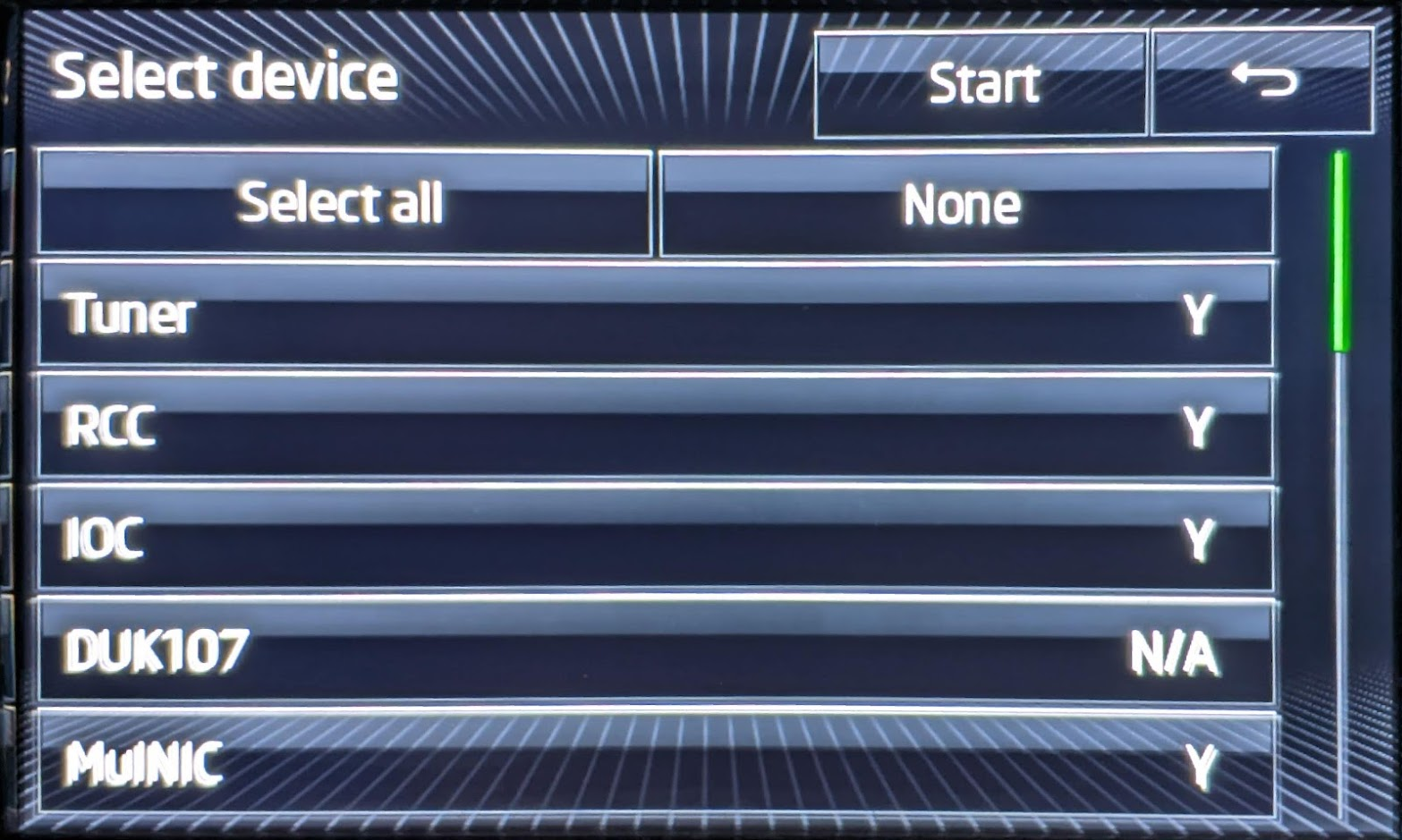 Start the upgrade
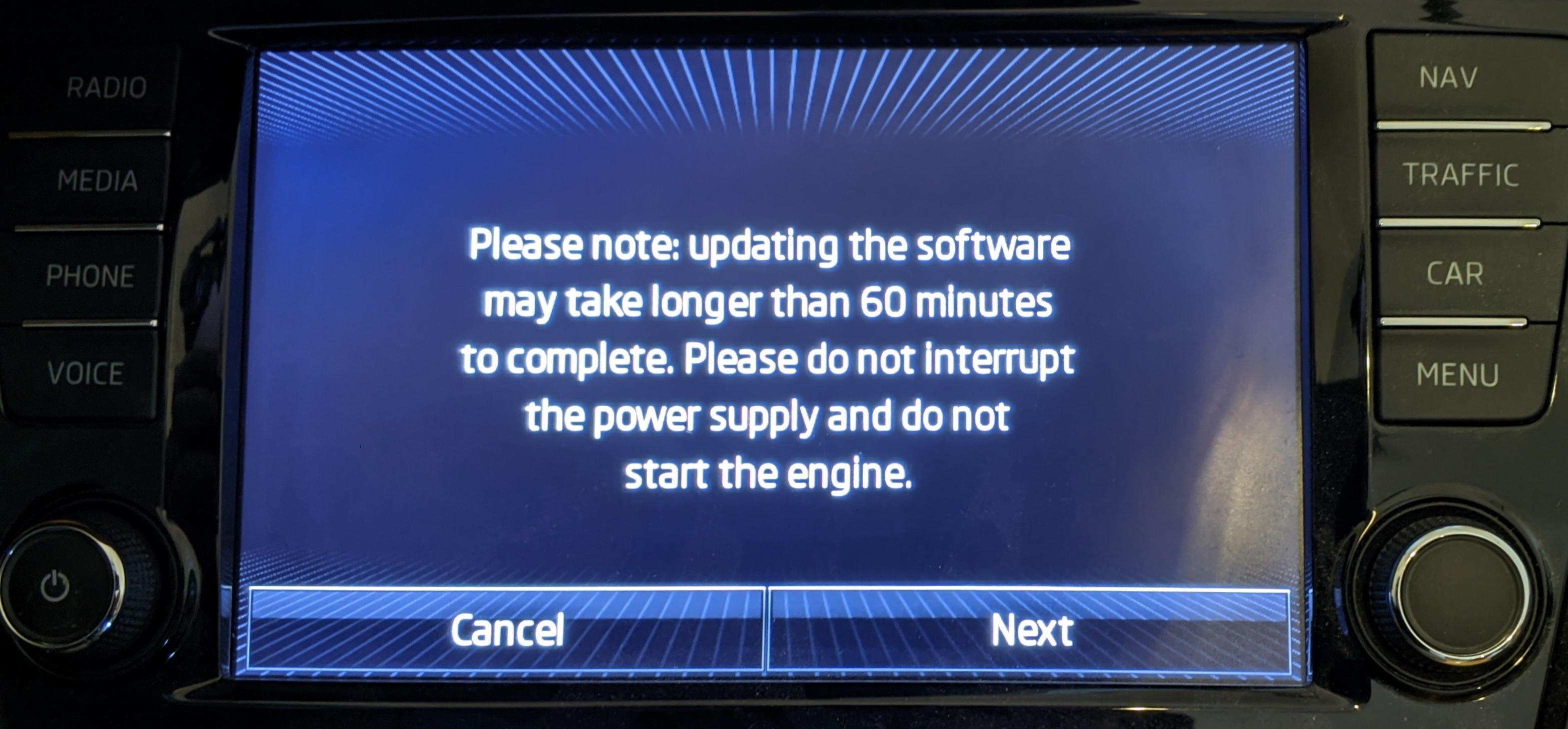 It'll reboot into the update system and should be pretty much self-contained from here.
Part way through it should reboot and will suddenly be continuing the upgrade with the new brand theme.
Once finished, it'll show a summary of modules installed, hit back and it'll prompt for you to connect your scanner and clear the svm error. This is the same as any normal firmware. Clear that the "standard" way or hit cancel and ignore it for now.
The unit should reboot and now be running your desired brand!
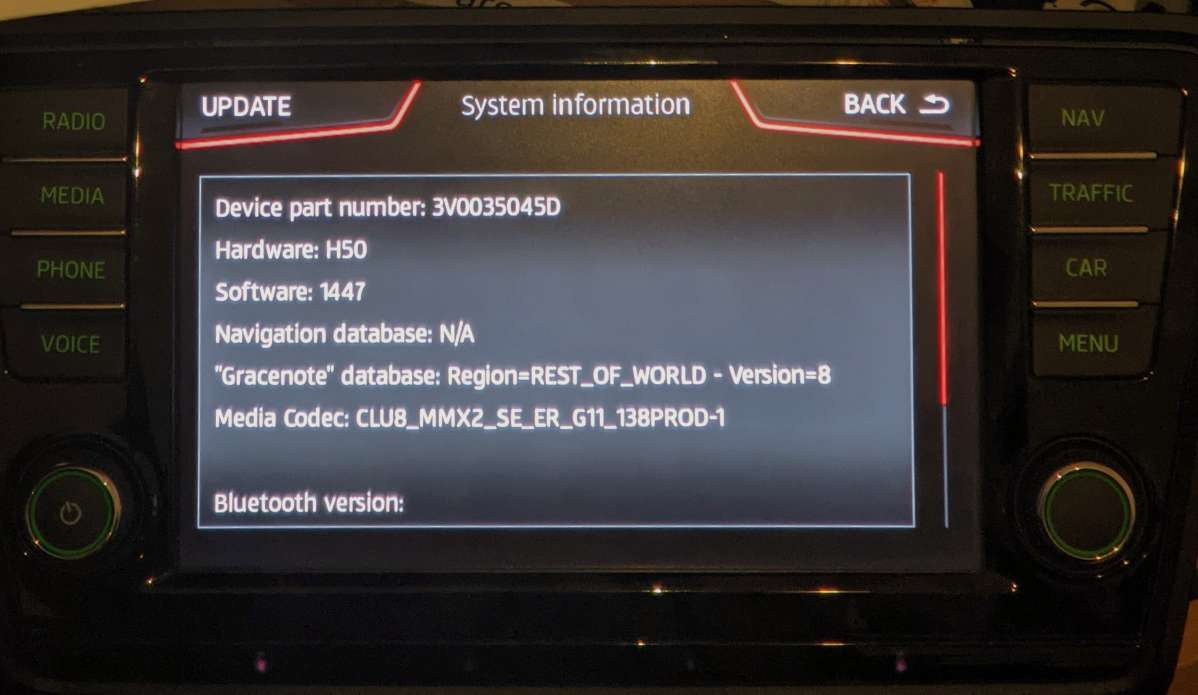
At this point, you may however run into an issue with the navigation…
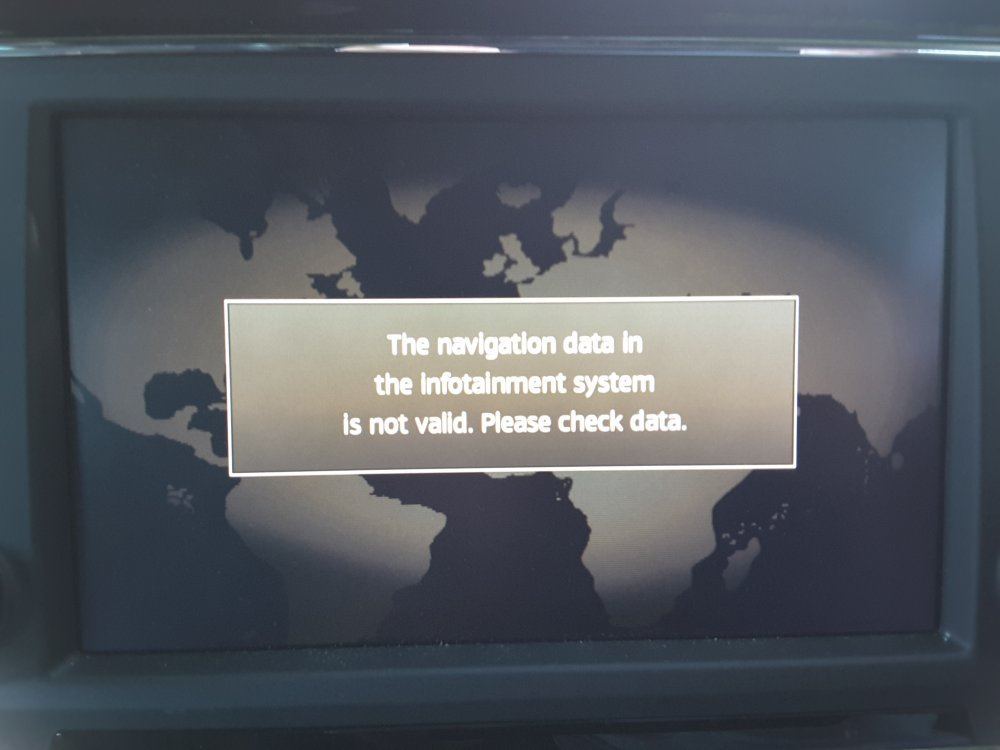 If so, see the Navigation section down the bottom of this page.
Also, you might get an error overlayed on all screens "Component protection active"
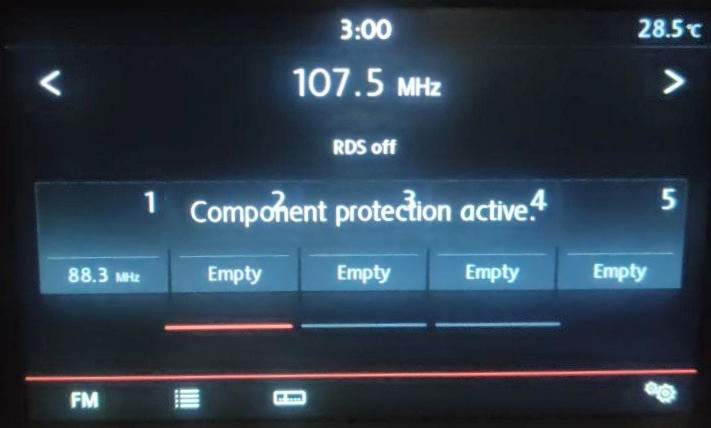 This can be fixed by installing the "patch_ifs-root" in M.I.B. tool, instructions for which are described in Map FEC Codes section at the start of the Navigation section down the bottom of this page.