Conversion of CN/JP/KR/TW/US to EU
:::info Conversion can be completely done via GEM and SD card.
No telnet access (dlink adapter) is required
:::
Step by step instruction by Enthusiast
- Unzip the latest M.I.B. version https://github.com/Mr-MIBonk/M.I.B._More-Incredible-Bash/archive/refs/heads/main.zip onto a FAT32 formatted quality SD card
- Insert SD card into SD1 slot (IMPORTANT!) of the MIB and install M.I.B. via corresponding key combo
:::warning IMPORTANT! After installation, check that GEM version is 4.xx+.
If you see 3.xx, that means it was not automatically updated.
In this case format SD card to FAT32 and install the latest M.I.B version again.
Repeat doing this until you see that GEM is updated to v4.12+.
:::
- Long press MENU button, go to Green Engineering Menu=>m.i.b.<=NEXT SCREEN for more magic …>advanced_settings>eu_conversion_train>Convert unit to EU
GOOD TO KNOW! It is important to carefully read and make photos of all the screens you will see.
4. Check that train is changed to EU: 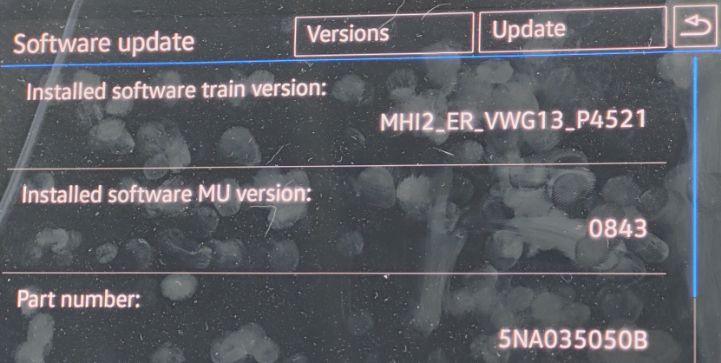 5. Download EU firmware (IMPORTANT! if available use AIO version) and unpack onto FAT32 formatted SD card
VERY IMPORTANT! If you did not find AIO firmware then go to "advanced_settings>swdl_fw_updates" and enable checkbox "Enable user definded SWDL":
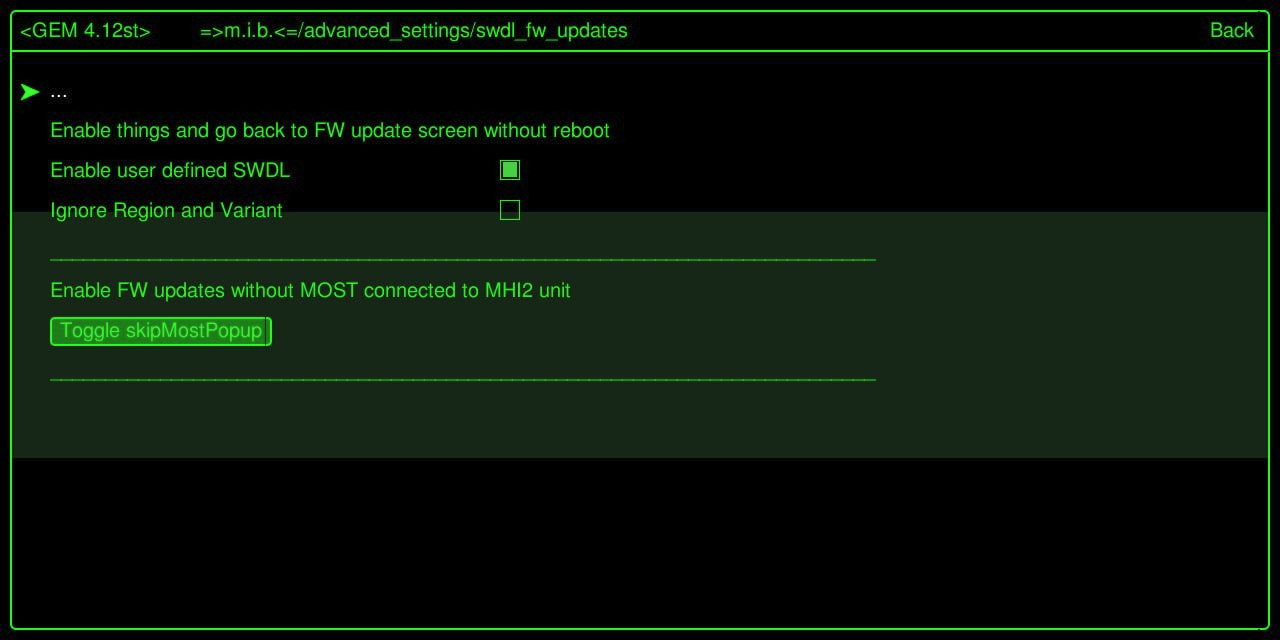
Exit GEM but do not reboot!
On VW/Skoda/Seat go directly to Service Mode Menu by long press MENU.
On Audi, open RED (Engineering) menu and use User defined: 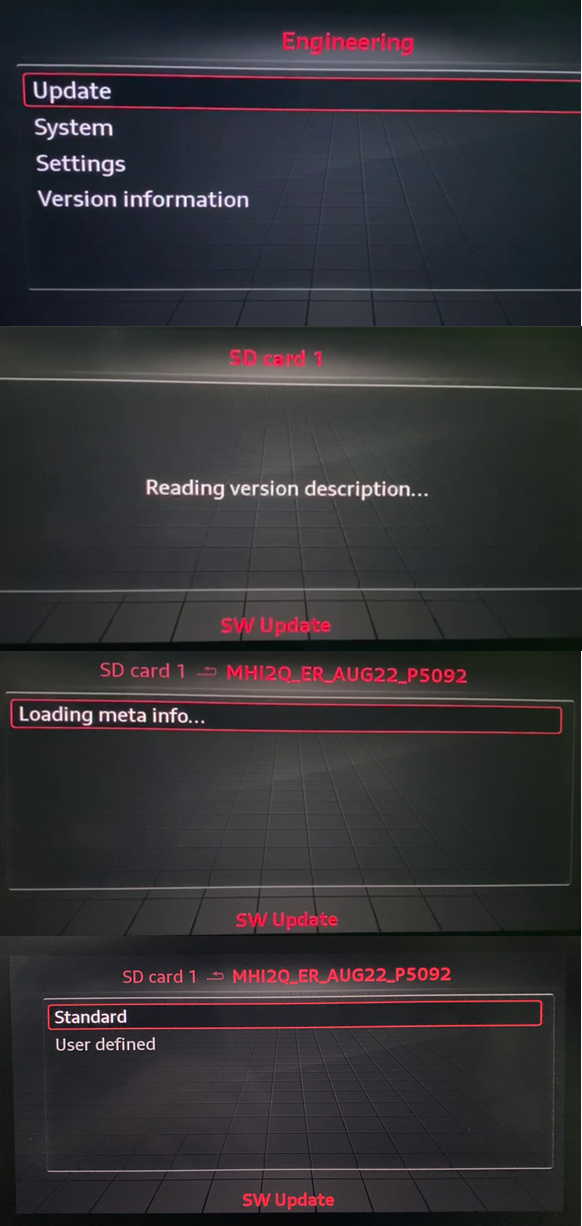
:::info Set all installation packages to Y(es) state!
IMPORTANT! Set AMP16*APN, AMP_BAO_P3 or Bose6416* to [N], otherwise you will need to find and flash the parametrization for amplifier!
If you're updating onto MHI2_ER_AU37x_P5089, set FC2H37xE to [N], otherwise display will stop hiding to torpedo!
:::
VERY IMPORTANT! If User defined will not work, then you need manual update for MMX part via Dlink!
- Insert SD card with the firmware into SD1 slot and install it:
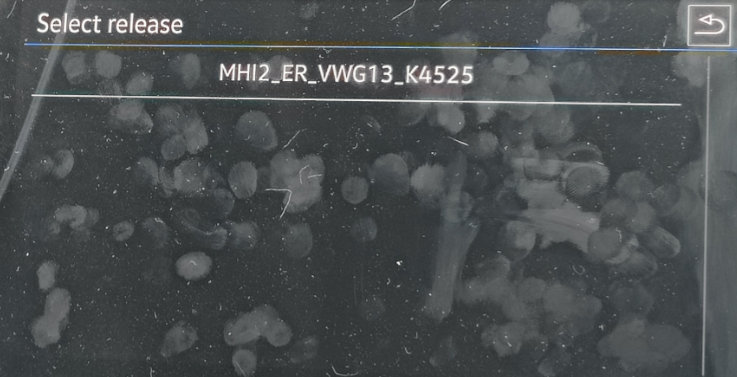
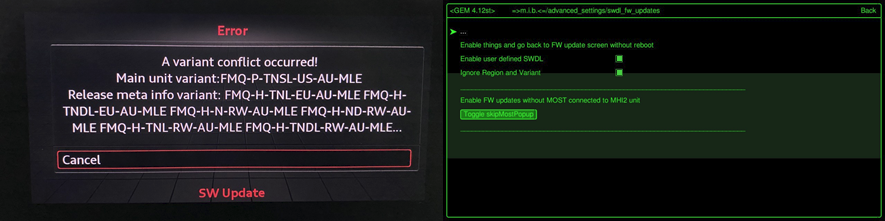
If you installed not AIO version, download 20230412_M.I.B_Patches.7z and unpack the folder that matches installed train into the patches folder on M.I.B. SD. Then in M.I.B. run "patch_unit_aio>PATCH NOW: Patch | add FECs | enable CP/AA coding | and more"
- Unpack EU navi maps https://navigation-maps.volkswagen.com/vw-maps/P330_N60S5MIBH3_EU.7zonto FAT32 formatted SD and install it.
GOOD TO KNOW! In case you will not be able to install maps, do advanced_settings>format_nav_db
On MHI2Q* you cannot use this m.i.b function, so use any OBD2 adapter and software (VCP/VCDS/ODIS-E etc) that can run block 5F → Basic Settings → Format Internal Database (Memory)
- Unpack EU RSDB https://www.phonostar.de/download/vw/MQB2_Europe_v1.10.42.ziponto FAT32 formatted SD and install it.
- Download Gracenote2 EU V22-0010-1.1.1.2679-20220316.7z from mibsolution.one/MQB_Solution/MHI2 - HARMAN/Gracenote folder, unpack it onto FAT32 formatted SD card and install it.
Where do download the latest updates:
- EU maps
- RadioStationDB
- GraceNote
:::info If you got black screen after convertion of MHI2_KR_AU57x_Sxxx firmware, just connect TTL cable to quadlock, login and delete all update.txt from /net/rcc/mnt/efs-persist/SWDL/ folder.
:::
Example of MHI2Q conversion
https://www.drive2.com/b/651860313007718652/
Conversion from CN/EU/JP/KR/TW/US to YY and unknown trains
:::tip Other target regions or unknown trains can also be added to M.I.B. if you share the content of the backup folder from SD card.
Upload it to https://mibsolution.one into M.I.B_Backup folder and support will be added!
:::