MHI2(Q) screens
:::info VW, Skoda and Seat MHI2 interfaces are very similar. Especially Service Mode Menu is identical
:::
Navigation Screen
| VW (G13) | Skoda (G13) | Seat |
|---|---|---|
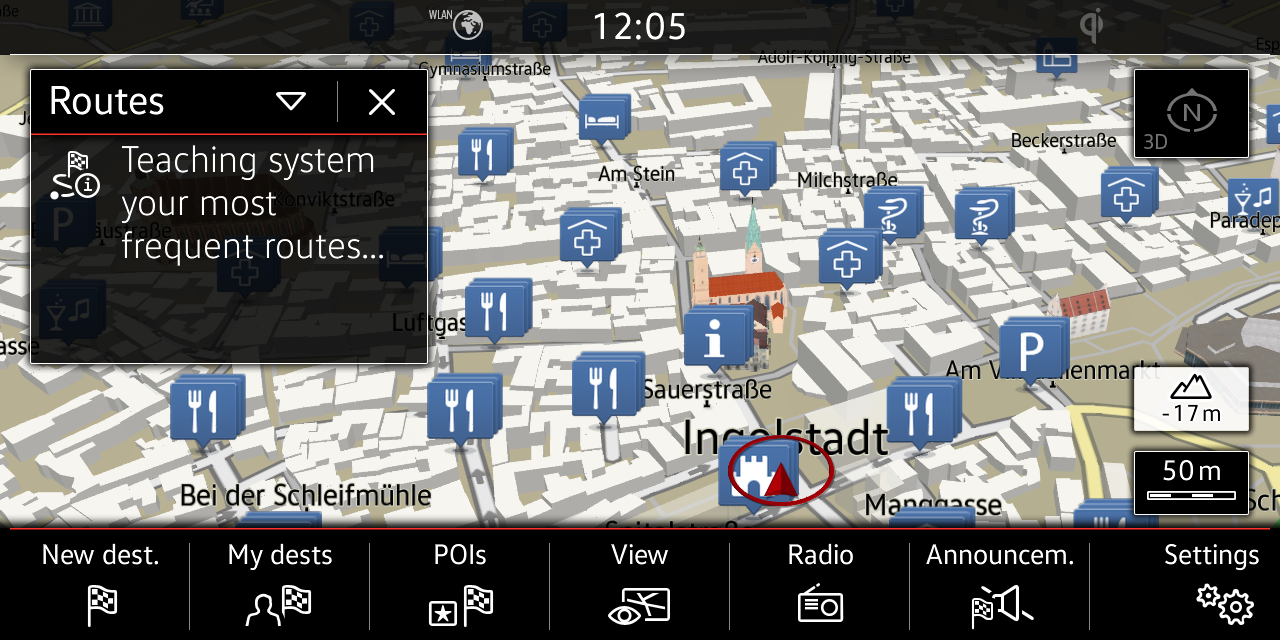 |
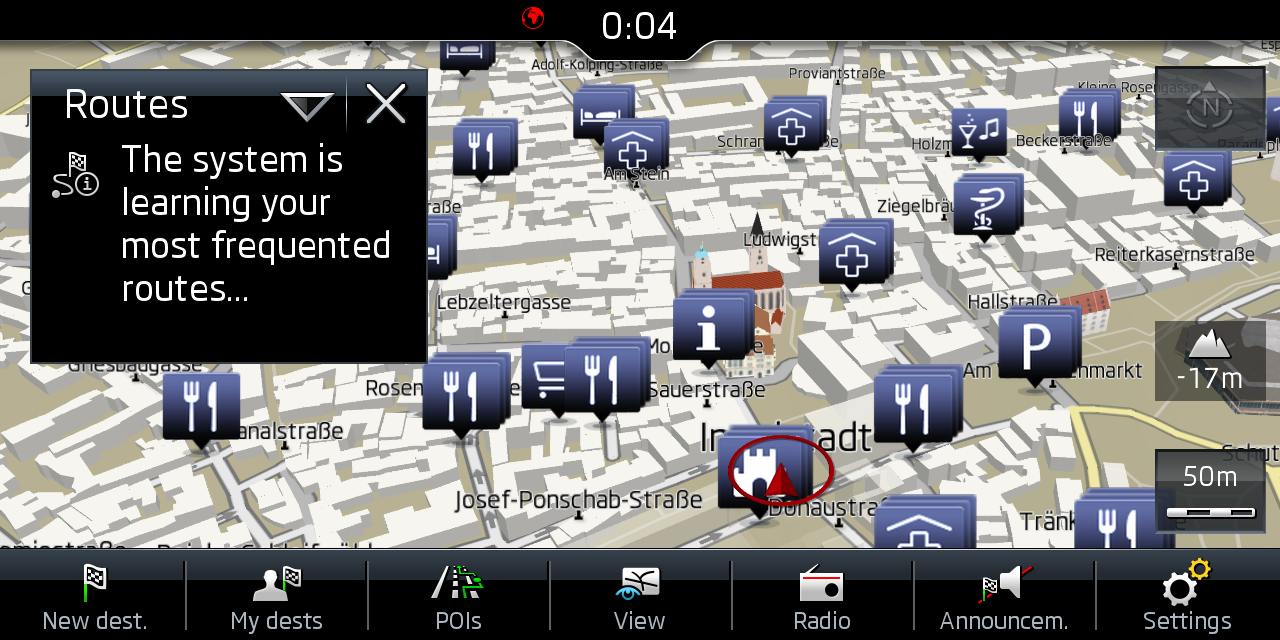 |
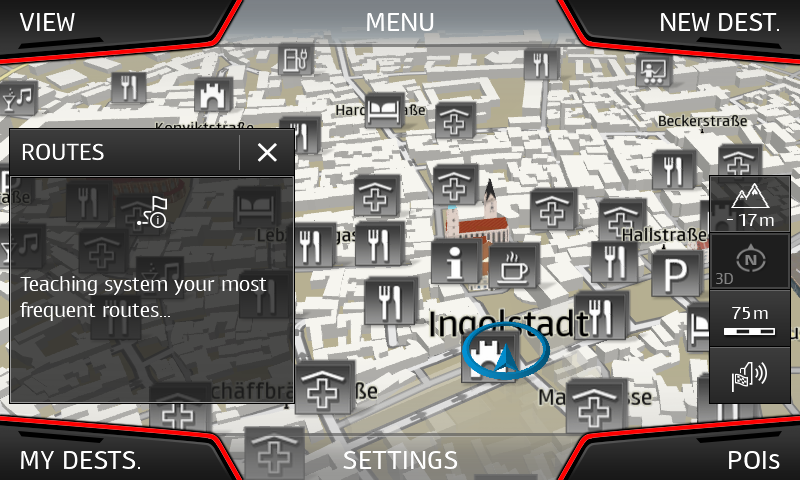 |
Main Menu
| VW (G13) | Skoda (G13) | Seat |
|---|---|---|
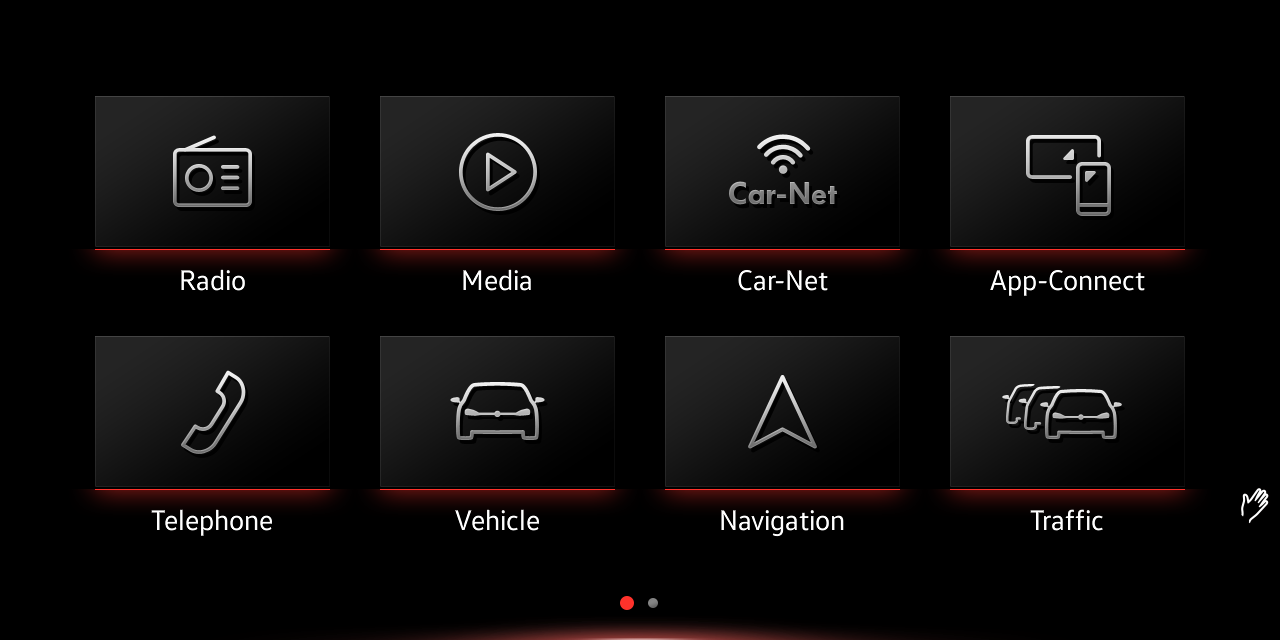 |
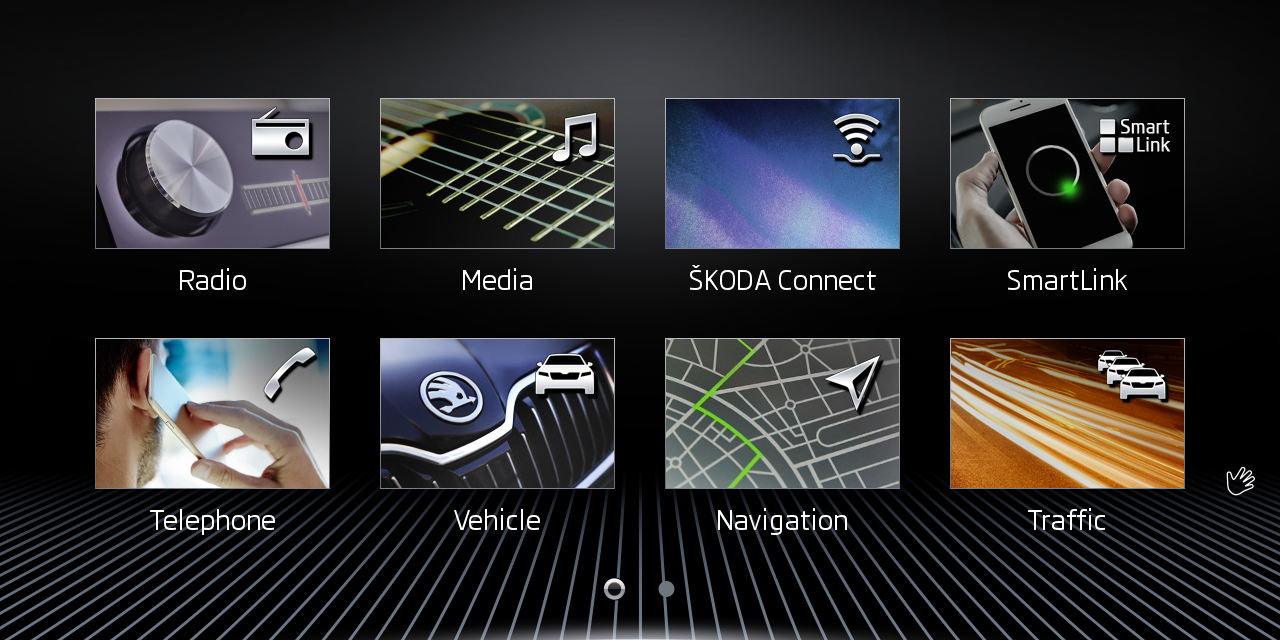 |
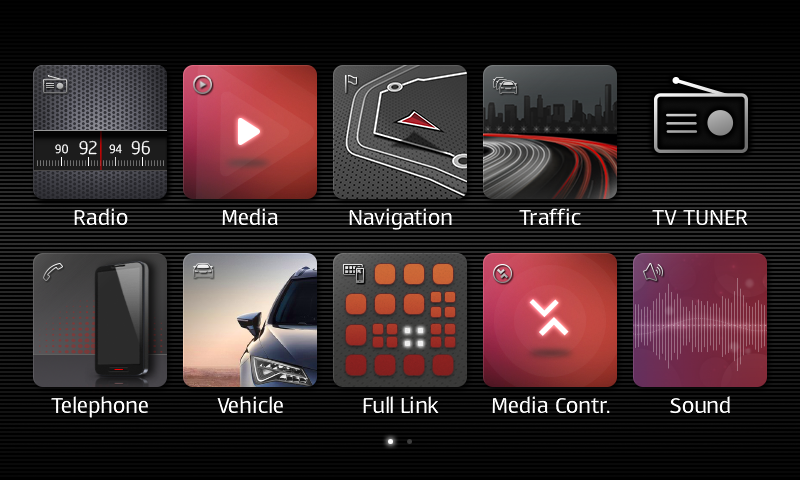 |
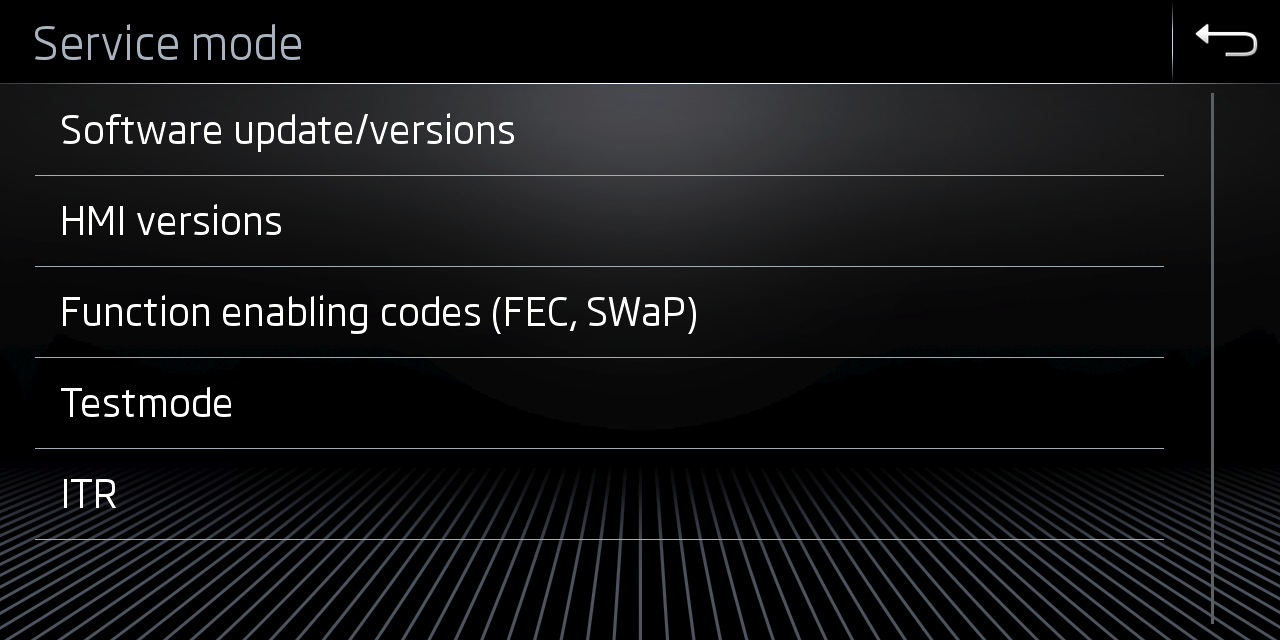
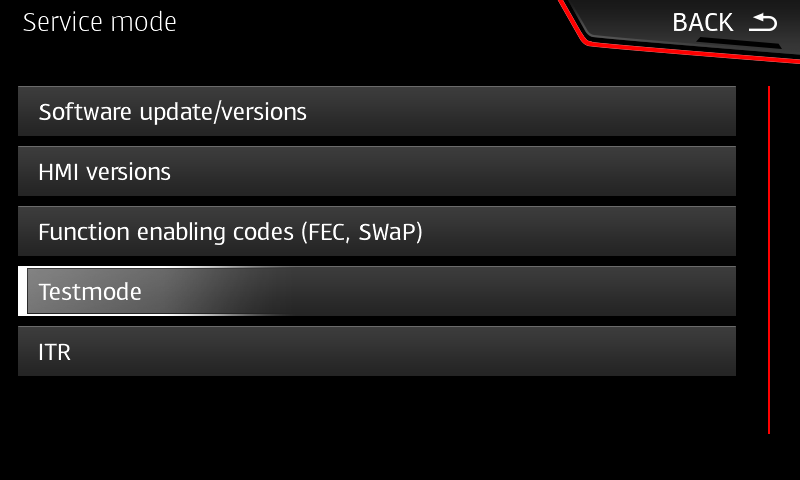
Service Mode Menu
:::tip Press Menu button for 5 sec to enter Service Mode Menu
:::
| VW (G13) | Skoda (G13) | Seat |
|---|---|---|
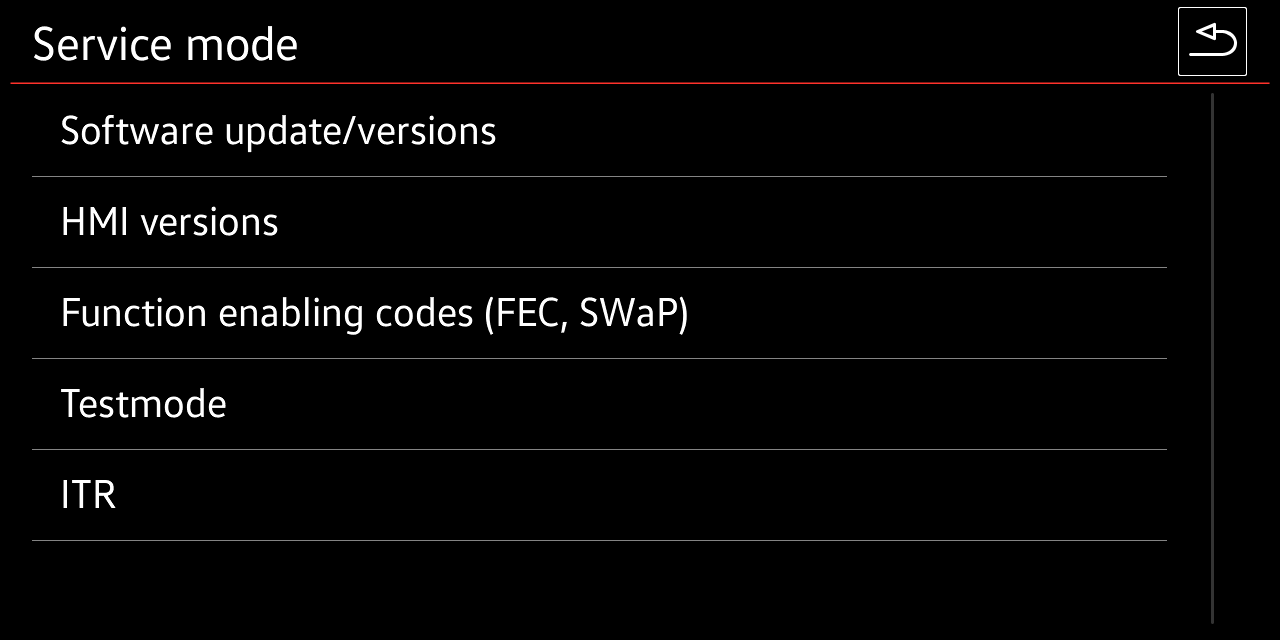 |
 |
 |
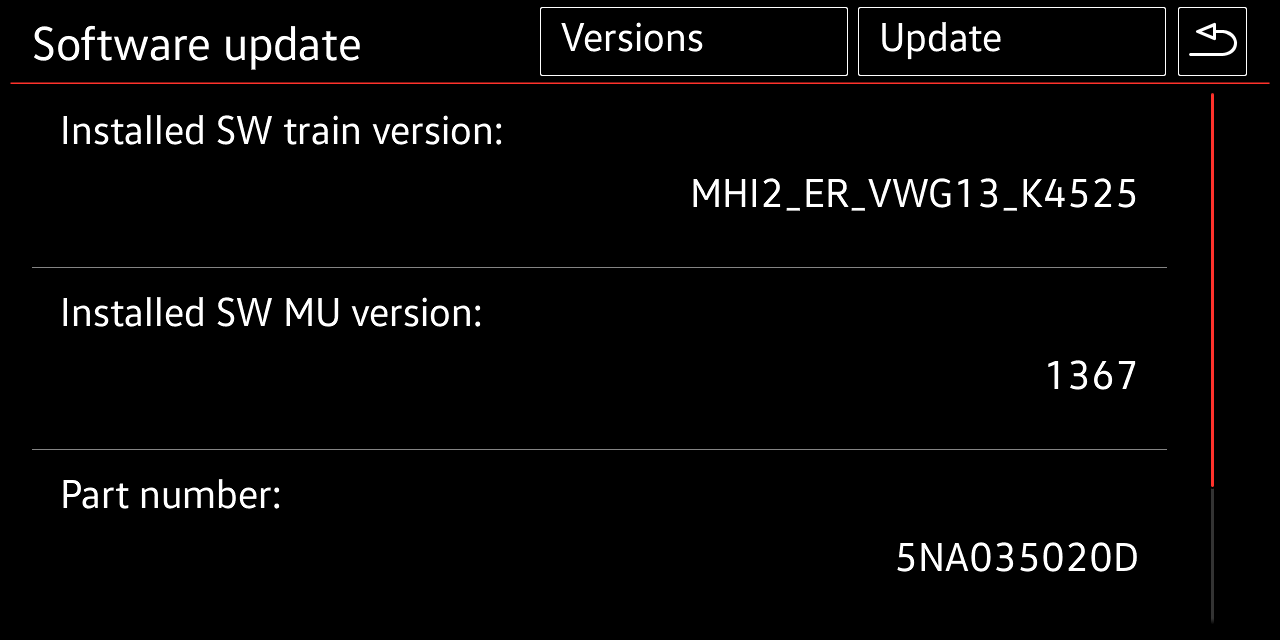
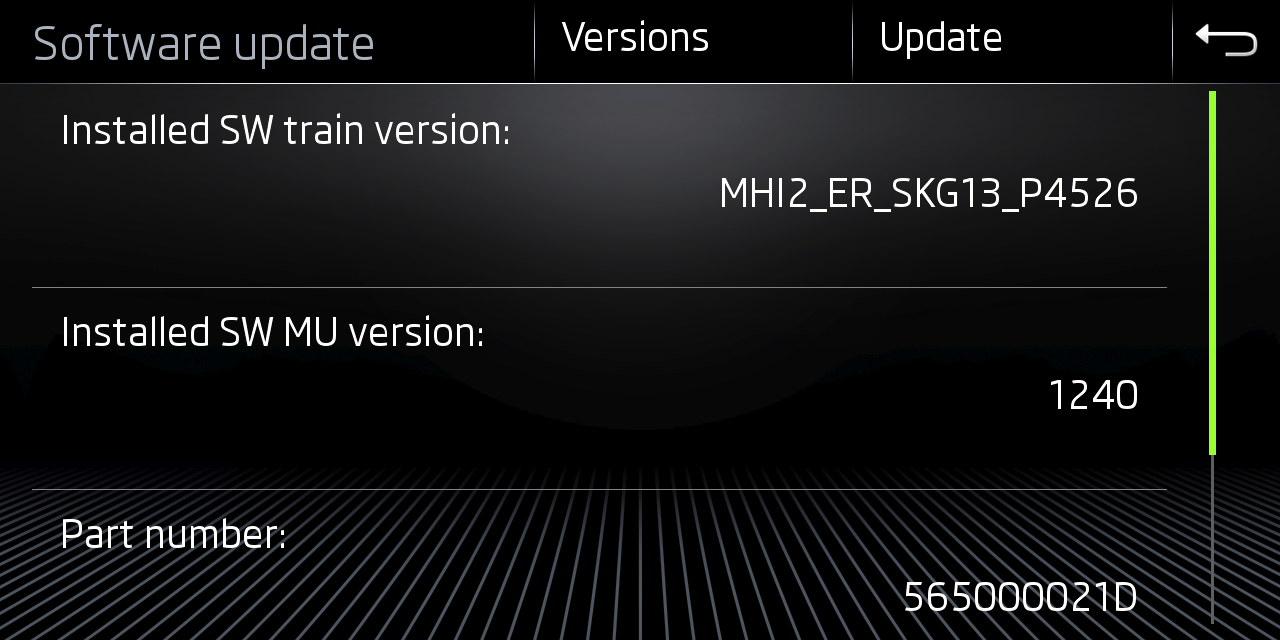
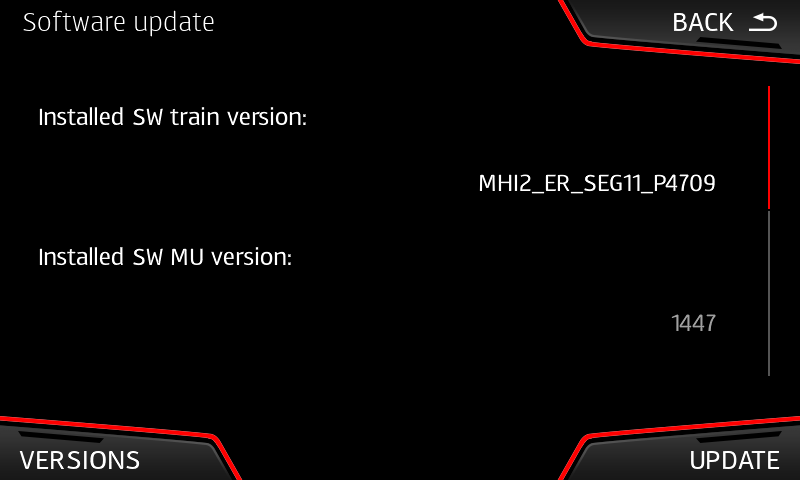
Software update/version
:::info Start FW installation or M.I.B installtion from here.
Get TRAIN information MHI2…
:::
| VW (G13) | Skoda (G13) | Seat |
|---|---|---|
 |
 |
 |
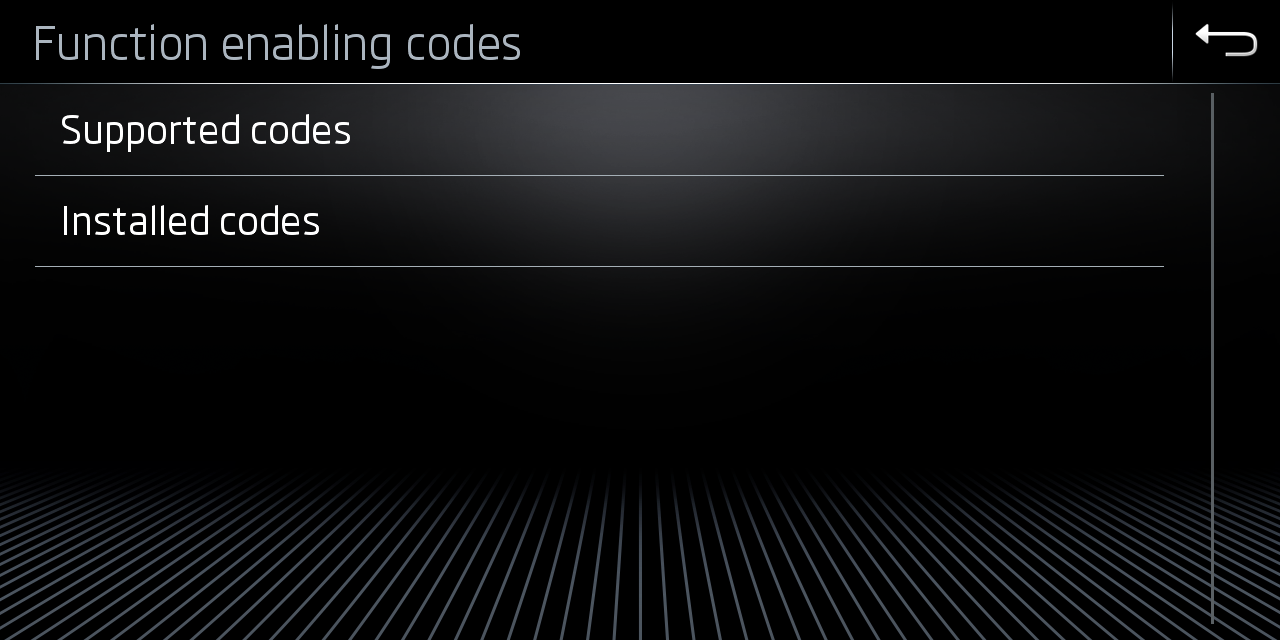
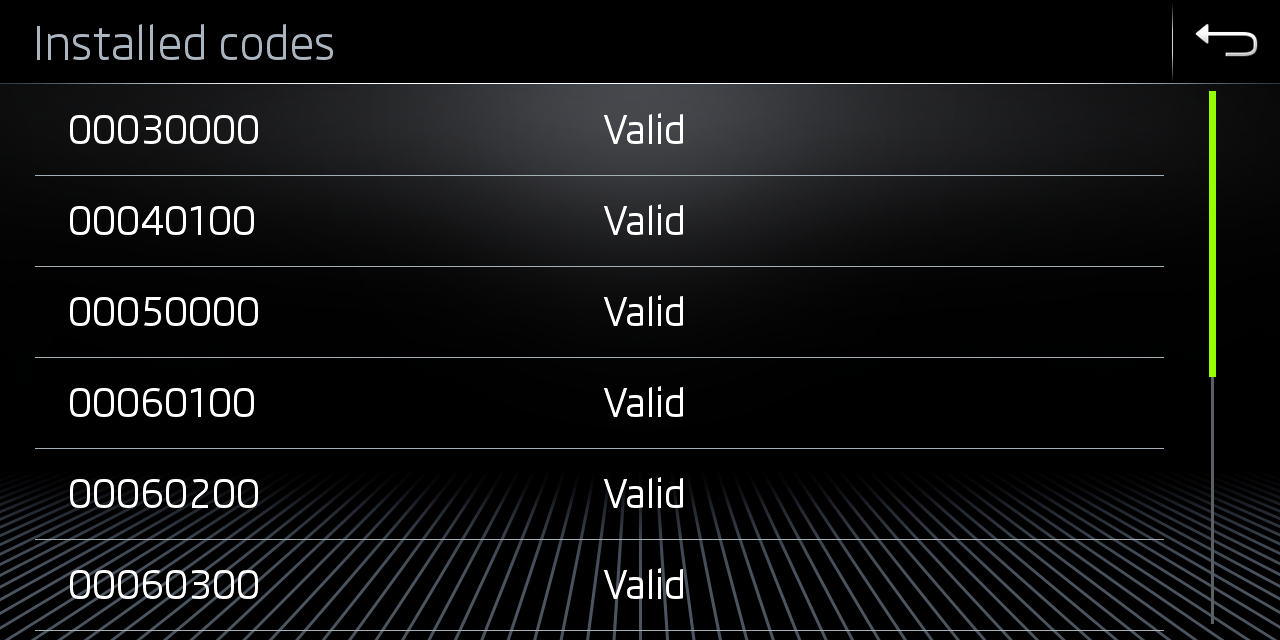
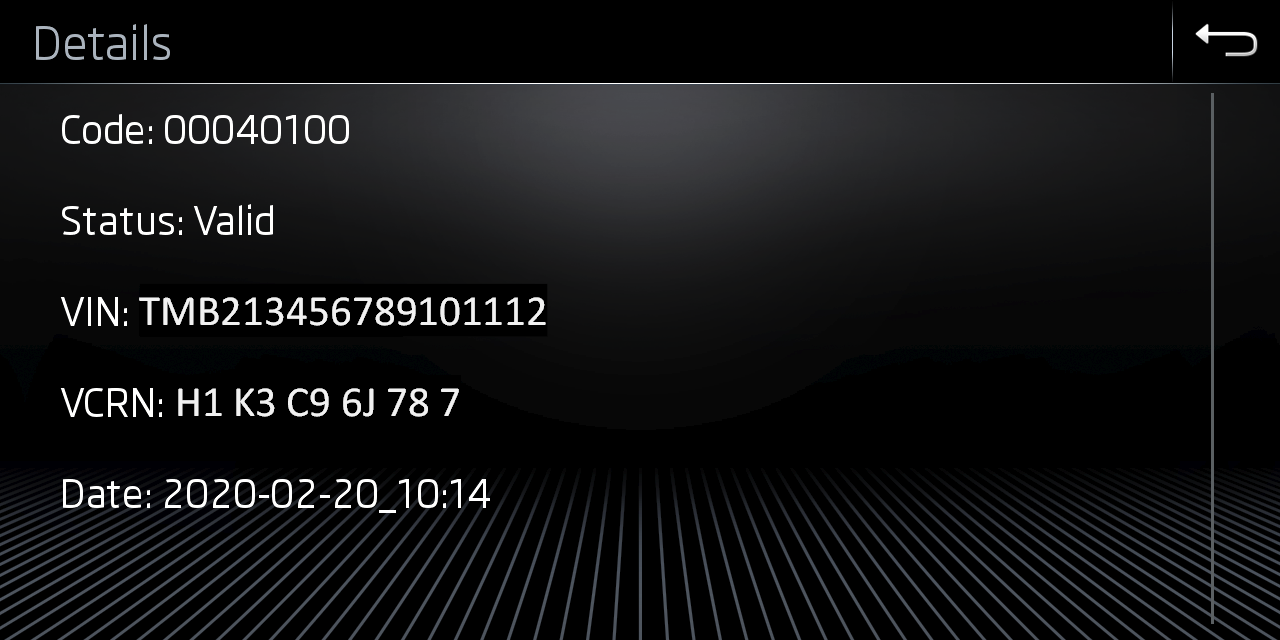
Function enabling codes (FEC,SWaP)
:::info
Enter Service Mode and select Function enabling codes (FEC,SWaP) will show all installed FECs and their status
:::
| VW (G13) | Skoda (G13) | Seat |
|---|---|---|
|
||
 |
||
 |
||
 |
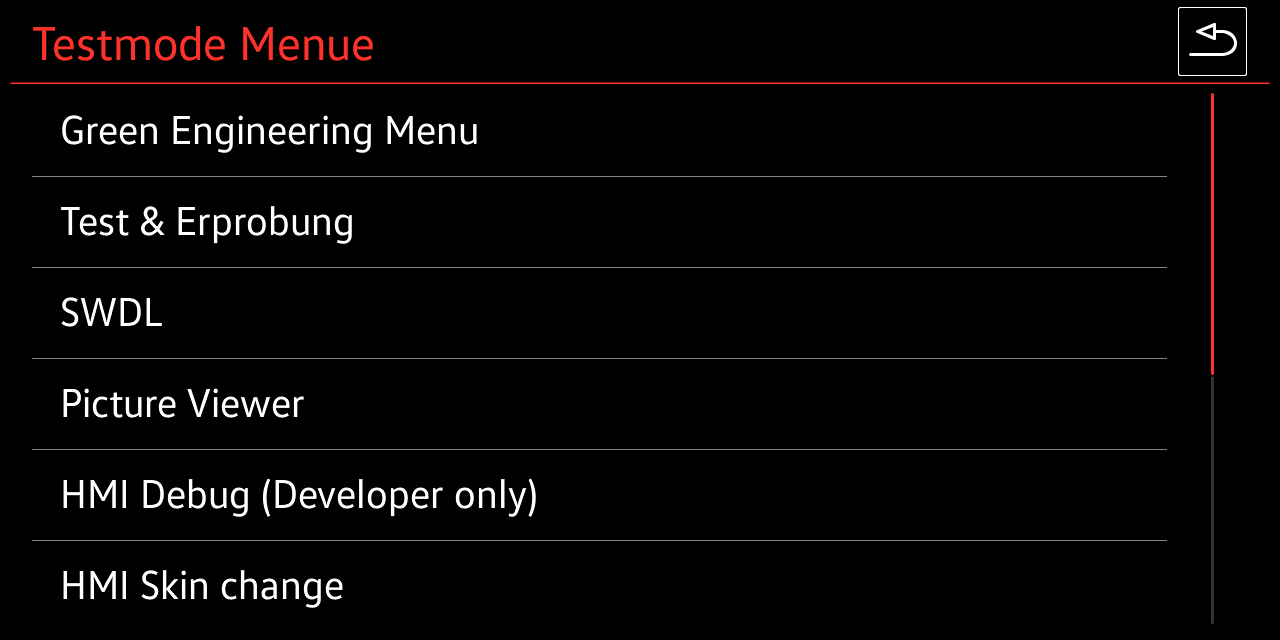
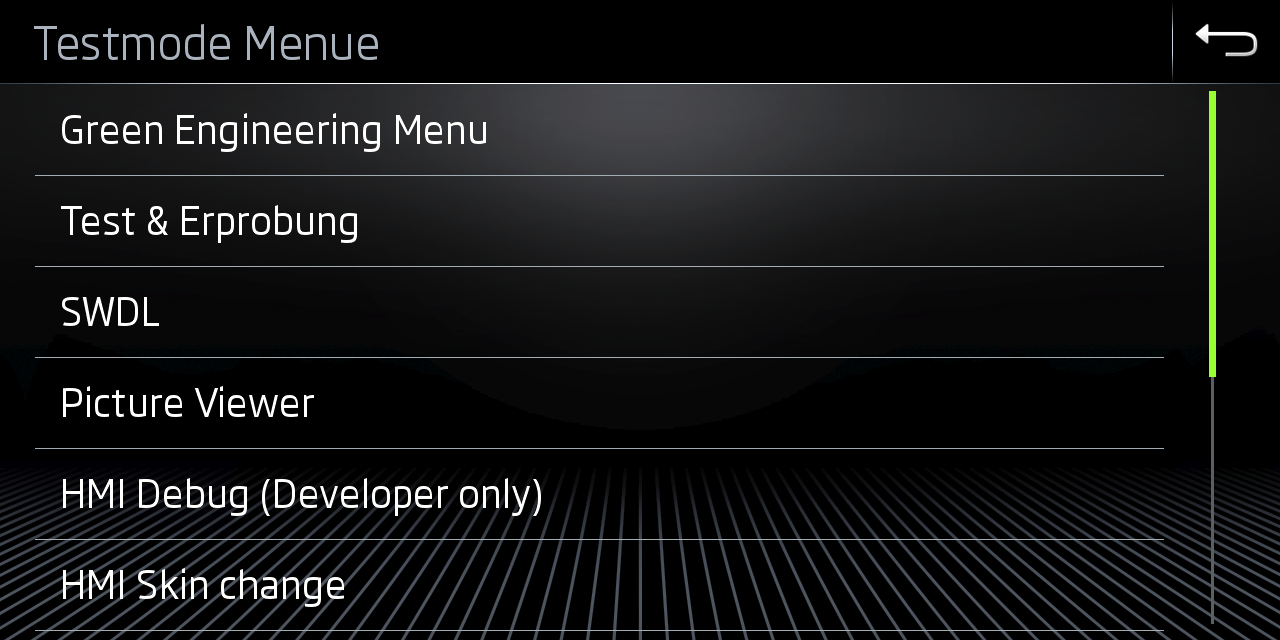
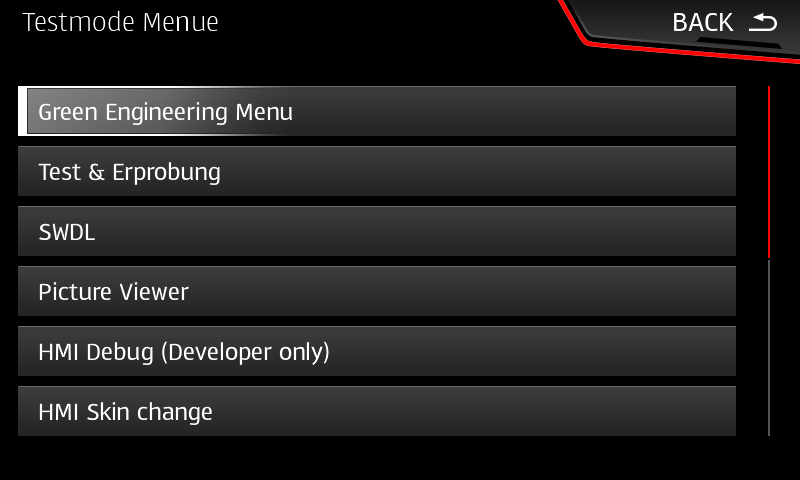
Testmode Menu: GEM, SWDL, etc via Service Mode
:::info
Enter Service Mode and select Testmode
Access to Green Engineering Menu (GEM), SWDL - custom FW update and more
:::
| VW (G13) | Skoda (G13) | Seat |
|---|---|---|
 |
 |
 |
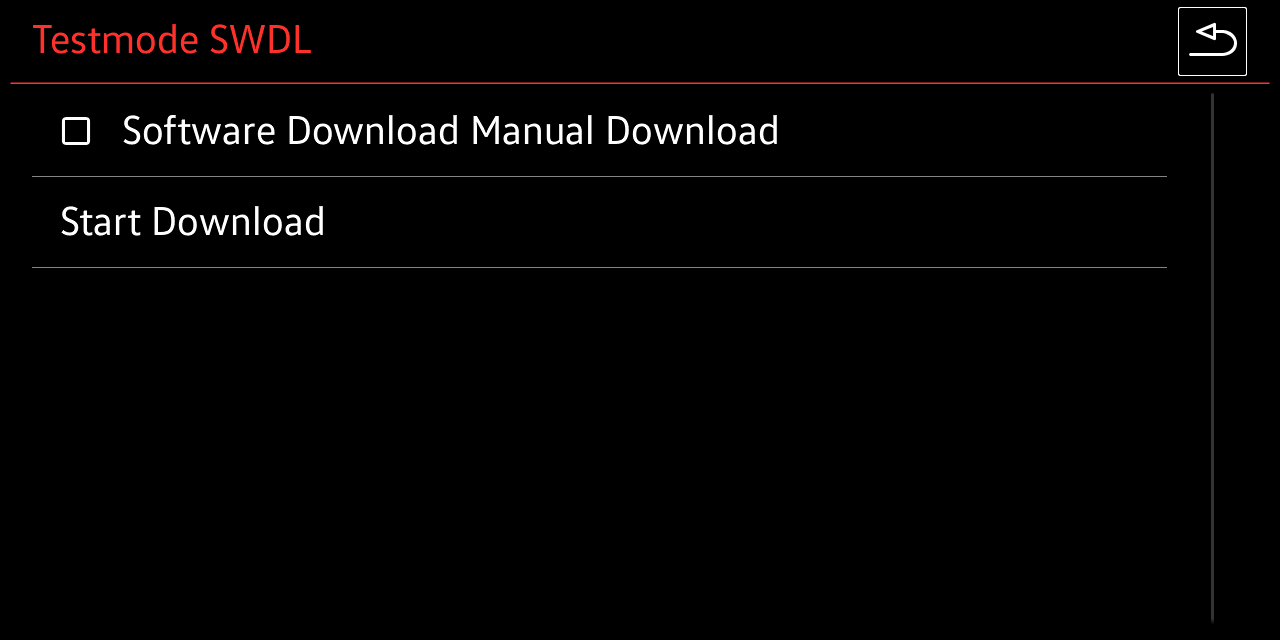
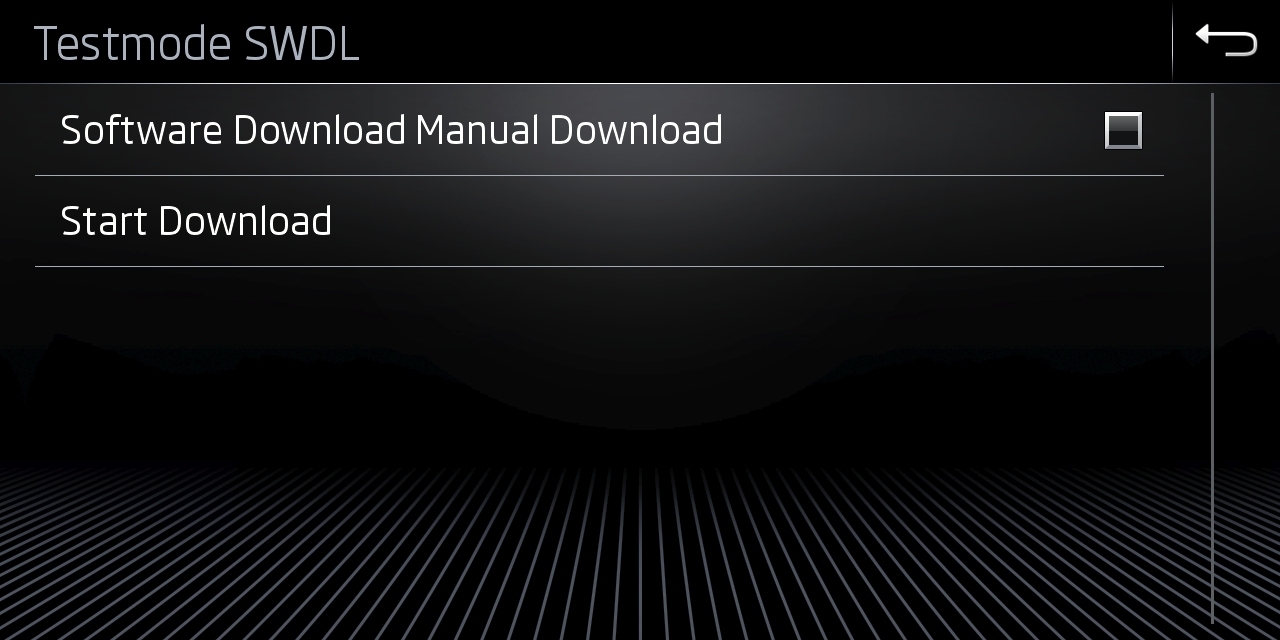
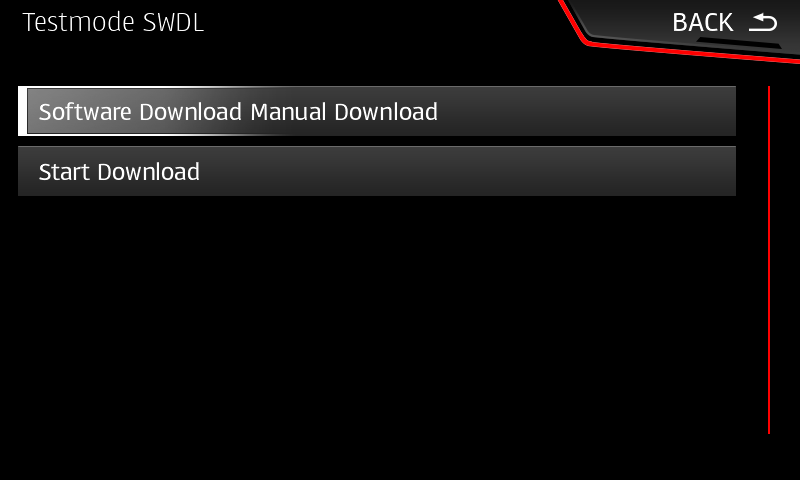
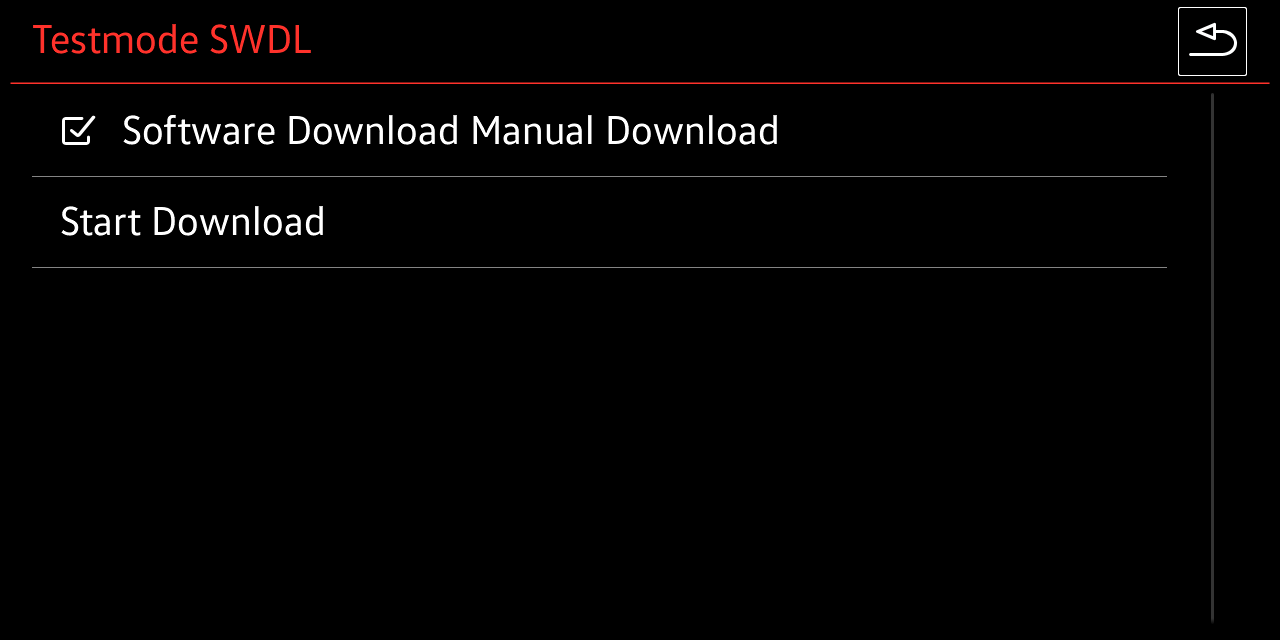
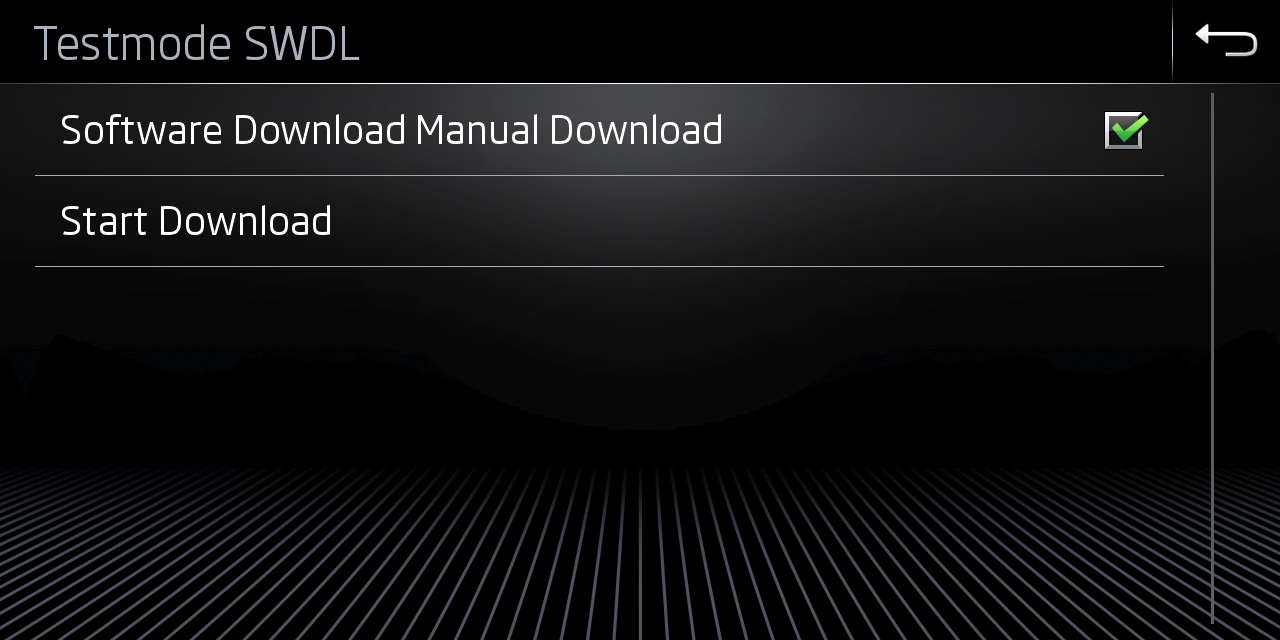
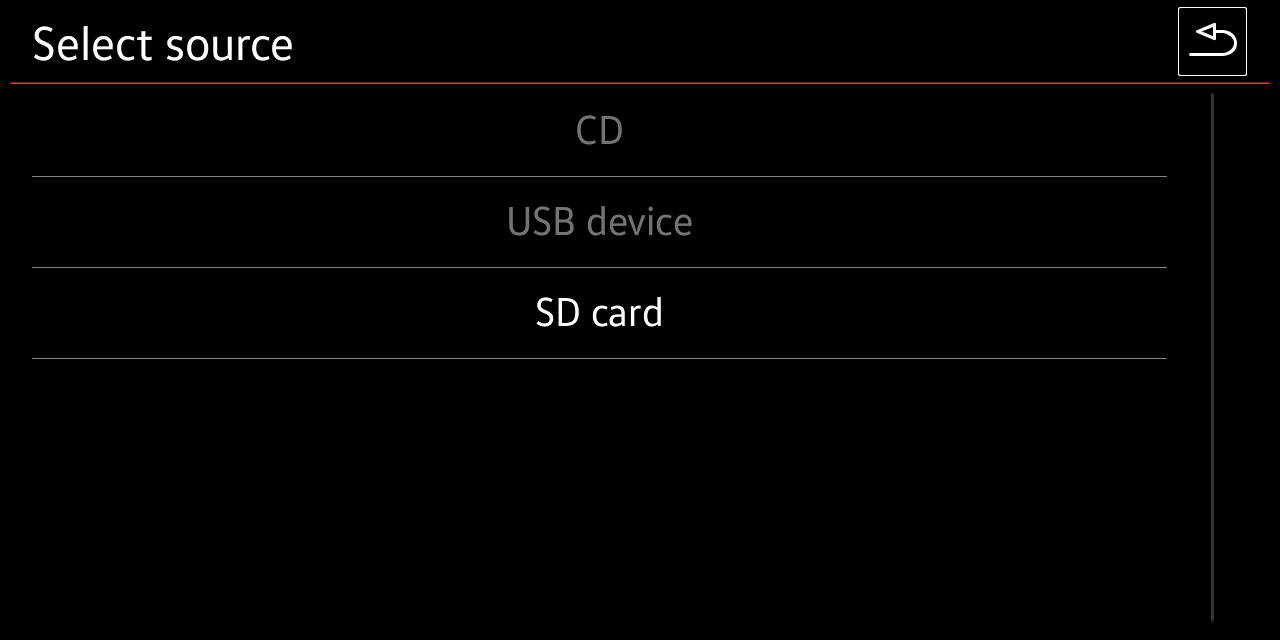
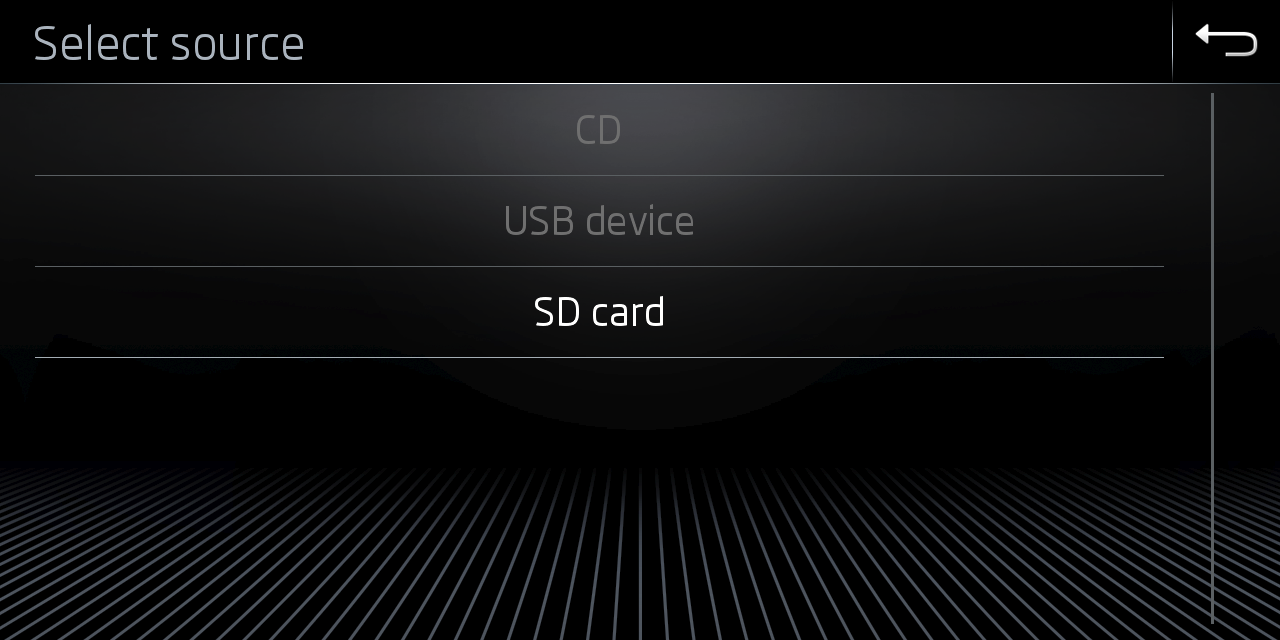
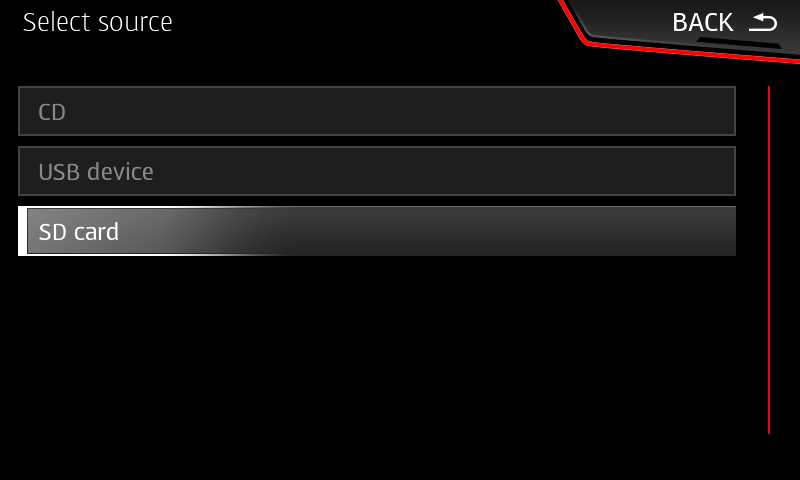
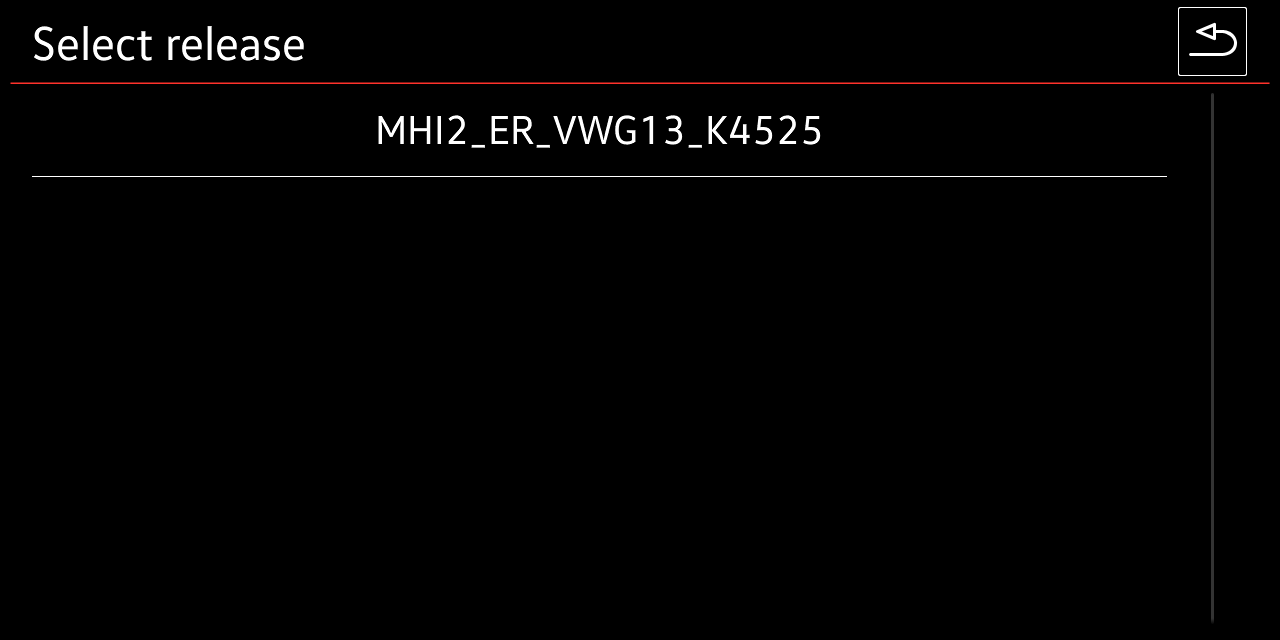
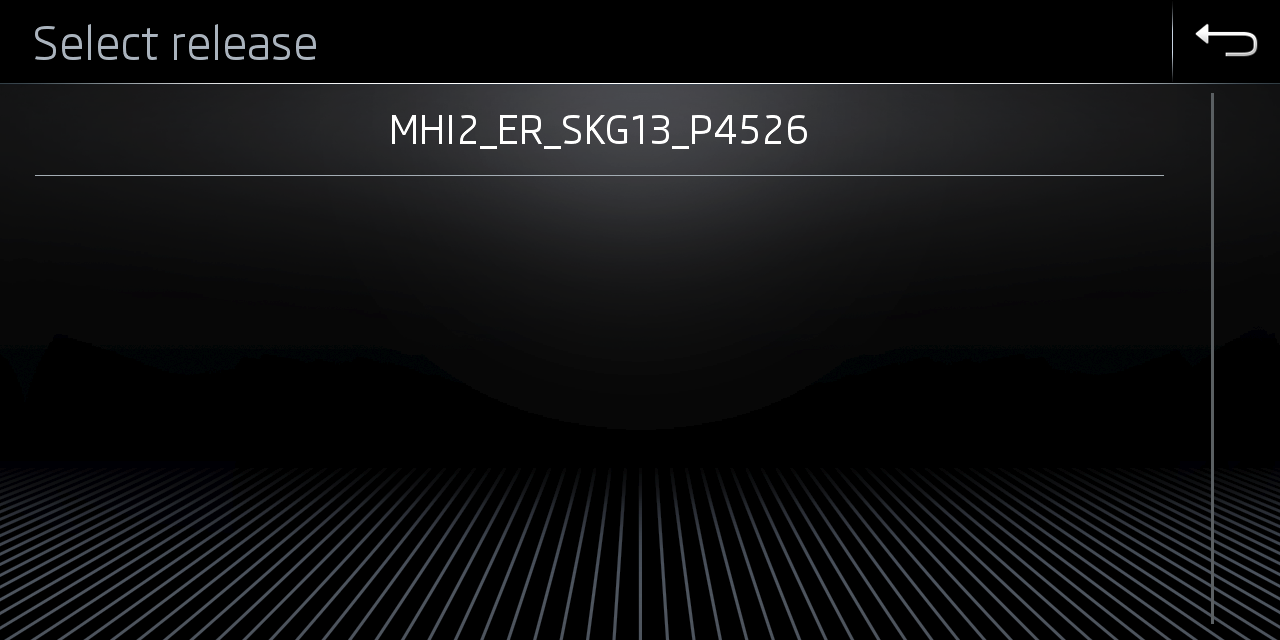
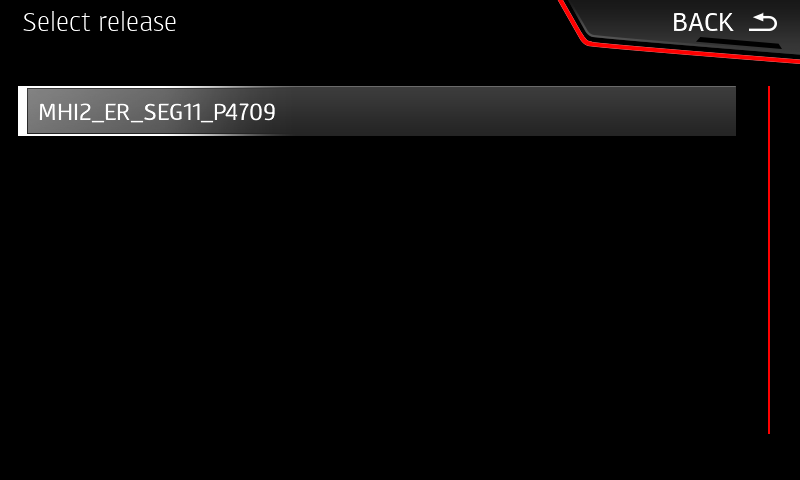
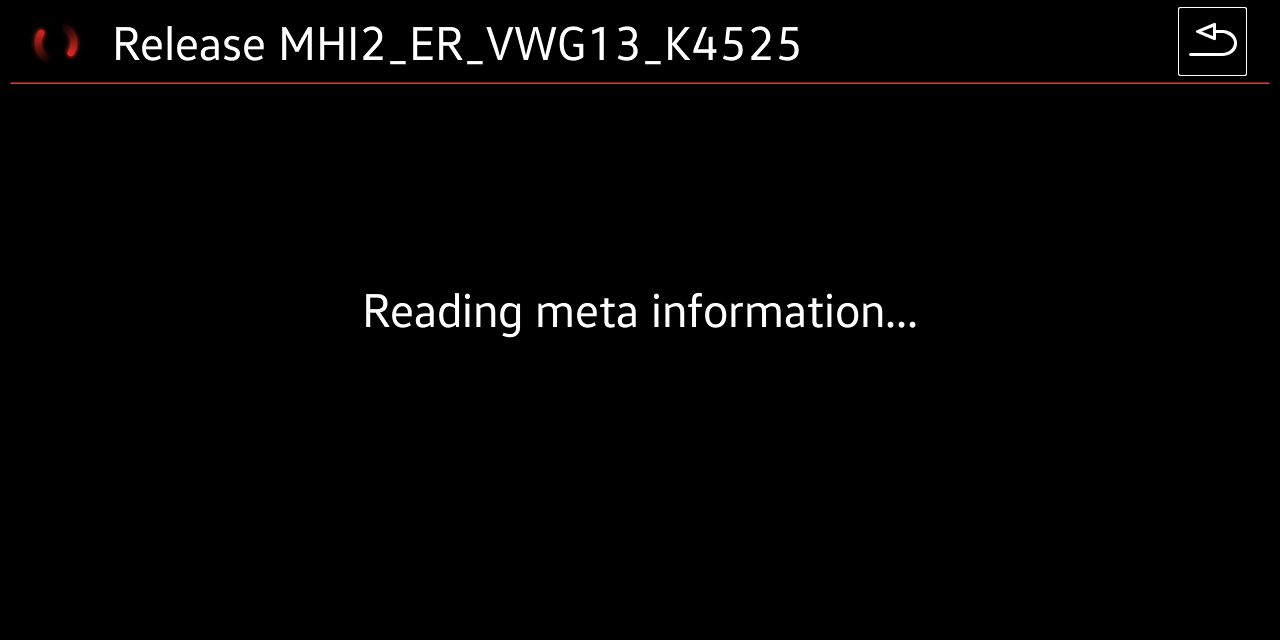
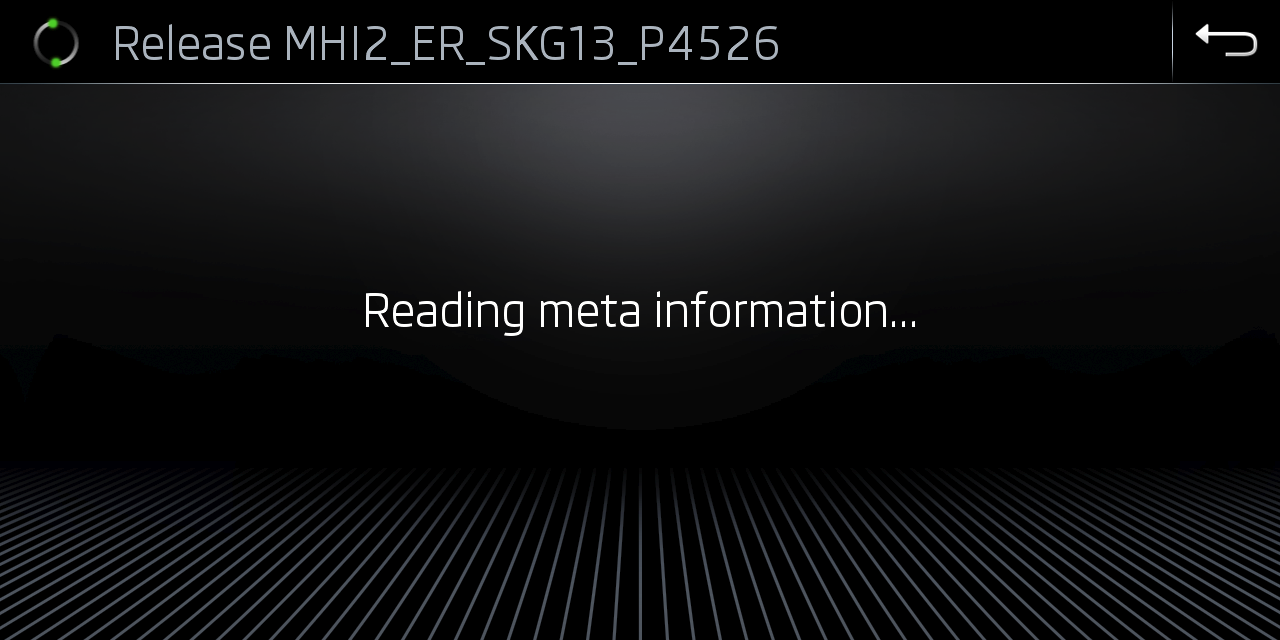
SWDL - Software Down Load (manual/user defined)
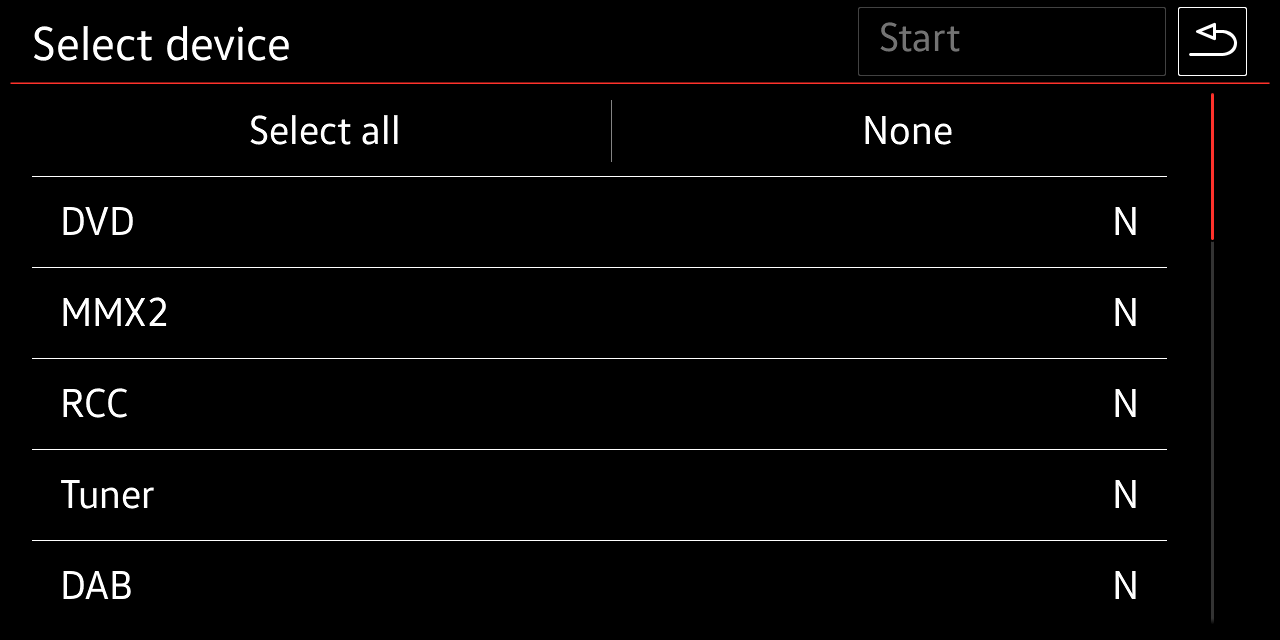
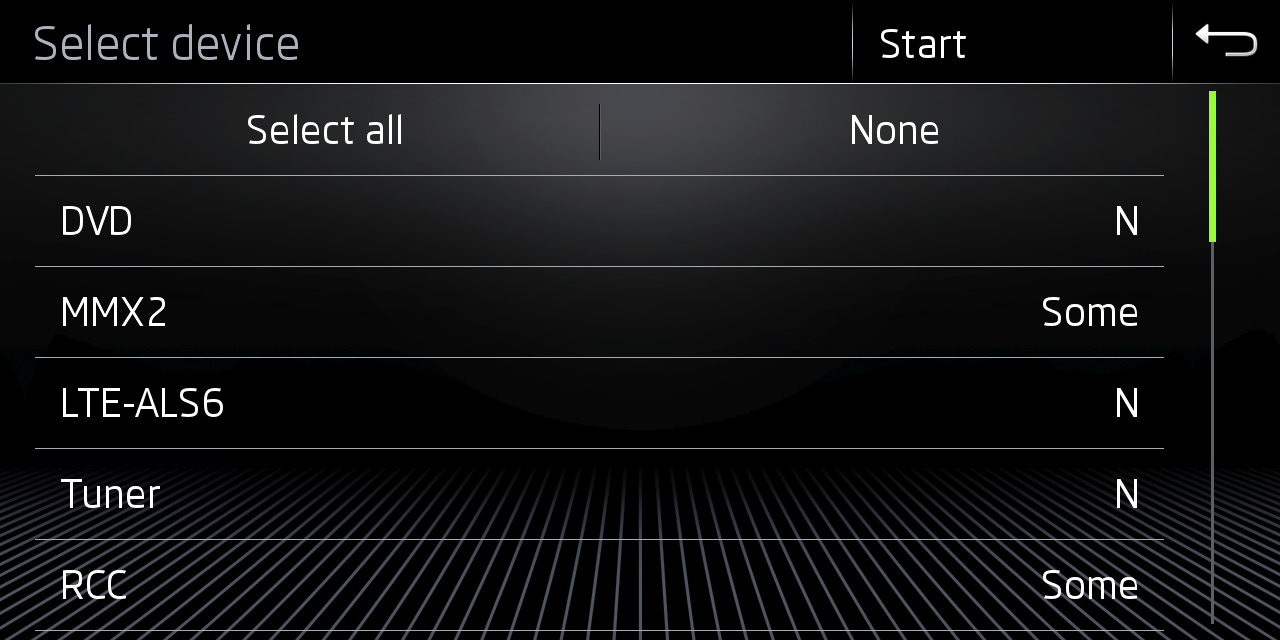
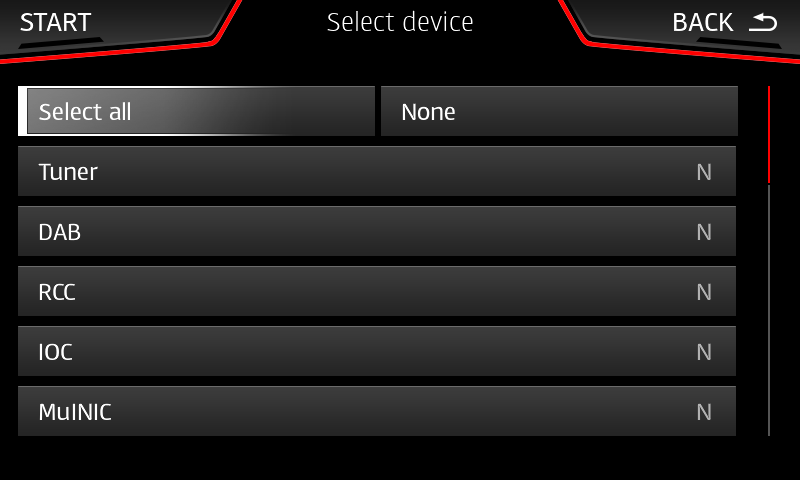
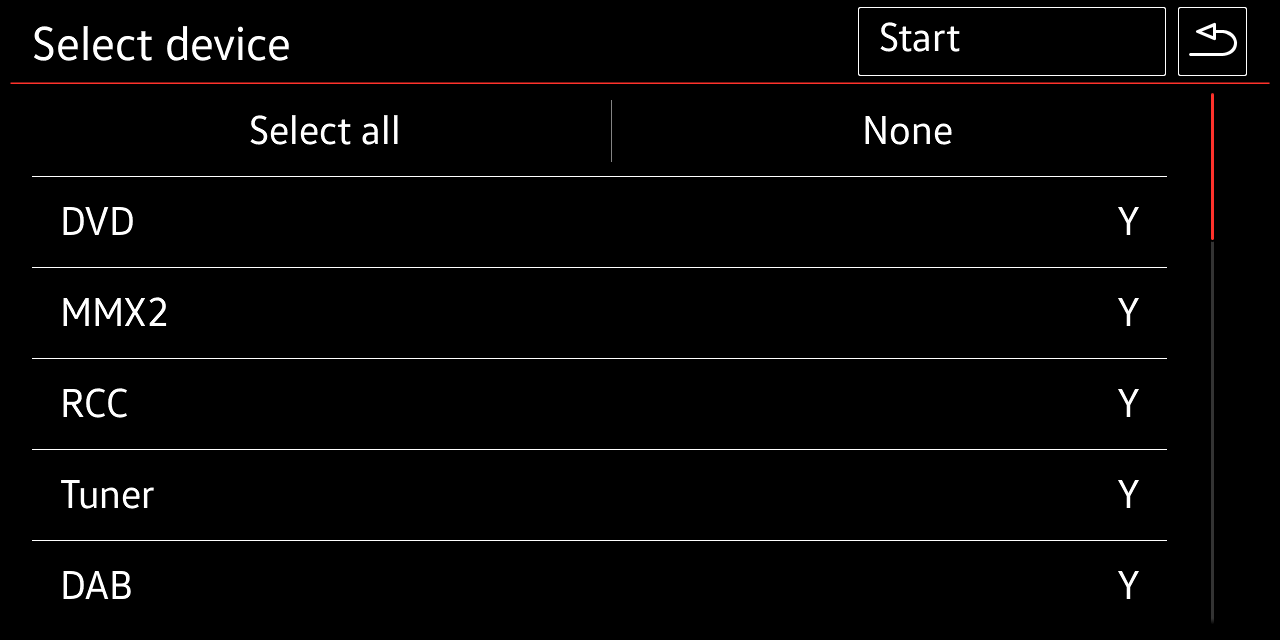
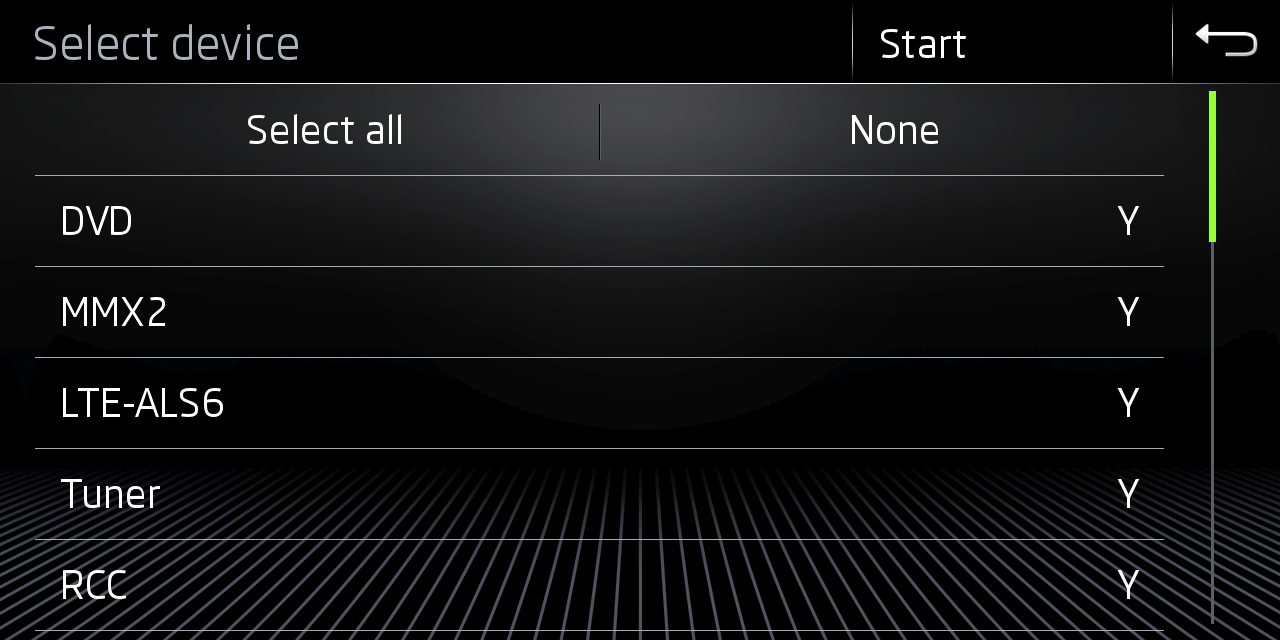
:::info SWDL user defined FW install will enable selection of update packages before installation
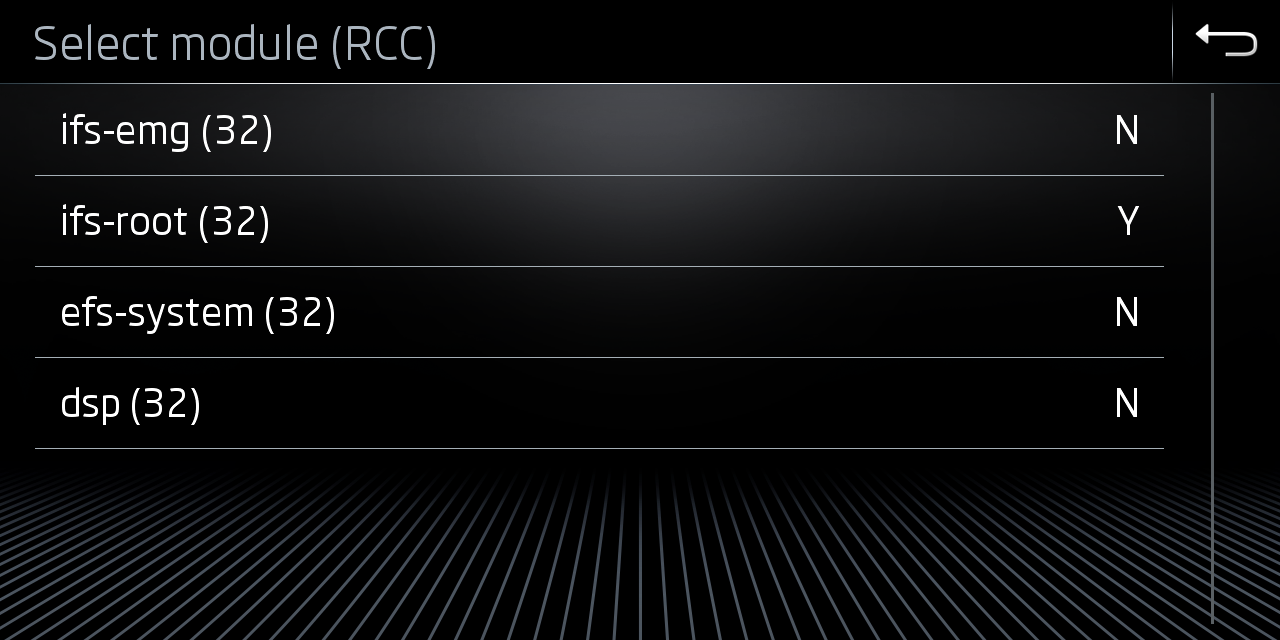
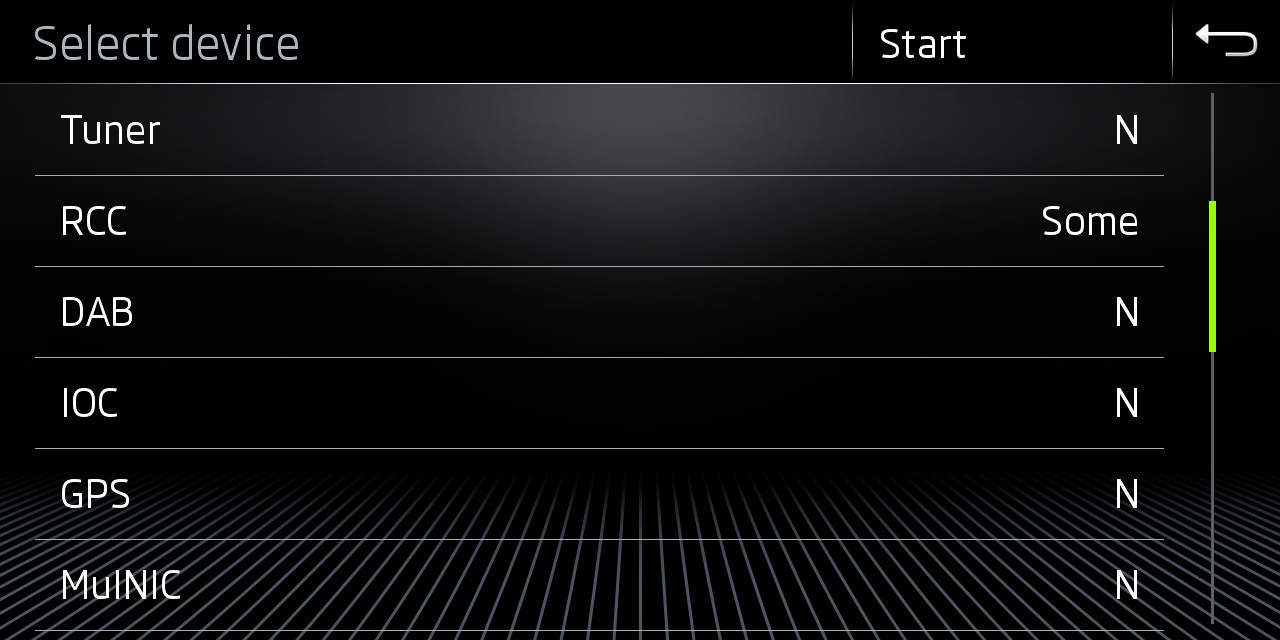
Y(es)- will be installed completlyN(o)- No installationS(ome)- only some packaged e.g. withinRCC/MMX2are selectedN/A- not available: not part of this FW update
:::
:::tip This is valid for FW updates, but also for Installation of maps, radio station db, GraceNote and M.I.B.
:::
| VW (G13) | Skoda (G13) | Seat |
|---|---|---|
 |
 |
 |
 |
 |
|
 |
 |
 |
 |
 |
 |
 |
 |
 |
 |
 |
 |
 |
 |
 |
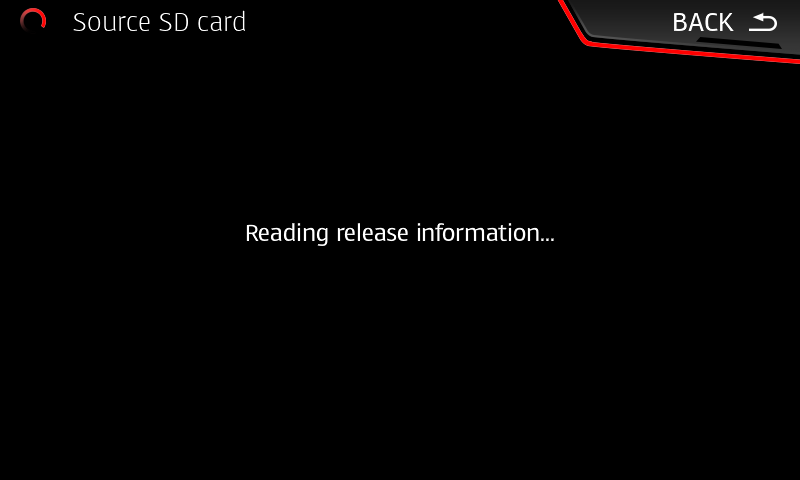
Continue with update and press START
Select partial packages from collections
:::info Same procedure and nearly identical menus on Seat and VW.
Example below is based on Skoda (G13)
:::
In this example we want to select ifs-root package from RCC collection.
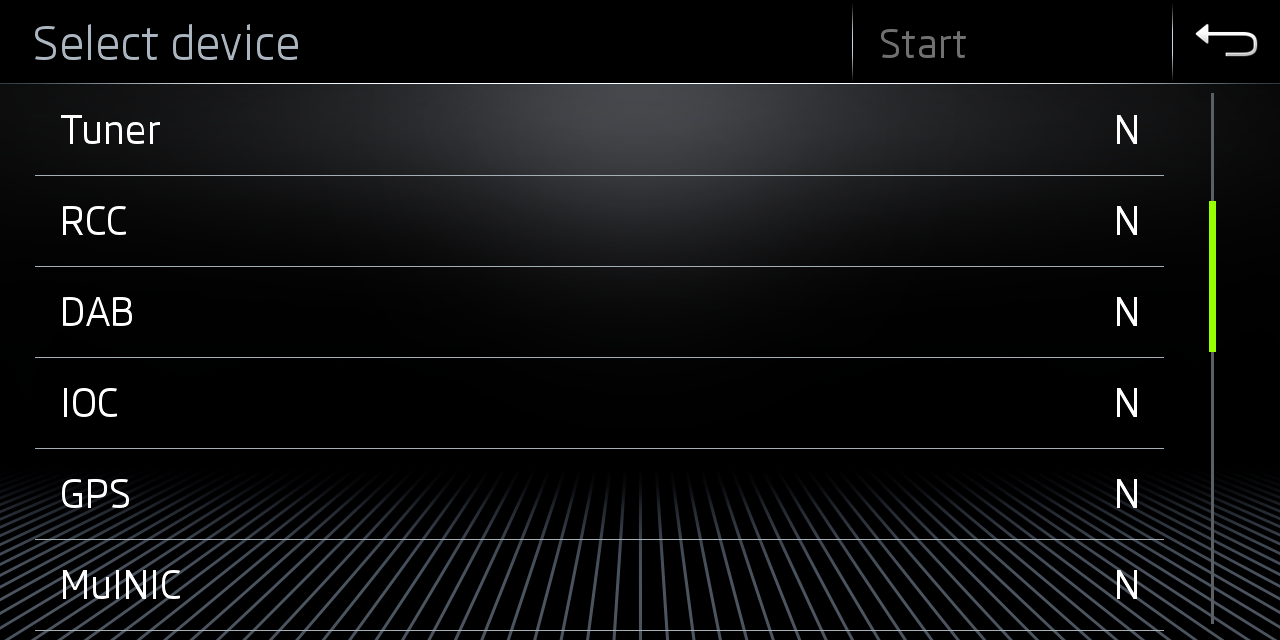
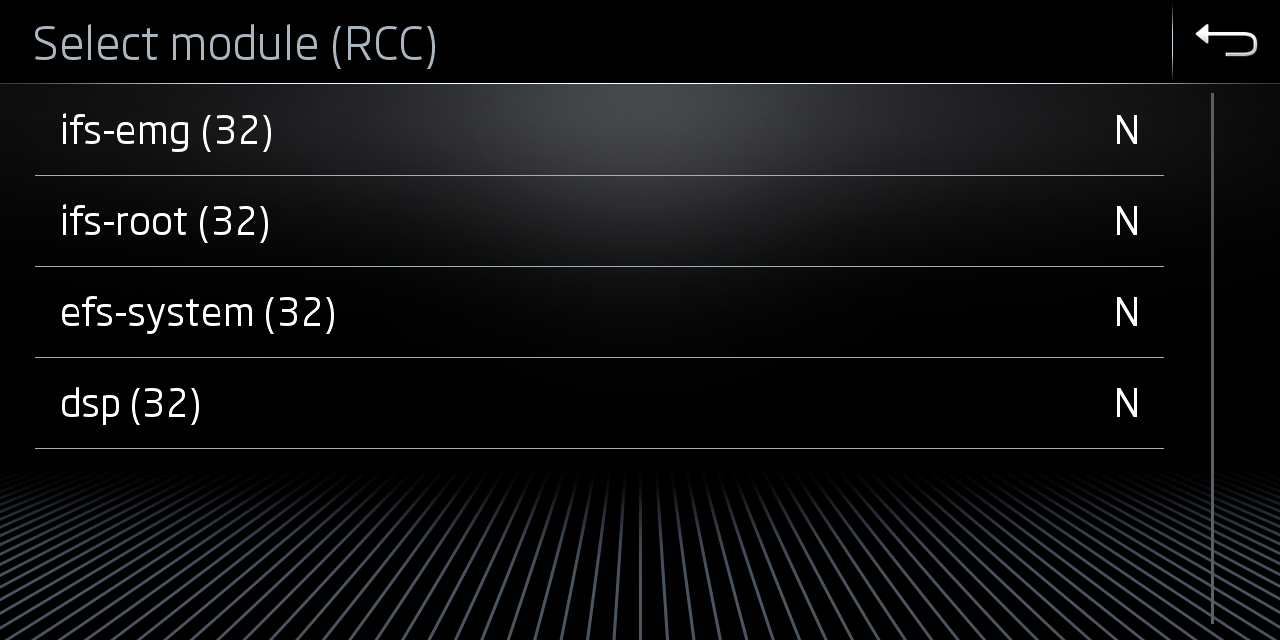
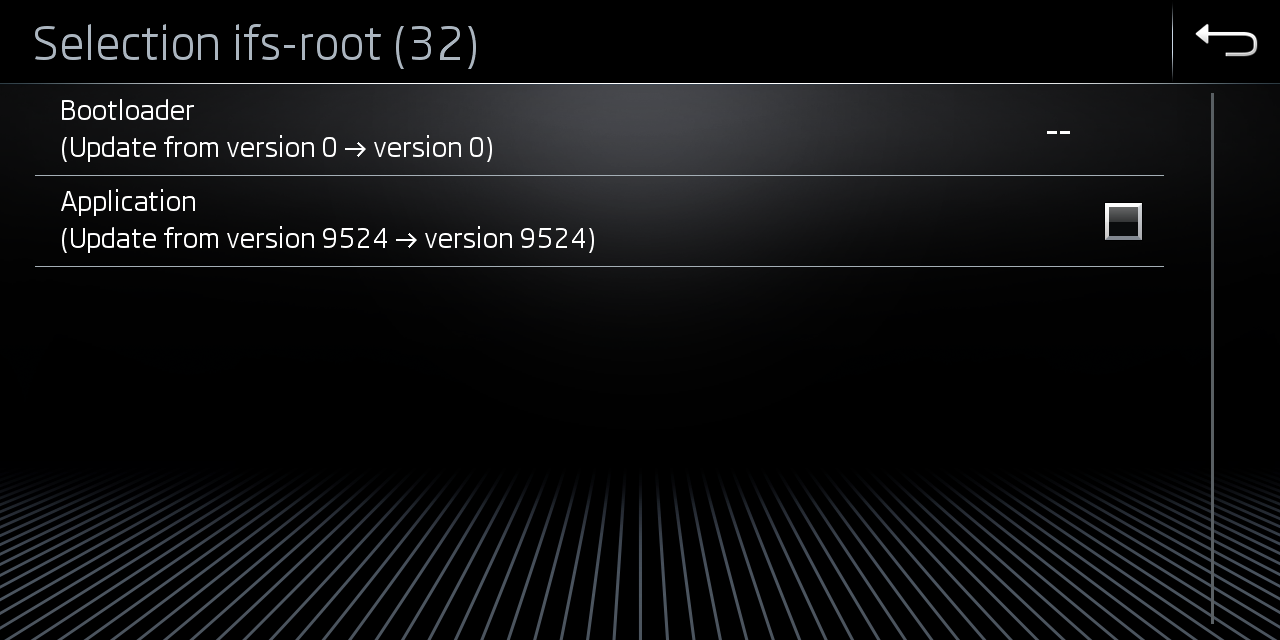
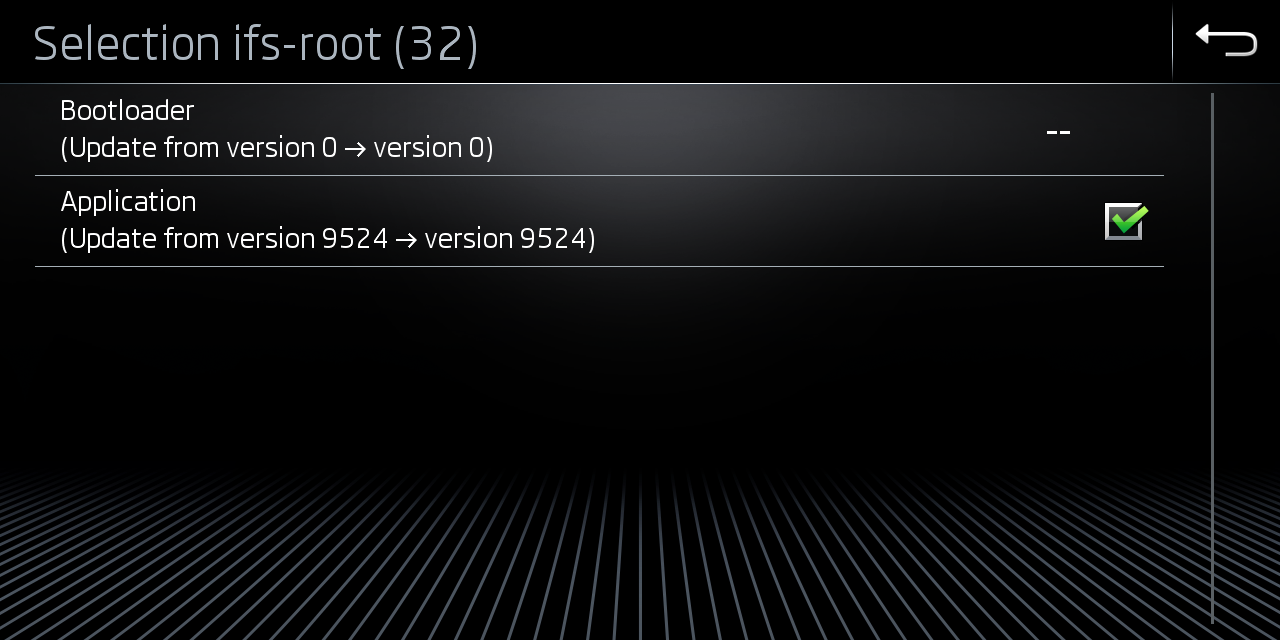
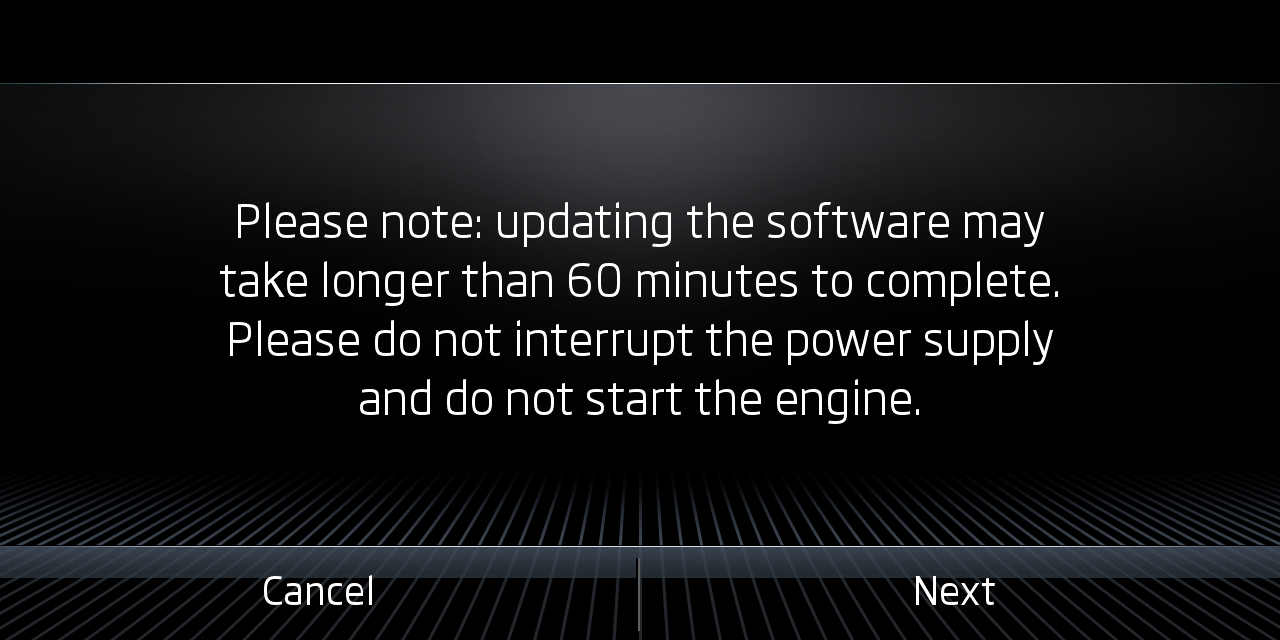
Start FW Update
:::info Standard FW update will take \~20 min
Full FW update with all packages on Y(es) \~40 min
Unit will restart several times during update!
:::
:::tip Only flash FW with external power connected to car. Running on engine power can lead to bad blocks during flasing.
:::
:::warning Keep the Kessy remote inside the vehicle, or even tape it to the dashboard. Check here why that's important.
:::
:::warning In case on an error occurs during update do not cancel the update.
- Check error code table
- Take a screenshot and post your issue in e.g. MIB2 telegram channel
If the error code points towards a read error, this is always caused by a bad SD card or missing files.
Yes, we see this very often even with new SD card.
- Leave system on
- Do not exit FW update mode
- Remove SD card and put new one in
- Hit retry button
- Normally FW update will continue and finish
:::
:::info
Select Start on SWDL screen to initiate FW update with the currently selected packages.
:::
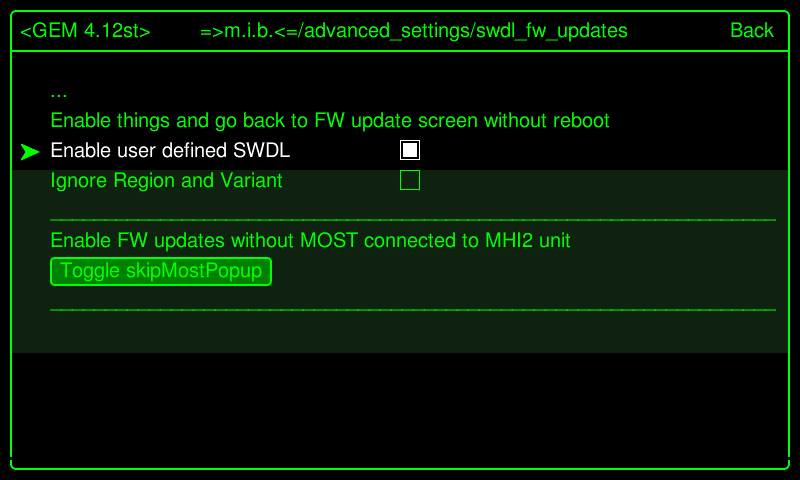
GEM - Enable user defined SWDL
:::info Before user defined SWDL can be used, it must be activated in GEM - e.g. via M.I.B., like shown on screen below.
:::
:::tip After the box is ticked exit GEM (do NOT reboot), remove M.I.B SD from unit, and insert SD with FW update.
:::