Navigation
After cross-flashing the firmware you your unit, there's a good chance your navigation will no longer work like so:
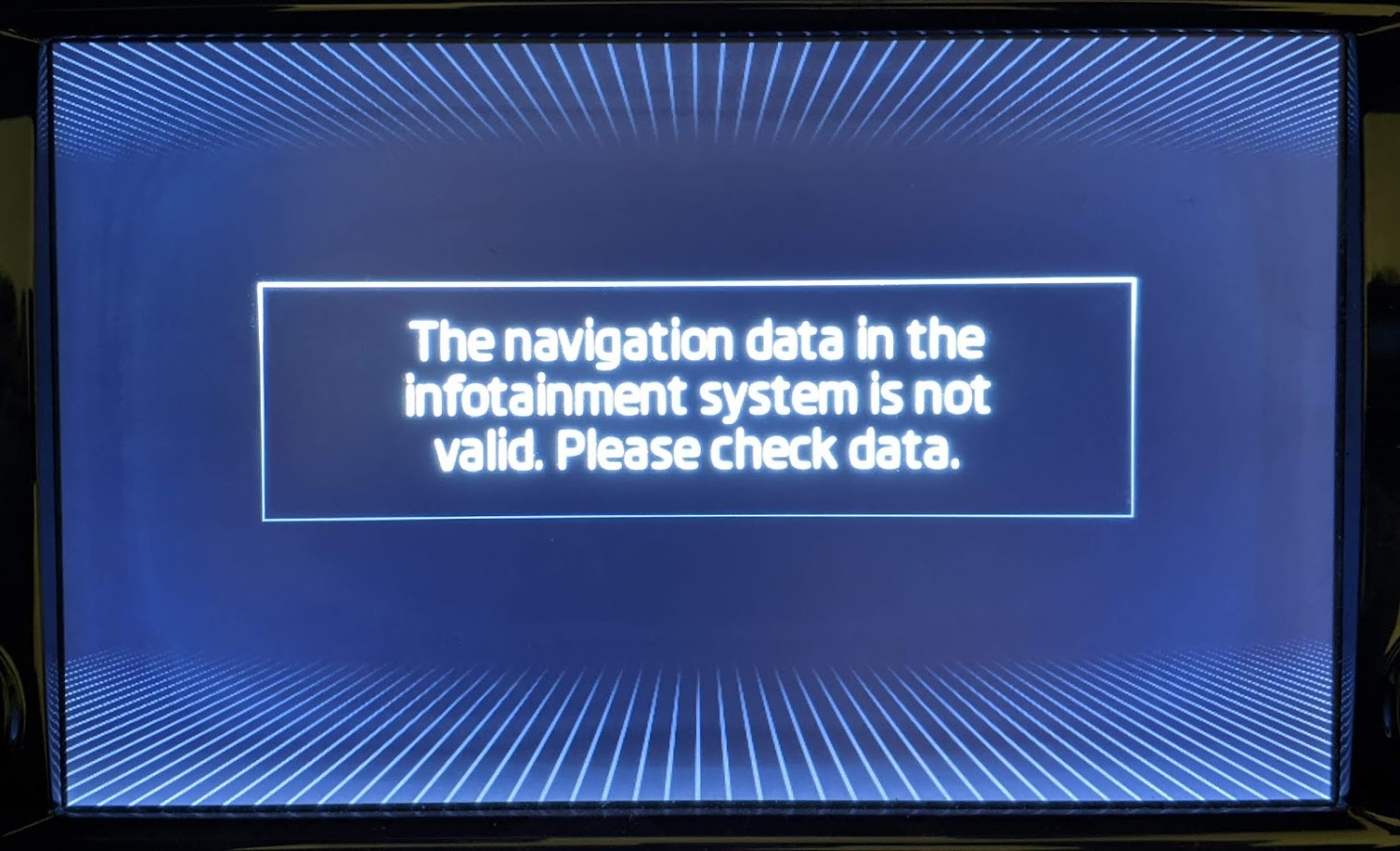 There are a couple of things that can cause problems like this, we'll fix both of them.
Map FEC Codes
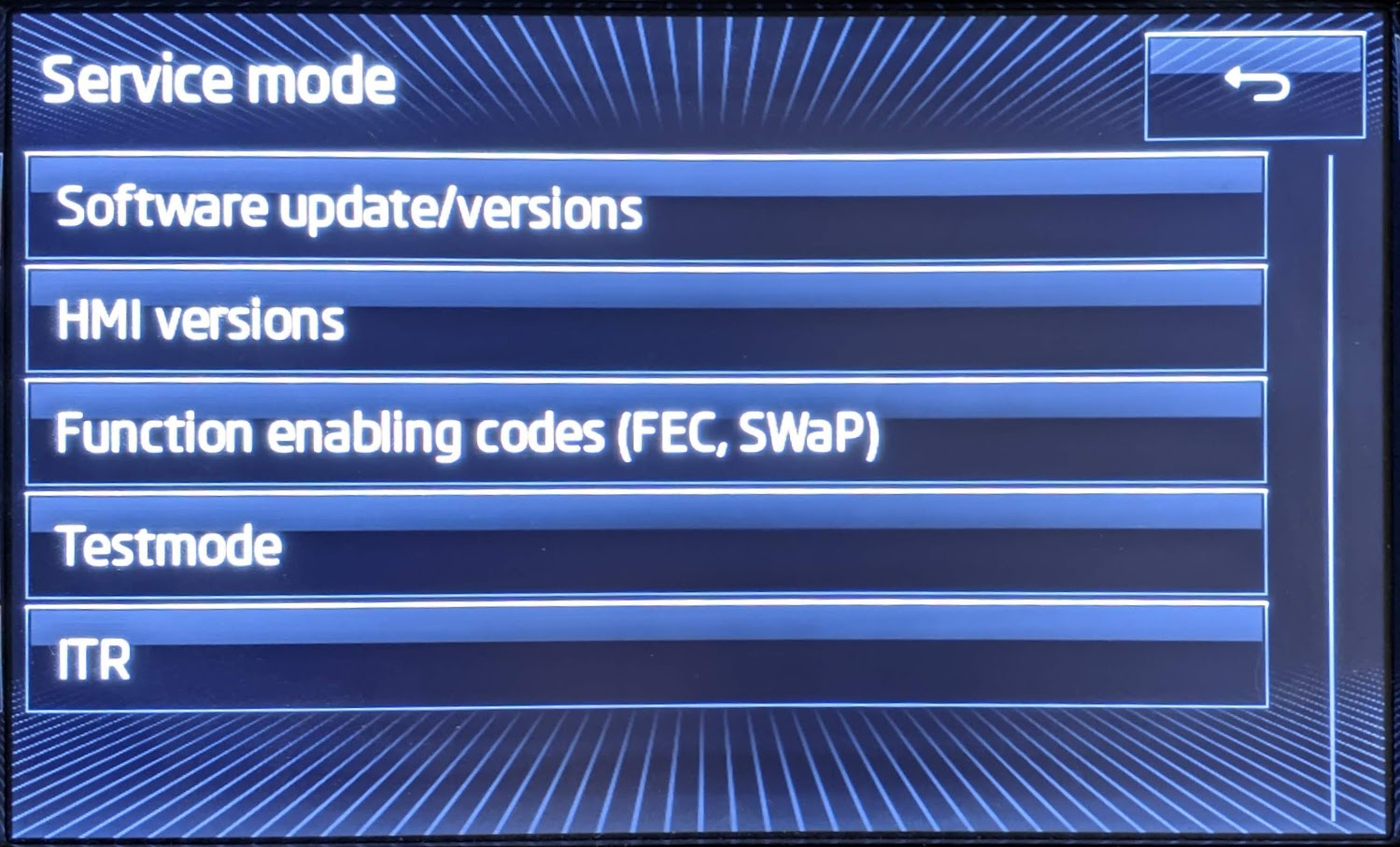
The first thing to do is check the SWAP/Fec codes. Bring up the Service Menu and go to "Function Enabling Codes (FEC, SWaP)"
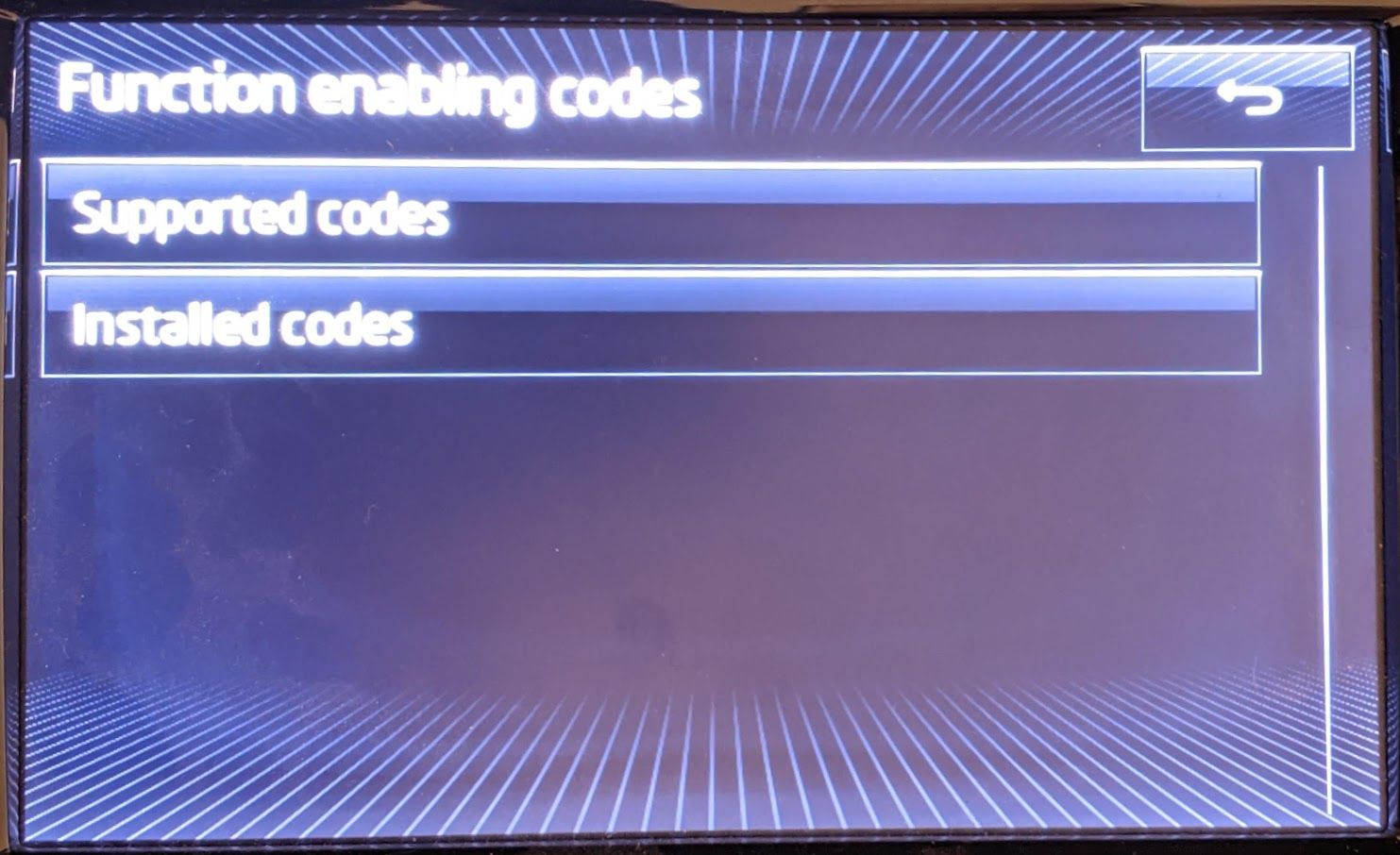 Go to Installed codes. It may have a list of codes like this (Valid or Invalid)
\
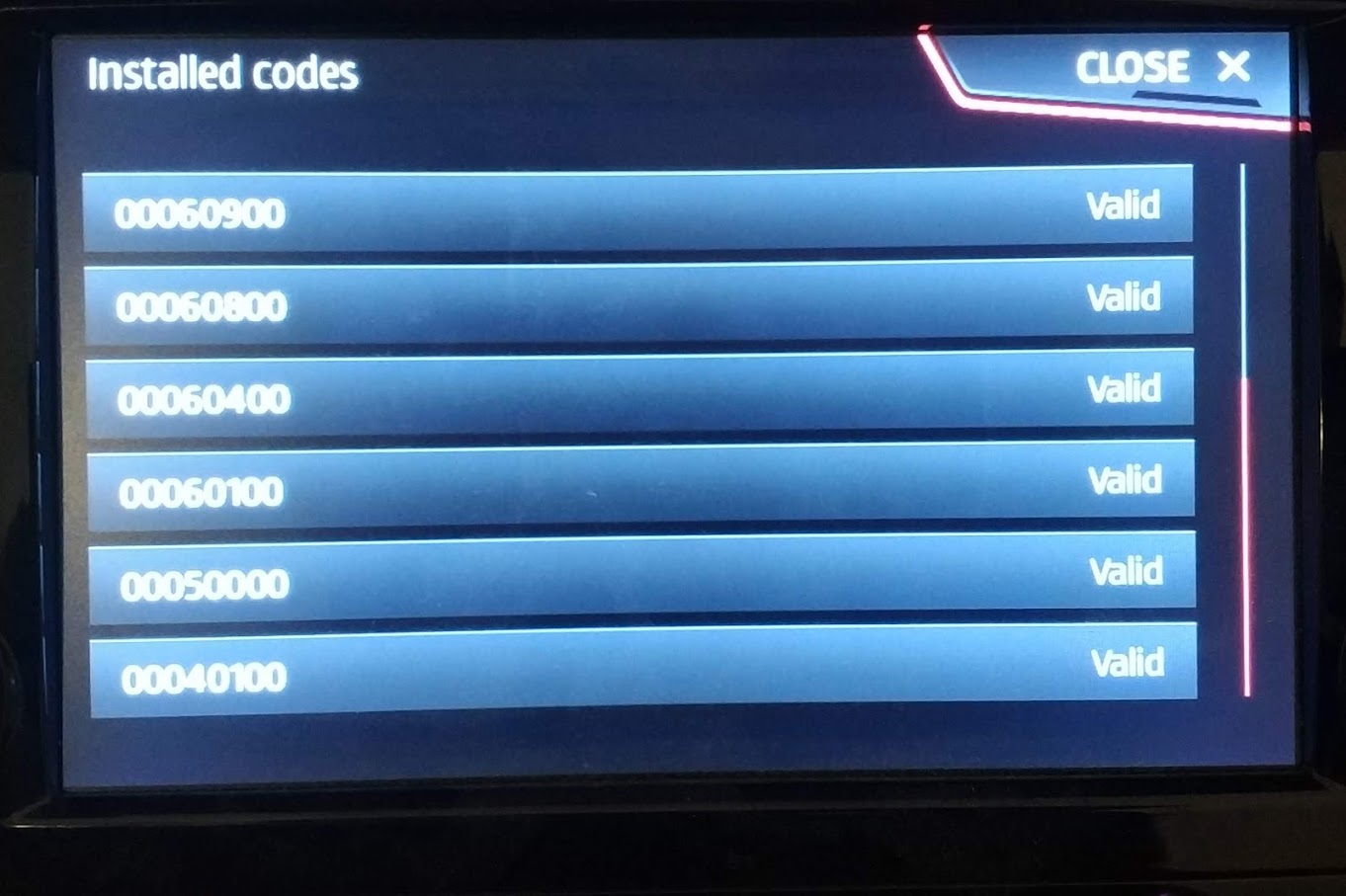 Or it might be blank
\
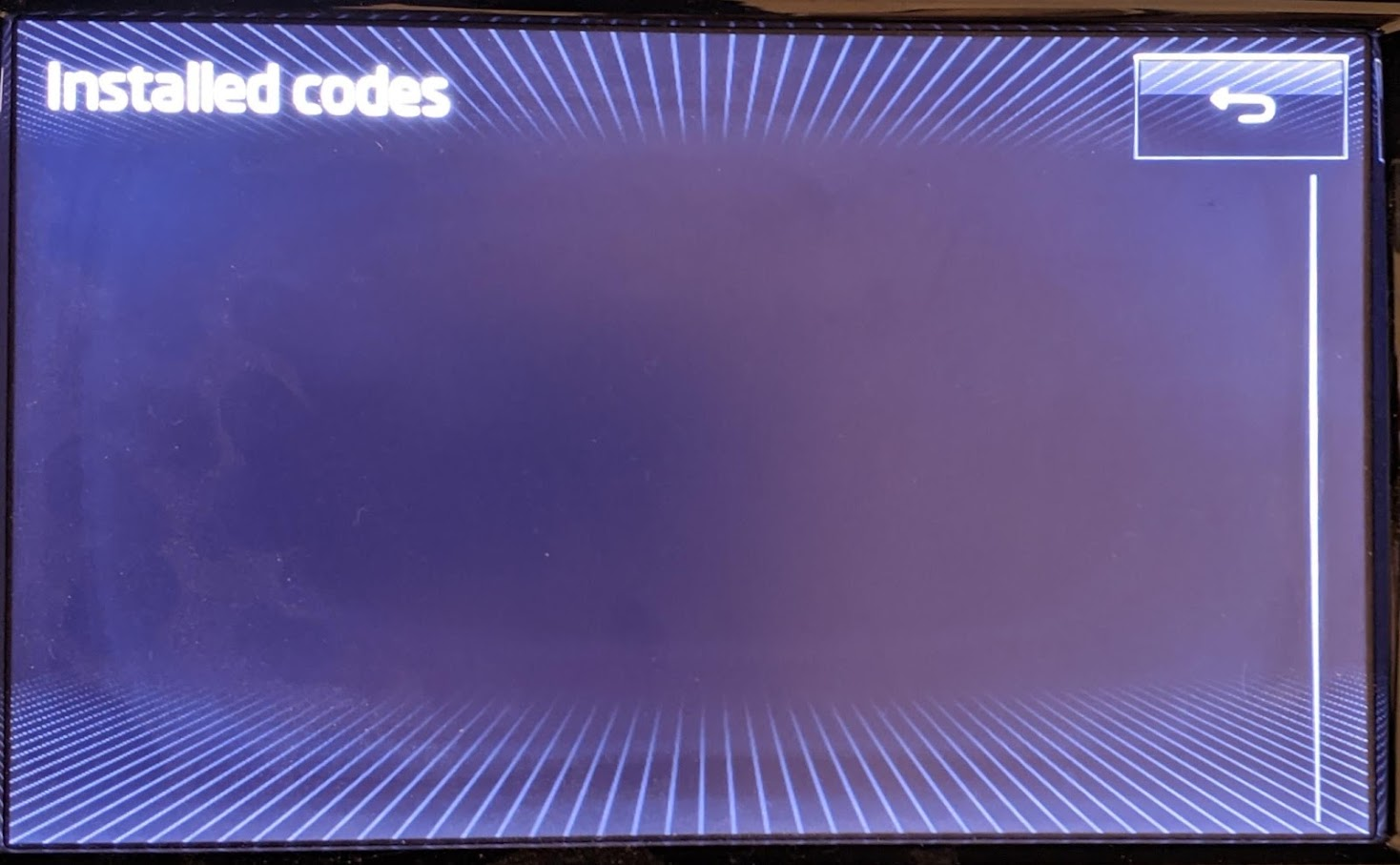 Either way, we need to make sure that a matching code for your brand & region has been added.
\ Maps FEC: 0ABCCCDD
| Section of FEC | Section Name | Details |
|---|---|---|
| A | Brand | 2 = Audi, 3 = Bentley, 6 = Porsche, 7 = Sitz, 8 = Skoda, 9 = VW, C = MAN |
| B | MIB version | 1 = MIB1 HIGH (Harman), 3 = MIB2 HIGH (Harman) |
| CCC | Region | 000 = Europe \n 100 = USA and Canada (NAR - North America Region) \n 400 = Middle East (AGCC - Bahrain, Kuwait, Oman, Qatar, Saudi Arabia, UAE) \n 401 = AGCC + Turkey \n 401 = AGCC + Turkey \n 402 = AGCC + Israel \n 500 = South Africa \n 600 = Australia and New Zealand \n 700 = India \n 800 = Argentina, Brazil and Mexico \n 801 = Chile \n 900 = Asia / Pacific \n D00 = Rest Of the World (ROW - Rest Of the World) |
| DD | Expiry | valid until year (DD is Hex value), 4c= 2030, FF = \~2075/Lifetime |
Examples MIB2 High:
| Skoda | 0830004c | Europe until 2030 |
|---|---|---|
| Audi | 0230004c | Europe until 2030 |
| VW | 093D004c | ROW until 2030 |
| Seat | 0730004c | Europe until 2030 |
So using this info figure out what the desired code should be for your brand & region and check if it's already in the list of valid codes. Note: it might be there with a different expiry, if so check the expiry year (in hex) is still valid, else it will need replacing.
If it's missing, needs replacing or there are no codes at all, it's time to break out M.I.B. - More Incredible Bash
Make sure you've got V2.7.4 (or newer).
Download and install this tool onto a SD card, then go into the patches folder and find the one that matches the firmware you've got installed:
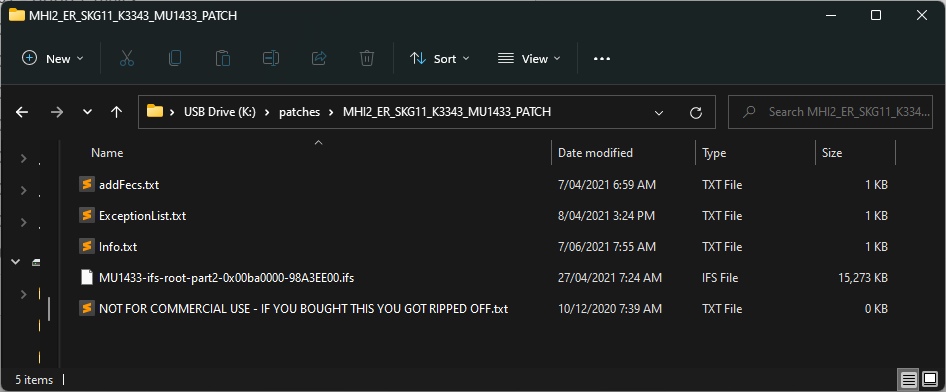 Open up the "addFecs.txt" file in a good text editor like Sublime Text or Notepad++ (windows built in notepad is not always safe with regard to line endings)
Add the Maps FEC you've calculated above. There will likely be a similar map code already there, but possibly for a different region. If so, replace it with your desired code.
Make sure you leave an empty line on the bottom of the file, or the last code might be missed!
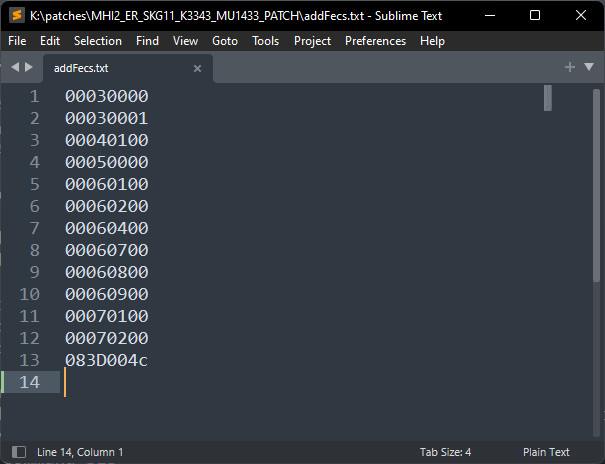 Save and close the file, eject the SD card and insert into SD1 on the unit.
Go back to Service menu and "Software Update/Version" → "Update". Follow it through to install M.I.B. Launcher.
When the installer shows the summary screen of what was installed, just hit back and you can cancel/ignore the SVM thing for now.
Make sure you leave this SD card in SD1, M.I.B only works when the unit has this card inserted.
After it's finished installing and reboots back to normal mode, bring up "Service Menu" again, "Testmode", "Green Engineering Menu". There should now be a "=>m.i.b=" entry.
Go to that and scroll down to to the main menu of option.
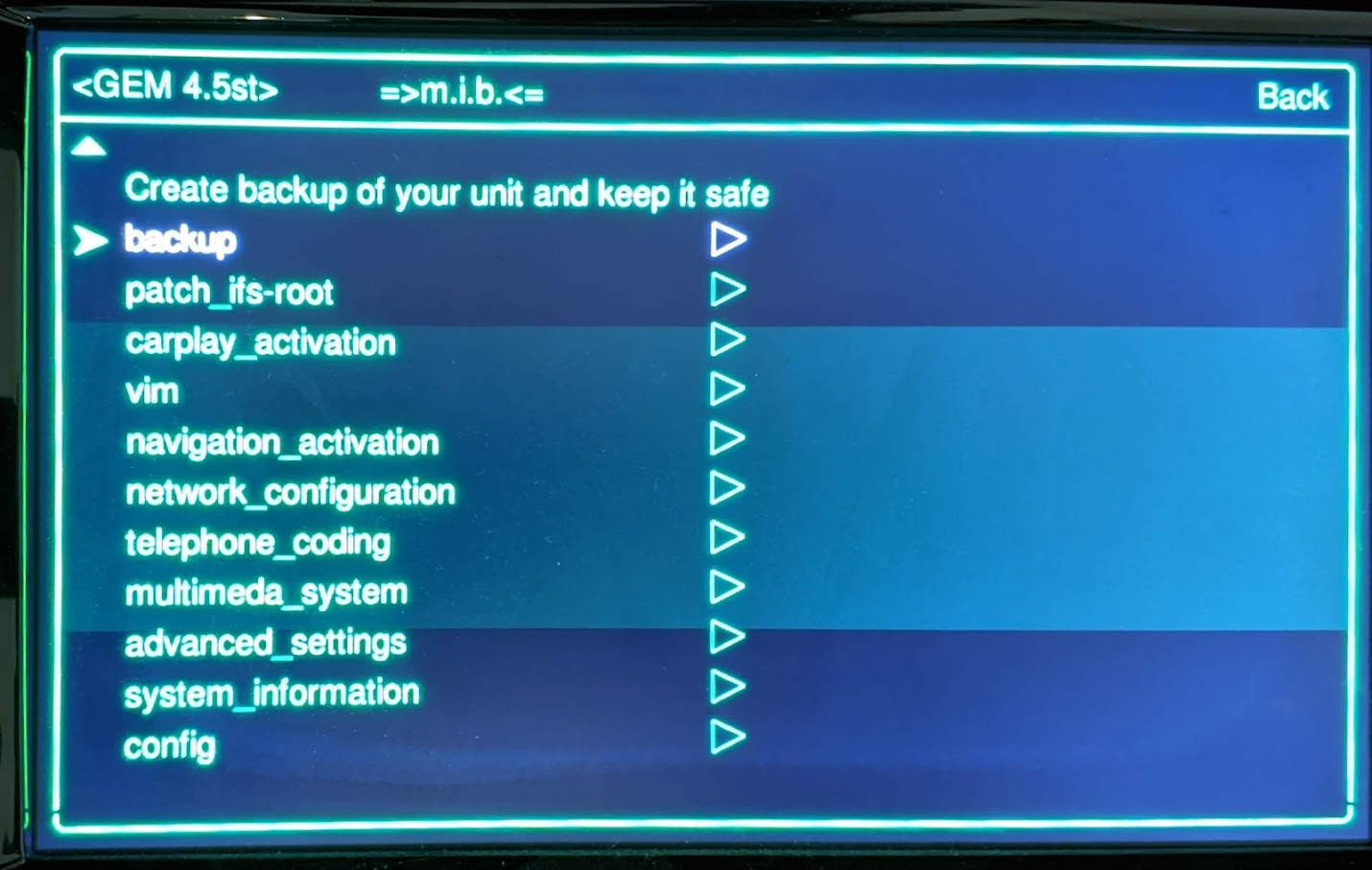 If you haven't already done so previously you should really run a backup.
Then go to "patch_ifs-root" → "Flash patched image". This will enable many of the other m.i.b features.
Once it's finished it'll automatically reboot. Once back at normal screen, head back to the m.i.b GEM screen
This time, go to "patch_ifs-root" → "Add new Fecs to FecContainer.fec". This will install the FEC codes we put in the text file earlier.
Once that's done, you can go to "patch_ifs-root" → "Fix SVM Error" to clear the error from running the update previously. If you don't want to do that now, just reboot manually.
When the unit boots back up, hopfully you'll have operational maps again!
If not, move on to… \n
Map Region Setting
Another function in m.i.b allows you to change the navigation region.
From the m.i.b. GEM screen go to "navigation_activation" and click on the button to "Enable XX navigation" for the region you're using. It'll set the required flags then reboot.
Still no maps? next… \n
Car Brand Setting
If you've been cross-flashing, there can be a few different copies of the brand settings.
Even after I used M.I.B. to change mine, and cross-checked that in the eeprom, I still found I had no maps until I changed a separate brand setting in mib2-toolbox
Download and install that tool onto an SD card and install it on the unit like any other software update.
Once that's finished, head to GEM and there should be a new menu entry for mqbcoding. Navigate into mqbcoding → customization → coding and there will be a Brand setting. Make sure that's set to the brand you want/expect the unit to be and hit the Reboot button seen on the screen:
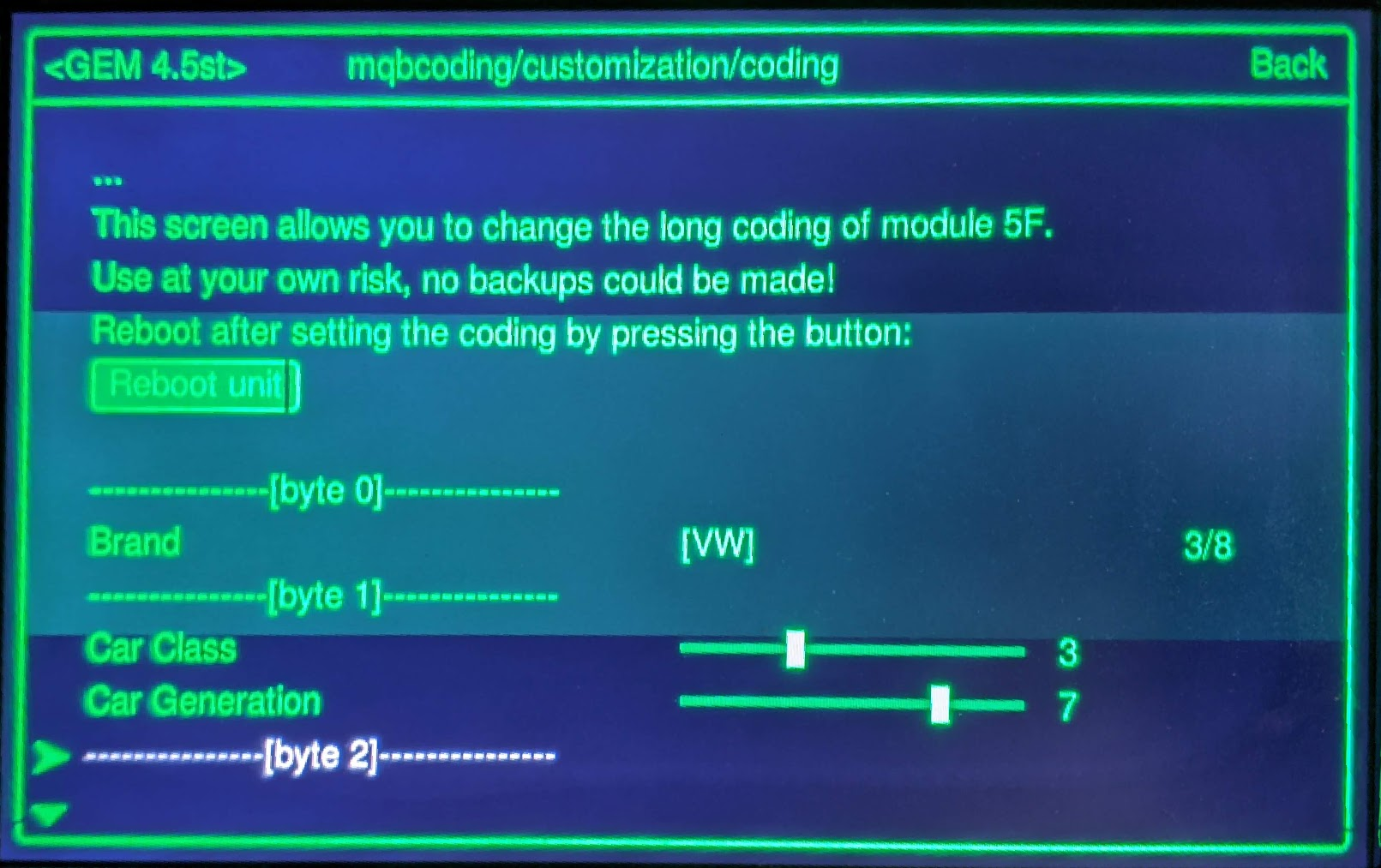 If that's already set to the correct brand, move on to…
Installed Map
Perhaps the wrong map pack is installed for you region?
Unless you're sure the unit had appropriate local maps installed beforehand, you may want to find / download the latest maps for your region.
For the most part map packs are comparable between brands, so you can find the latest maps for a Harman High unit from https://app-connect.volkswagen.com/mapupdates/car/
Select a "Golf from 2015" for MIB2 or "Golf from 2017" for MIB2.5, then "Discover Pro". Then the appropriate region pack.
Download and extract on SD card or USB Stick. Install onto unit like any other update through the Service Menu.
If the Update screen "Start" is disabled, scroll down until you see the NavDB and related lines:
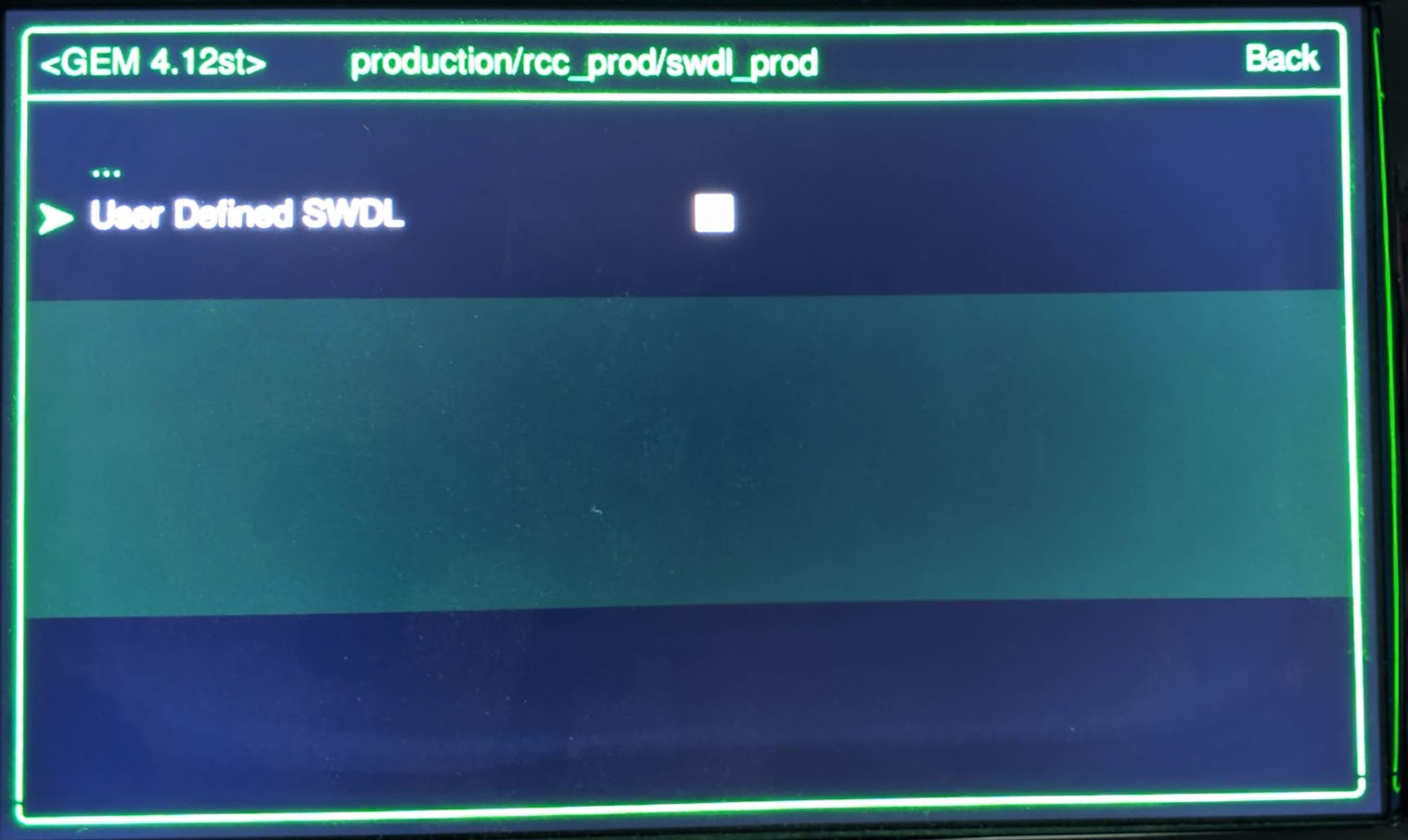
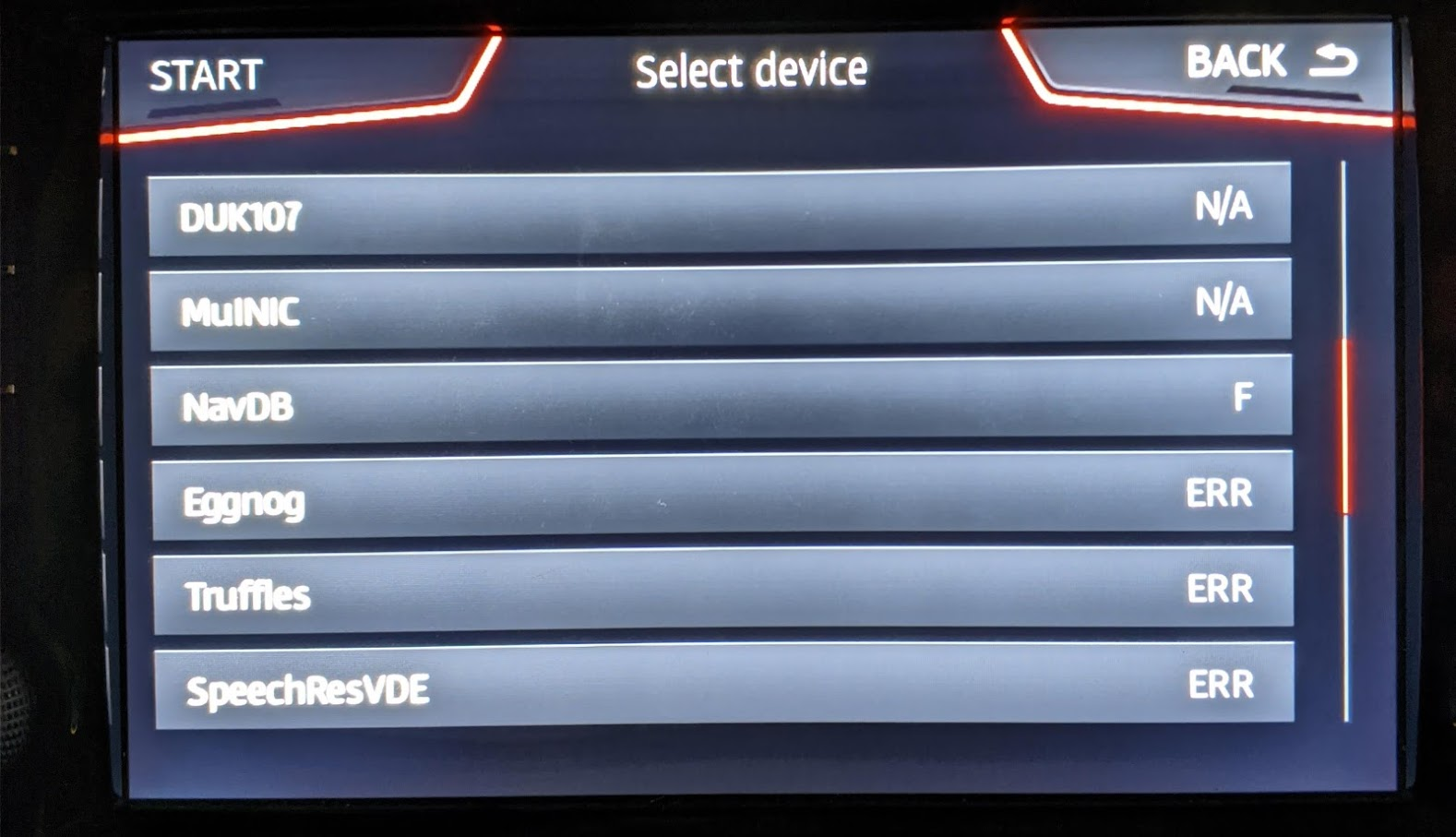 if they're not marked Y you'll need to overide these. Go back to the Service Menu → Testmode → Green Engineering Menu.
Go to "production" → "rcc_prod" → "swdl_prod" and enable "User Define SWDL"
 Start "Service Menu" again, "Testmode" → "SWDL"
\
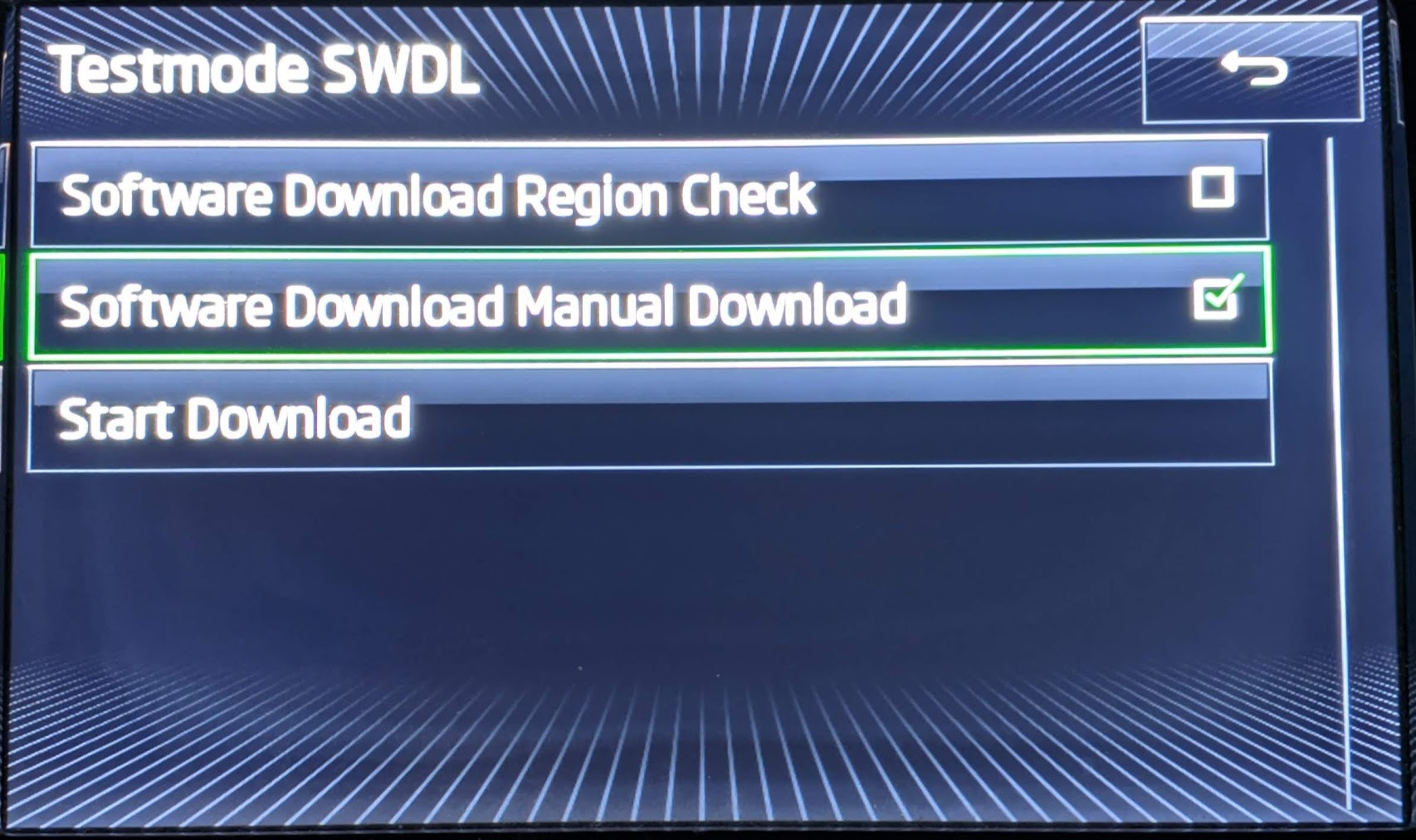 Click on "Software Download Manual Download". It may or may not show a checkbox, just click on it once either way.Tthen click on "Start Download".
\ You should be at the Update screen now, start "Update" and go through the wizard. When you get to the module list screen though there should be a "Select All" button at the top you can press to override the NavDB and related modules not getting installed.
Hit this, and the Start button should now work.
Hopefully it now installs without incident for you.
However I had troubles installing this, getting error 137, 138 and 143 during the installation.
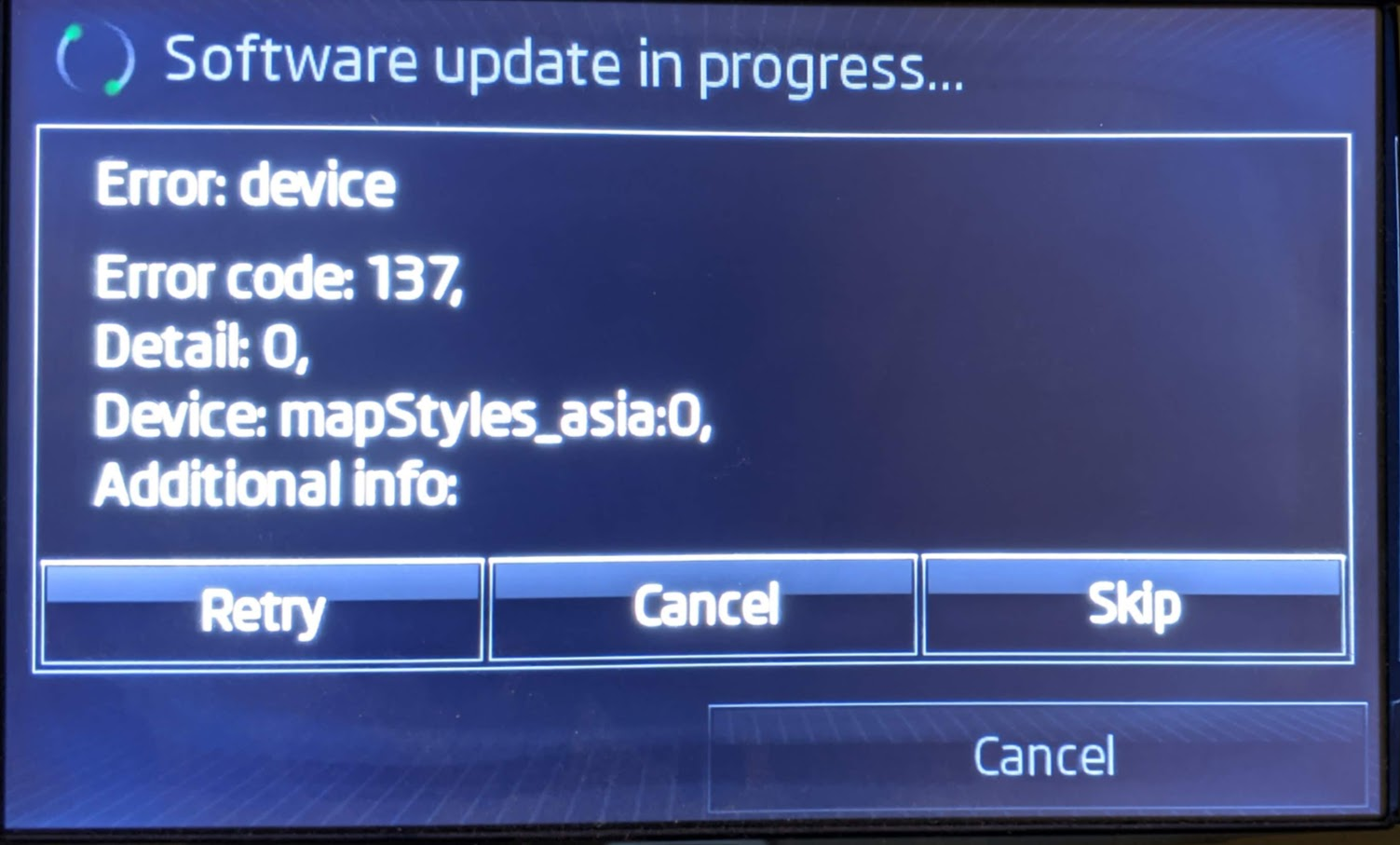 I had to re-try with different SD cards and a different map download pack a few times, usually with a different error on screen each time. Eventually it settled on showing this error a few times in a row, even with different map versions on different media.
Force wipe nav partition
I then manually wiped the navdb partition on the unit. On MXX console, run
umount /mnt/navdb
# umount(/mnt/navdb ) failed: Resource busy

mount | grep nav
# /net/mmx.mibhigh.net/mnt/navdb/speech/sr/vde/OC/common/common.iso on /mnt/speech-sr-vde-common type cd (rrip)
# /net/mmx.mibhigh.net/mnt/navdb/speech/sr/vde/OC/Australia/Australia.iso on /mnt/speech-sr-vde-Australia type cd (rrip)
# /net/mmx.mibhigh.net/mnt/navdb/speech/sr/vde/OC/common_poicat/common_poicat.iso on /mnt/speech-sr-vde-common_poicat type cd (rrip)
# /net/mmx.mibhigh.net/mnt/navdb/speech/sr/vde/OC/NewZealand/NewZealand.iso on /mnt/speech-sr-vde-NewZealand type cd (rrip)
# /net/mmx.mibhigh.net/dev/mnand0t178.8 on /mnt/navdb type qnx6
Ok there's a few images currently installed and mounted from navdb. Need to get these out of the way first
mount -uw /mnt/navdb
cd /mnt/navdb
ls
#  .     ..     .boot      database     eggnog      libcgdrv.so   root       speech      sr         truffles
rm -rf ./*
# rm: Can't unlink ./speech/sr/vde/OC/NewZealand/NewZealand.iso: Resource busy
# rm: Can't unlink ./speech/sr/vde/OC/common_poicat/common_poicat.iso: Resource busy
# rm: Can't unlink ./speech/sr/vde/OC/Australia/Australia.iso: Resource busy

# rm: Can't unlink ./speech/sr/vde/OC/common/common.iso: Resource busy
Right, most things are gone, just can't delete the speech folder yet. We can rename it though, then after a reboot it wont be found/used so we should be able to delete just fine
mv speech speech.bu
on -f rcc /usr/apps/mib2_ioc_flash reboot
Once it's rebooted, log back into the console and reformat the drive
mount | grep nav
# /net/mmx.mibhigh.net/dev/mnand0t178.8 on /mnt/navdb type qnx6
umount /mnt/navdb
echo "y" | mkqnx6fs -T media -b 32768 -i 32768 /dev/mnand0t178.8    # /mnt/navdb
# All files on /dev/mnand0t178.8 will be lost!
# Confirm filesystem re-format (y) or (n): y
# Format fs-qnx6: 1048572 blocks, 32768 inodes, 4 groups
mount /mnt/navdb
ls -la /mnt/navdb
# total 129
# drwxrwxr-x  3 root      root          32768 Jan 01 00:07 .
# drwxr-xr-x  2 root      root             10 Jan 01 00:00 ..
# drwx------  2 root      root          32768 Jan 01 00:07 .boot
Excellent, now it's empty.
I then tried installing the Nav update again, finally successfully.
With the other FEC, brand and regeon fixes above I finally had fully working Navigation!
After cross-flashing the firmware you your unit, there's a good chance your navigation will no longer work like so:
There are a couple of things that can cause problems like this, we'll fix both of them.
Map FEC Codes
The first thing to do is check the SWAP/Fec codes. Bring up the Service Menu and go to "Function Enabling Codes (FEC, SWaP)"
Go to Installed codes. It may have a list of codes like this (Valid or Invalid)
\
Or it might be blank
\
Either way, we need to make sure that a matching code for your brand & region has been added.
\ Maps FEC: 0ABCCCDD
| Section of FEC | Section Name | Details |
|---|---|---|
| A | Brand | 2 = Audi, 3 = Bentley, 6 = Porsche, 7 = Sitz, 8 = Skoda, 9 = VW, C = MAN |
| B | MIB version | 1 = MIB1 HIGH (Harman), 3 = MIB2 HIGH (Harman) |
| CCC | Region | 000 = Europe \n 100 = USA and Canada (NAR - North America Region) \n 400 = Middle East (AGCC - Bahrain, Kuwait, Oman, Qatar, Saudi Arabia, UAE) \n 401 = AGCC + Turkey \n 401 = AGCC + Turkey \n 402 = AGCC + Israel \n 500 = South Africa \n 600 = Australia and New Zealand \n 700 = India \n 800 = Argentina, Brazil and Mexico \n 801 = Chile \n 900 = Asia / Pacific \n D00 = Rest Of the World (ROW - Rest Of the World) |
| DD | Expiry | valid until year (DD is Hex value), 4c= 2030, FF = \~2075/Lifetime |
Examples MIB2 High:
| Skoda | 0830004c | Europe until 2030 |
|---|---|---|
| Audi | 0230004c | Europe until 2030 |
| VW | 093D004c | ROW until 2030 |
| Seat | 0730004c | Europe until 2030 |
So using this info figure out what the desired code should be for your brand & region and check if it's already in the list of valid codes. Note: it might be there with a different expiry, if so check the expiry year (in hex) is still valid, else it will need replacing.
If it's missing, needs replacing or there are no codes at all, it's time to break out M.I.B. - More Incredible Bash
Make sure you've got V2.7.4 (or newer).
Download and install this tool onto a SD card, then go into the patches folder and find the one that matches the firmware you've got installed:
Open up the "addFecs.txt" file in a good text editor like Sublime Text or Notepad++ (windows built in notepad is not always safe with regard to line endings)
Add the Maps FEC you've calculated above. There will likely be a similar map code already there, but possibly for a different region. If so, replace it with your desired code.
Make sure you leave an empty line on the bottom of the file, or the last code might be missed!
Save and close the file, eject the SD card and insert into SD1 on the unit.
Go back to Service menu and "Software Update/Version" → "Update". Follow it through to install M.I.B. Launcher.
When the installer shows the summary screen of what was installed, just hit back and you can cancel/ignore the SVM thing for now.
Make sure you leave this SD card in SD1, M.I.B only works when the unit has this card inserted.
After it's finished installing and reboots back to normal mode, bring up "Service Menu" again, "Testmode", "Green Engineering Menu". There should now be a "=>m.i.b=" entry.
Go to that and scroll down to to the main menu of option.
If you haven't already done so previously you should really run a backup.
Then go to "patch_ifs-root" → "Flash patched image". This will enable many of the other m.i.b features.
Once it's finished it'll automatically reboot. Once back at normal screen, head back to the m.i.b GEM screen
This time, go to "patch_ifs-root" → "Add new Fecs to FecContainer.fec". This will install the FEC codes we put in the text file earlier.
Once that's done, you can go to "patch_ifs-root" → "Fix SVM Error" to clear the error from running the update previously. If you don't want to do that now, just reboot manually.
When the unit boots back up, hopfully you'll have operational maps again!
If not, move on to… \n
Map Region Setting
Another function in m.i.b allows you to change the navigation region.
From the m.i.b. GEM screen go to "navigation_activation" and click on the button to "Enable XX navigation" for the region you're using. It'll set the required flags then reboot.
Still no maps? next… \n
Car Brand Setting
If you've been cross-flashing, there can be a few different copies of the brand settings.
Even after I used M.I.B. to change mine, and cross-checked that in the eeprom, I still found I had no maps until I changed a separate brand setting in mib2-toolbox
Download and install that tool onto an SD card and install it on the unit like any other software update.
Once that's finished, head to GEM and there should be a new menu entry for mqbcoding. Navigate into mqbcoding → customization → coding and there will be a Brand setting. Make sure that's set to the brand you want/expect the unit to be and hit the Reboot button seen on the screen:
If that's already set to the correct brand, move on to…
Installed Map
Perhaps the wrong map pack is installed for you region?
Unless you're sure the unit had appropriate local maps installed beforehand, you may want to find / download the latest maps for your region.
For the most part map packs are comparable between brands, so you can find the latest maps for a Harman High unit from https://app-connect.volkswagen.com/mapupdates/car/
Select a "Golf from 2015" for MIB2 or "Golf from 2017" for MIB2.5, then "Discover Pro". Then the appropriate region pack.
Download and extract on SD card or USB Stick. Install onto unit like any other update through the Service Menu.
If the Update screen "Start" is disabled, scroll down until you see the NavDB and related lines:
if they're not marked Y you'll need to overide these. Go back to the Service Menu → Testmode → Green Engineering Menu.
Go to "production" → "rcc_prod" → "swdl_prod" and enable "User Define SWDL"
Start "Service Menu" again, "Testmode" → "SWDL"
\
Click on "Software Download Manual Download". It may or may not show a checkbox, just click on it once either way.Tthen click on "Start Download".
\ You should be at the Update screen now, start "Update" and go through the wizard. When you get to the module list screen though there should be a "Select All" button at the top you can press to override the NavDB and related modules not getting installed.
Hit this, and the Start button should now work.
Hopefully it now installs without incident for you.
However I had troubles installing this, getting error 137, 138 and 143 during the installation.
I had to re-try with different SD cards and a different map download pack a few times, usually with a different error on screen each time. Eventually it settled on showing this error a few times in a row, even with different map versions on different media.
Force wipe nav partition
I then manually wiped the navdb partition on the unit. On MXX console, run
umount /mnt/navdb
# umount(/mnt/navdb ) failed: Resource busy

mount | grep nav
# /net/mmx.mibhigh.net/mnt/navdb/speech/sr/vde/OC/common/common.iso on /mnt/speech-sr-vde-common type cd (rrip)
# /net/mmx.mibhigh.net/mnt/navdb/speech/sr/vde/OC/Australia/Australia.iso on /mnt/speech-sr-vde-Australia type cd (rrip)
# /net/mmx.mibhigh.net/mnt/navdb/speech/sr/vde/OC/common_poicat/common_poicat.iso on /mnt/speech-sr-vde-common_poicat type cd (rrip)
# /net/mmx.mibhigh.net/mnt/navdb/speech/sr/vde/OC/NewZealand/NewZealand.iso on /mnt/speech-sr-vde-NewZealand type cd (rrip)
# /net/mmx.mibhigh.net/dev/mnand0t178.8 on /mnt/navdb type qnx6
Ok there's a few images currently installed and mounted from navdb. Need to get these out of the way first
mount -uw /mnt/navdb
cd /mnt/navdb
ls
#  .     ..     .boot      database     eggnog      libcgdrv.so   root       speech      sr         truffles
rm -rf ./*
# rm: Can't unlink ./speech/sr/vde/OC/NewZealand/NewZealand.iso: Resource busy
# rm: Can't unlink ./speech/sr/vde/OC/common_poicat/common_poicat.iso: Resource busy
# rm: Can't unlink ./speech/sr/vde/OC/Australia/Australia.iso: Resource busy

# rm: Can't unlink ./speech/sr/vde/OC/common/common.iso: Resource busy
Right, most things are gone, just can't delete the speech folder yet. We can rename it though, then after a reboot it wont be found/used so we should be able to delete just fine
mv speech speech.bu
on -f rcc /usr/apps/mib2_ioc_flash reboot
Once it's rebooted, log back into the console and reformat the drive
mount | grep nav
# /net/mmx.mibhigh.net/dev/mnand0t178.8 on /mnt/navdb type qnx6
umount /mnt/navdb
echo "y" | mkqnx6fs -T media -b 32768 -i 32768 /dev/mnand0t178.8    # /mnt/navdb
# All files on /dev/mnand0t178.8 will be lost!
# Confirm filesystem re-format (y) or (n): y
# Format fs-qnx6: 1048572 blocks, 32768 inodes, 4 groups
mount /mnt/navdb
ls -la /mnt/navdb
# total 129
# drwxrwxr-x  3 root      root          32768 Jan 01 00:07 .
# drwxr-xr-x  2 root      root             10 Jan 01 00:00 ..
# drwx------  2 root      root          32768 Jan 01 00:07 .boot
Excellent, now it's empty.
I then tried installing the Nav update again, finally successfully.
With the other FEC, brand and regeon fixes above I finally had fully working Navigation!