How to boot ifs-emergency.ifs (start blue emergency EFU)
Stop IPL by sending break on power on
In CLI prompt, enter "boot -t emerg" to start Emergency IFS which loads from ifs-emergency.ifs of RCC NOR partition
Emergency IFS runs in two modes:
- 1st boot
- 2nd boot
:::tip Stopping IOC watchdog in Emergency IFS on the 1st boot is not possible! After 60 seconds it will force the reboot of the Emergency IFS and log you off.
So the best you can do on the 1st boot is to login as root with RCC emergency password and enter:
echo dummy >/HBpersistence/DeveloperMode
:::
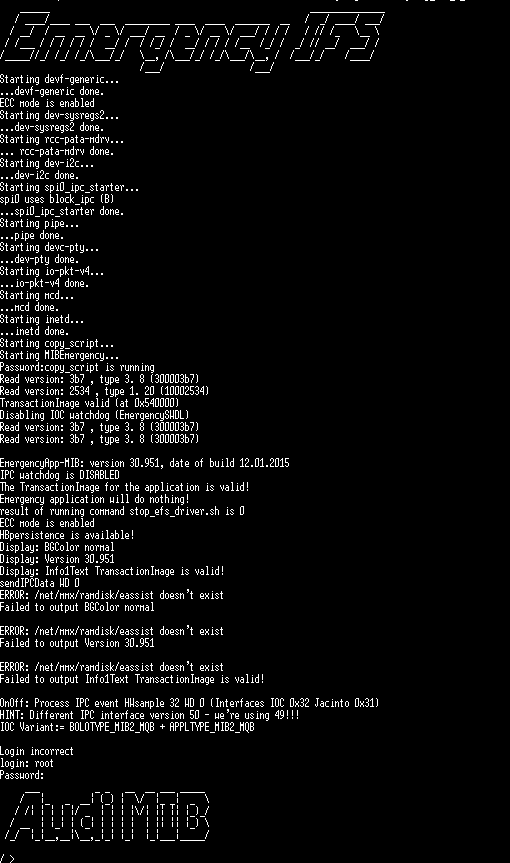
Example of the Emergency IFS 1st boot:
After 60 seconds on the 2nd boot, Emergency IFS detects that it was rebooted, switches off IOC watchdog, shows a special banner and starts it's own countdown timer:
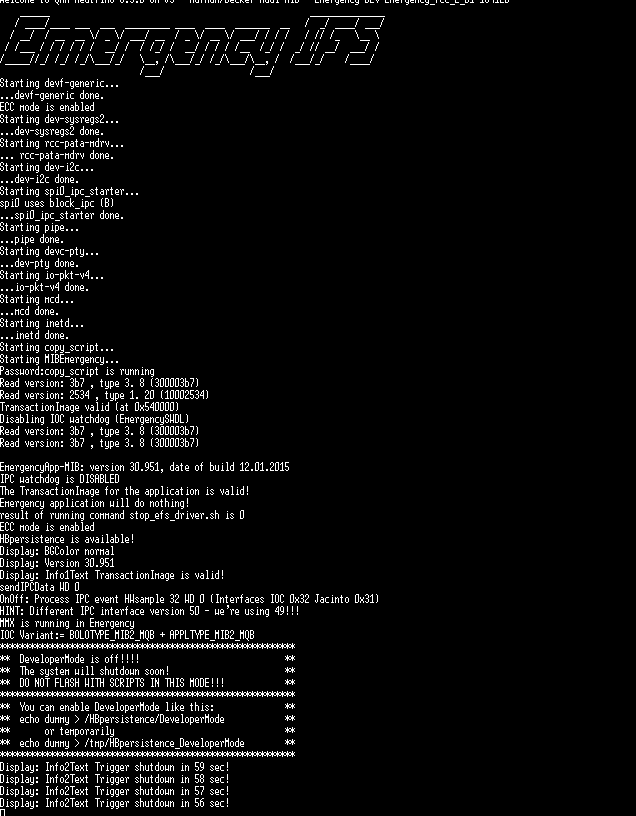 If DeveloperMode is off (by default), to stop Emergency IFS't timer from rebooting, you have to login via root with RCC emergency password and enter:
"slay -9 MIBEmergency"
After this you have unlimited time to fix stuff ;)
Enabling DeveloperMode in Emergency IFS
***********************************************************
**  You can enable DeveloperMode like this:              **
**  echo dummy > /HBpersistence/DeveloperMode            **
**       or temporarily                                  **
**  echo dummy > /tmp/HBpersistence_DeveloperMode        **
***********************************************************
This commands can be entered in Emergency IFS on 1st boot, 2nd boot and even in normal boot mode too:
mount -uw /net/rcc/mnt/efs-persist
echo dummy > /HBpersistence/DeveloperMode
:::tip DeveloperMode prevents 2nd boot Emergency IFS from running a countdown timer, so you do not need to enter "slay -9 MIBEmergency" anymore.
When DeveloperMode is enabled, Emergency IFS will not show a special banner anymore.
:::